
How To
Removing linked Data
CCH IFirm Personal Tax
Removing linked data ;
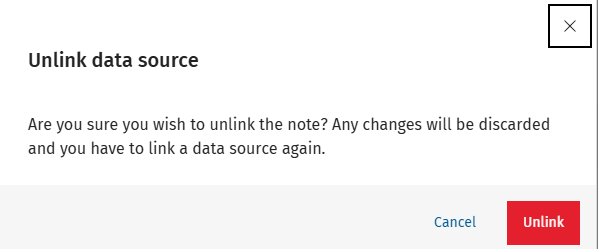
- In the Self Employment form, click 'Unlink'
- Confirm the action by clicking 'Unlink' again
Related documents
Getting Started with CCH iFirm Personal Tax
This document provides a step-by-step guide for using CCH iFirm Personal Tax via CCH Central. Key prerequisites include having the latest version of CCH Central, necessary user permissions, and .Net 8.0 runtime installed. Users must access the CCH iFirm Console for authentication and synchronization. The process for creating personal tax returns in CCH iFirm is outlined, including selecting the tax year and necessary client details. Additionally, there are instructions for managing user access within Organisation Management, ensuring employees can utilize the software effectively.
Pension Contributions: CCH iFirm Personal Tax
To open the Pension contributions data source, click on Pension contributions from the data sources list.
NIC Adjustments
NIC adjustments are automatically added to the data source list when the Self-employment data source is added to the tax return.
UK dividends - Dividends from UK companies
This document provides instructions for entering dividends from UK companies in a tax management system. Users are guided to access the Dividends section, add company details, including name, description, date, and dividend details. It explains the process for modifying distribution types, adding multiple entries, and saving the information. A summary section is mentioned, which displays the compiled entries at the bottom of the screen.
UK Interest - Interest from banks
This document provides instructions for inputting bank interest information in the CCH iFirm Personal Tax system. Users should access the Interest from banks section via the left menu or Self Assessment screen, add bank/lender names and interest amounts, and have the option to add or delete entries. A summary of total interest received is displayed at the bottom of the screen. Users must save their changes by clicking the Save icon in the top right corner. Additional resources for data entry are also available.