How to suspend access to CCH OneClick at client level, how to reinstate access, and how to delete a client's CCH OneClick account from CCH Central.

Suspend client access for CCH OneClick

You can suspend your client's access to CCH OneClick either temporarily, or permanently if you cease to act for the client.

Note If you want to use the 'Close Client' feature in CCH Central, you must suspend the client's CCH OneClick account first.

On the following screen, client Deborah Cookie is activated, and has  on a green target icon in the find clients screen:

clipboard_ed5bda9d400943cb23f31d0faefcd7474.png

Double-click the client name to open the client record.

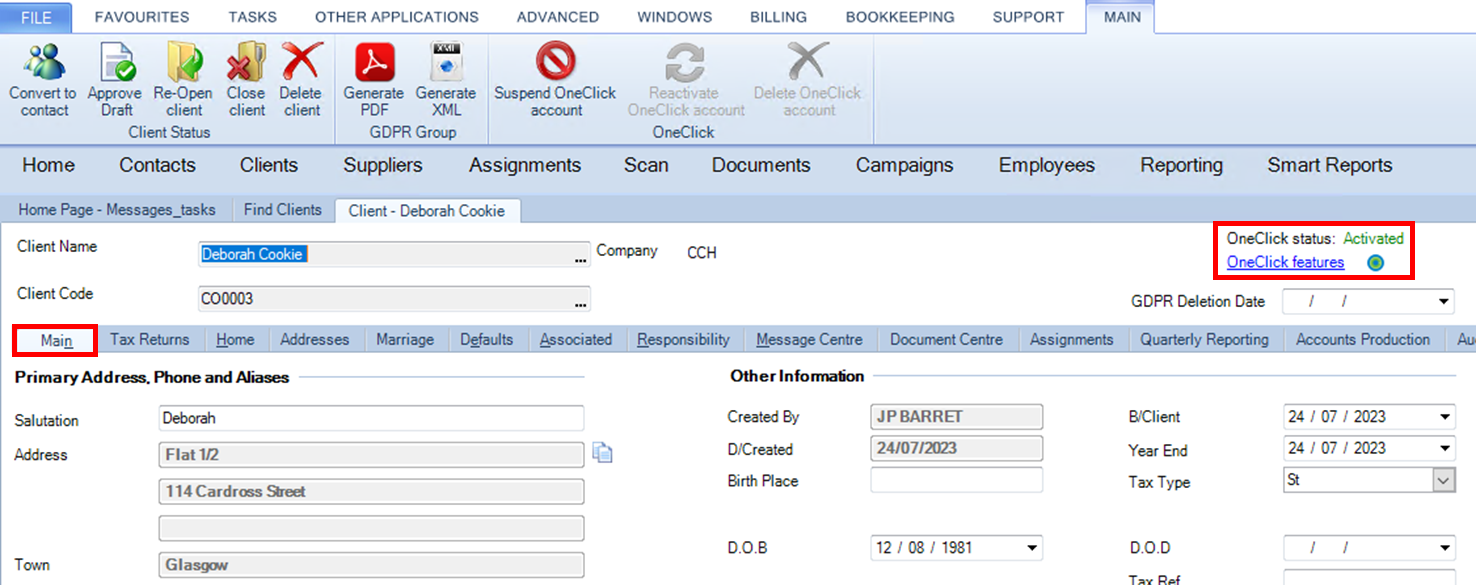
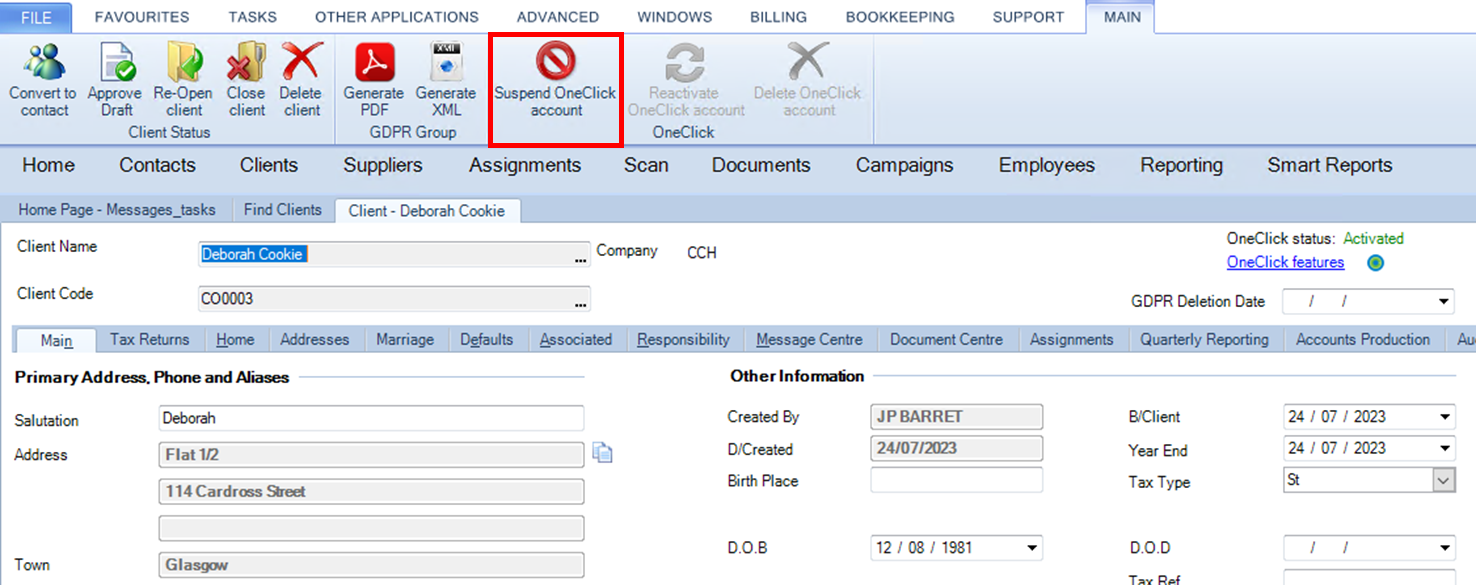
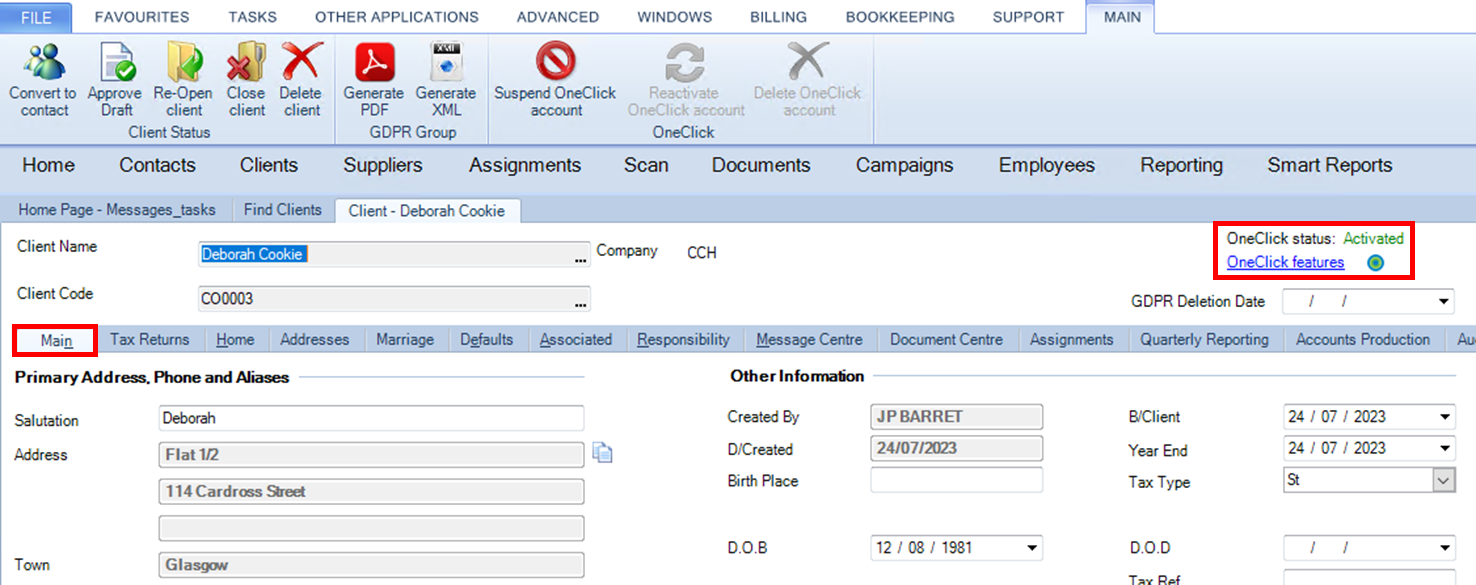
Select the Main subtab, and check the OneClick status. It is currently activated.
clipboard_e6296fb2daf1a12e051f19a95aea4ecf5.png

Click the 'Suspend OneClick account' icon on the ribbon bar.
clipboard_ed719e531af3aa31ceca9f47055ae12da.png

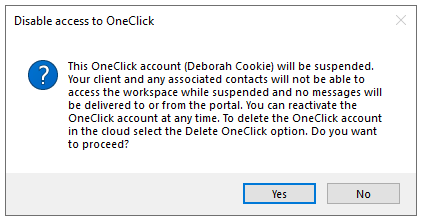
An information message is displayed. 

clipboard_ea8b9ce2eecfa0b36c32b3993dd5f12bf.png

When you click Yes, the OneClick account for this client is suspended, and no contacts for this client are able to log into the client workspace. You can no longer send any new messages or documents to this client.

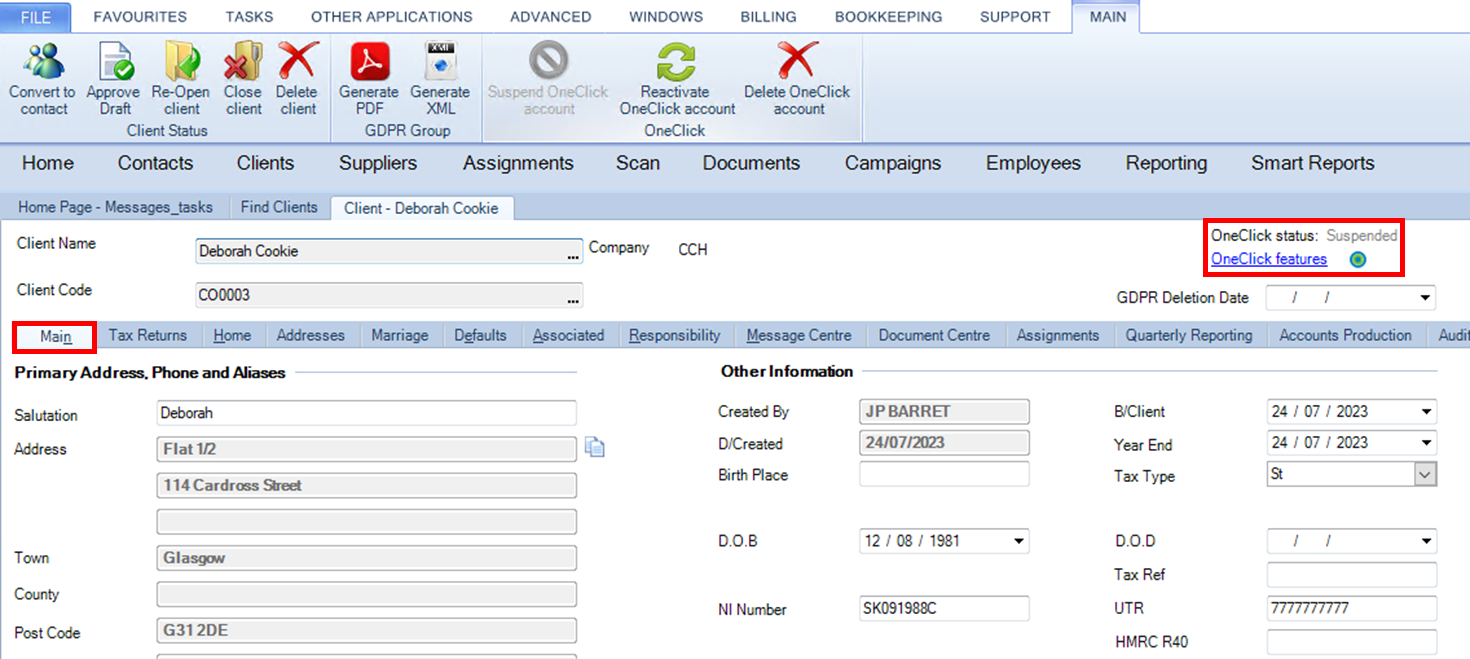
The OneClick status for the client record is now 'Suspended'.
clipboard_ebd4f038c9bb700d39c81b1e9ec9d2232.png

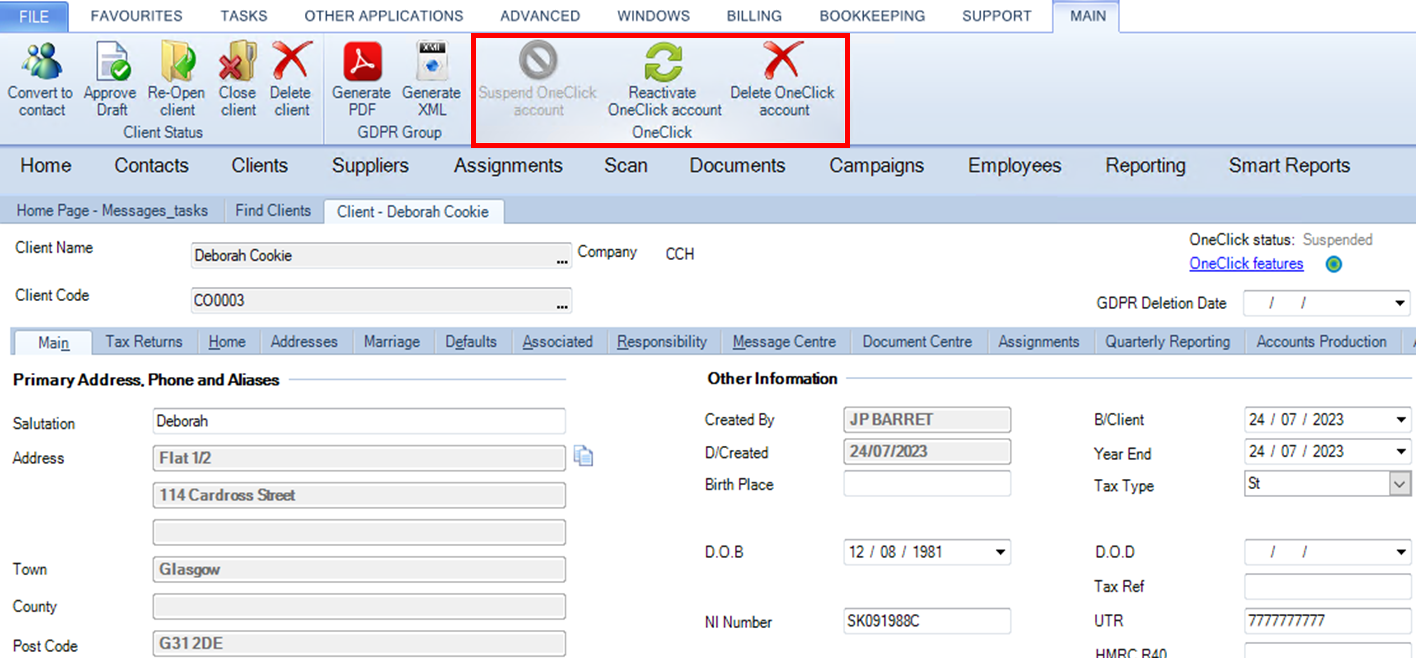
And the OneClick section of the ribbon has also changed.


The 'Suspend OneClick Account' icon is greyed out and 2 additional icons are active: 'Reactivate OneClick Account' and 'Delete OneClick Account':
clipboard_e27edc57b0fe82cff6a772187a6617cd3.png

Reinstate client access for CCH OneClick

You can re-activate a suspended client at any time. 

Open the client record, and select the Main tab.

Click on clipboard_e538cedd9f2cd6fb862ab0cc841234de4.png on the ribbon bar.

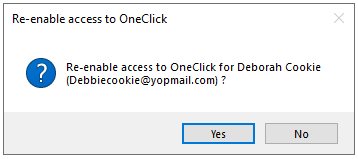
You will see this message when there is only one activated contact:
clipboard_e74def8073244fc45dcc83a24f691054c.png

Or this message when there are multiple activated contacts:
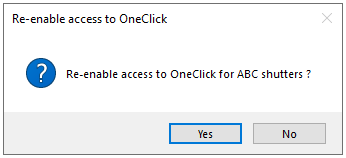
clipboard_e5ce3fe5fe0d342dbe34420bf3cf85659.png

  • Click Yes to confirm the reactivation. The OneClick status will revert to 'Activated'.
clipboard_ea8968579457fa8f3e1db487165dd85ff.png

Delete a client's CCH OneClick account

Take Care! When you delete a client's CCH OneClick account all their message and document history is deleted from the 'Message Centre' tab, and there is no undo process for this. (If you have the CCH Document Management product, a copy of all messages and documents is saved in the client's 'Document Centre' and these are not deleted by this process).

You can delete a client's CCH OneClick account only if the account is first suspended (see above).

Check that the client's status is suspended

clipboard_ebd4f038c9bb700d39c81b1e9ec9d2232.png

Click on clipboard_ef3e991fe0f4c7902bc7470077378d625.png from the ribbon bar of the Main subtab.

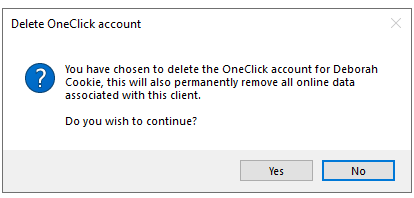
You will get this message: 

clipboard_eb0d627b8d2ff78f7edd343451dc7a939.png

Click Yes to confirm the deletion.

clipboard_e88ab5fecce6e10fe1c6762268700ba01.png

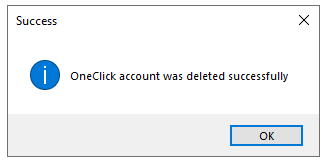
Click OK

The OneClick status will show as 'Not activated'.

Related documents

Step by Step Guide to Making Tax Digital (MTD) : HMRC sign up
This user guide assists users in navigating the sign-up process for Making Tax Digital (MTD) for VAT, clarifying that while Wolters Kluwer does not facilitate the sign-up, it has provided this resource to ease the process. Key points include creating an Agent Services Account for agents, the significance of the Business Tax Account, the steps to link existing and new clients, and the requirement for MTD-compatible software for submissions. It also highlights deadlines and contact information for HMRC support. Additionally, it refers users to helpful webinars and resources related to MTD.
eSign User Guide
This document outlines the operational guidelines for using the eSign functionality within CCH Central, emphasizing the need for Microsoft Edge WebView2 Runtime installation. It details the eSign and Approval processes for sending documents, including directions for document preparation and the management of multiple signatories. Key features include newly added email templates, internal signature capabilities, and updated status tracking in both Message Centre and Document Centre. Users can utilize various acrofields for signatures and customize their signing experience. Enhanced communication is facilitated through automated notifications and document management functionalities.
CCH OneClick 2026.1: Release Notes
Release Notes for CCH OneClick 2026.1
Get Started with Making Tax Digital for VAT
This document outlines the essential resources and steps required for getting started with Making Tax Digital (MTD) for VAT. Key points include the necessity to register with HMRC, create an agent services account, and authorize Wolters Kluwer Software. It emphasizes the importance of having a CCH OneClick account to access MTD features. The document also provides quick start guides, video tutorials, and client resources to facilitate a smooth transition to digital VAT returns. Additionally, there are links to guides for both clients and advisors to enhance understanding and implementation of MTD processes.
Activating individual clients
This document provides a comprehensive guide on activating individual clients for the CCH OneClick client workspace. It outlines necessary pre-checks, including verifying unique client email addresses and team responsibilities. The activation process can be done for single or multiple clients, with detailed steps for each. Additionally, there are options for enabling various features within OneClick for clients, including sending welcome messages and monitoring activation status. The document also highlights optional features available for clients after activation, ensuring effective client management within the OneClick system.