A tag is a label to someone or something (for example a balance within a report of a Statutory Accounts) which is applied to a document for the purposes of identification within a taxonomy.

What is a tag?

A tag is a label to someone or something (for example a balance within a report of a Statutory Accounts). A tag is applied to a document for the purposes of identification within a taxonomy.

A taxonomy (or dictionary),  like the FRC (Financial Reporting Council) accounts taxonomy, present a list of tags in the same format as a set of typical accounts, with a profit and loss statement, balance sheet, notes to the accounts as appropriate. 

How the tags are presented within CCH Accounts Production?

Tags are stored on the format within CCH Accounts Production; they are showing on the cells and linked with the formulas.

Displaying the tags

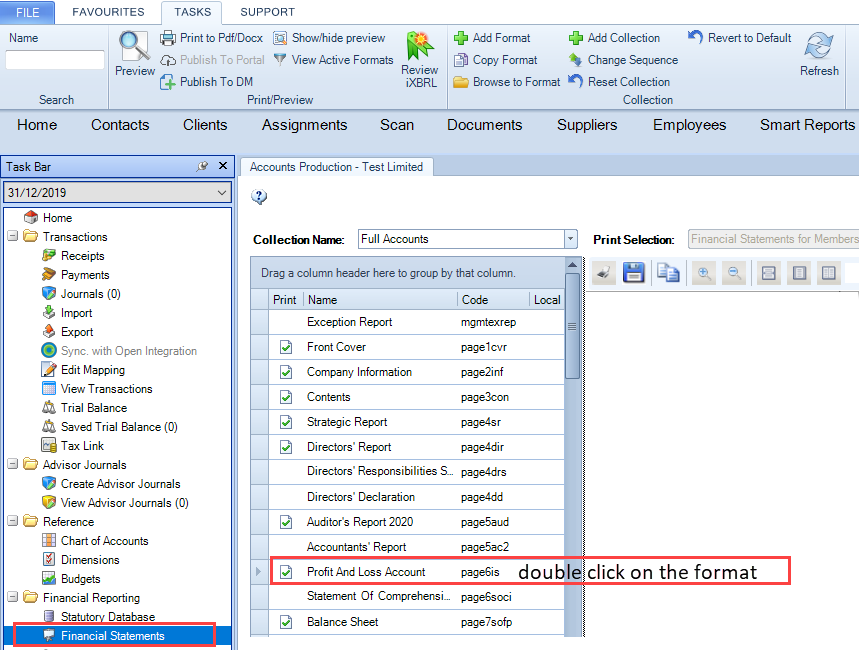
  1. Within CCH Accounts Production, click on Financial Statements.

  2. Select and open the format by double click on it, for example Profit and Loss Accounts (for FRS102) as below:
Tags on AP.PNG

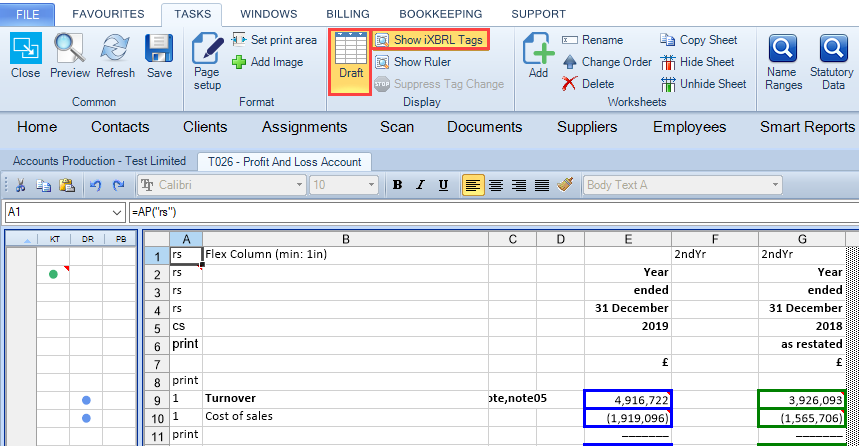
  3. The format opens in a new tab, from the ribbon click on Draft and then click on Show iXBRL Tags.
Tags on AP - Draft on.PNG

  4.  As above, the cells which are highlighted (E9, E10, G9, G10) are tagged. When the cell is highlighted in blue or green,  it means that the tag was generated by the system.

Blue corresponds to Current period

Green corresponds to Prior period

  5.  Hoover over any tag to see its information.

Tags on AP - hoover.png

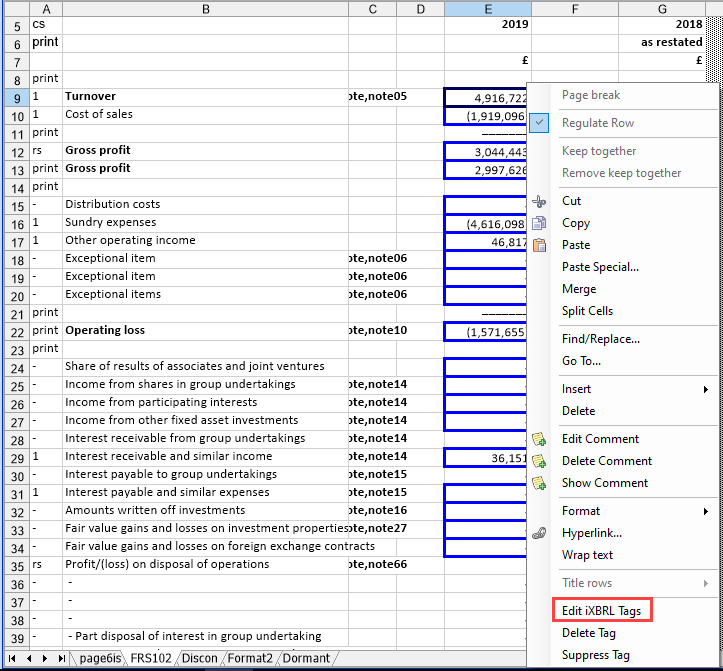
 6.  To check the tag details and the taxonomy, right click on the tag and click Edit iXBRL Tags.
Tags on AP - Access taxonomy.PNG

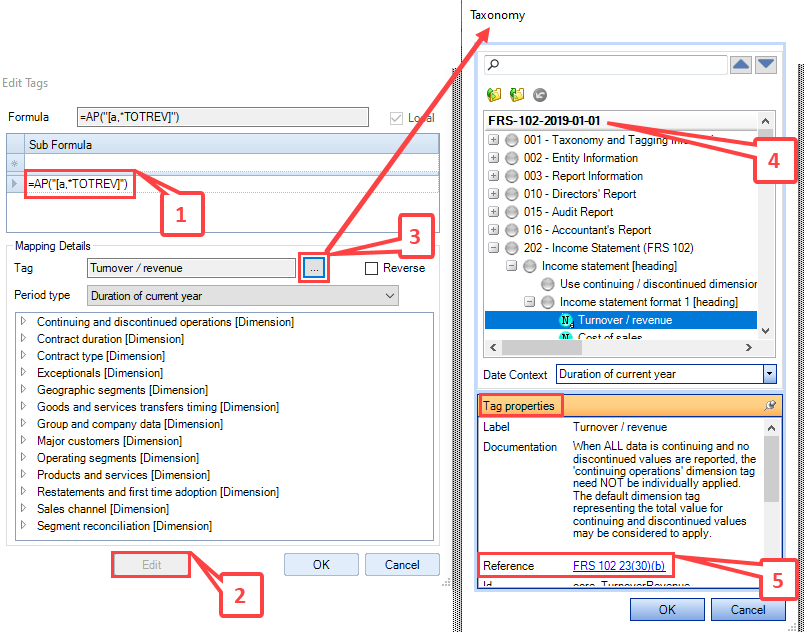
7. The following screens are displayed, they show the details of the formula linked with the tag (on this example Turnover for current year) and the taxonomy itself.
Tags on AP - Display screens for the taxonomy.PNG

  1. Shows the formula linked with the tag, on this example Turnover (name range TOTREV) for current year (letter a).
  2. Click on Edit to amend a tag within a format or simply to check the details of it.
  3. Click on the ellipsis button Buttom Ellipisis.PNG to display the Taxonomy dialog.
  4. The Taxonomy dialog opens, it shows all folders and subfolders where the tags are listed. The tag selected on the format will be highlighted, on this example Turnover / revenue under one of the Income Statement's folders.
  5. Tag Properties: this bottom grid shows details of the tag selected.

To access the options above, the user should have the required permissions. Any change on the formulas of the formats or on the tags applied in each cell will have an impact when generating the iXBRL file for submission therefore extra care on amending the format is recommended.

Related documents

CCH iXBRL Review & Tag: Training for Accounts conversion from MS Word and Excel (10133768)
This document outlines a training course for converting statutory accounts from Word and Excel into iXBRL format using CCH iXBRL Review & Tag. The course, lasting up to 3 hours, targets users needing to tag accounts for submission to HMRC and Companies House. Key objectives include understanding iXBRL requirements, importing documents, applying tags, and the submission process. Prerequisites include familiarity with accounts and having credentials for HMRC and Companies House. Additional resources such as eLearning courses and webinars are also provided for further learning.
CCH Accounts Production/iXBRL essentials training online (10133804)/(10133819)
This document outlines a course on using CCH Accounts Production software, aimed at helping new users efficiently produce statutory accounts. The course includes 1 x 2 hour session and 1 x 3 hour session focusing on practical skills such as setting up accounting periods, importing trial balances, and navigating the software. It is designed for all employees involved in preparing statutory accounts. Training is conducted in an interactive environment called CloudShare, with additional resources available online for further learning and support.
CCH iXBRL Review and Tag 2026.1
The latest release of CCH iXBRL Review and Tag
View
The document outlines the features of a software interface with two main tabs: "CCH iXBRL Review and Tag" and "Companies House Submission." The first tab provides product version details and access to review and tagging settings, which are further explained in a linked system administrator guide. The second tab includes functionalities related to the Companies House licensed module, with an option to update the license if it has expired. Visual elements include images depicting the interface for clarity.
Introduction: Tagging Detailed Profit and Loss
The document outlines the process for tagging the Detailed Profit and Loss (DPL) statement for HMRC compliance, indicating that it must be submitted with either Accounts or tax computations, but not both. It specifies that CCH provides two options for tagging the DPL: via the CCH Corporation Tax return or using CCH iXBRL Review & Tag. Additionally, a link is provided for further instructions on tagging the DPL through the Corporation Tax method.