
How To
Template Creation
CCH Working Paper Management
To create your own practice working paper templates , navigate to File > Maintenance > Working Papers > Templates
- To create your own practice working paper templates , navigate to File > Maintenance > Working Papers > Templates
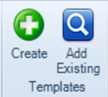
- On the ribbon, select Create
Note: if you have existing Word or Excel templates used by your practice you can add them here by selecting Add Existing
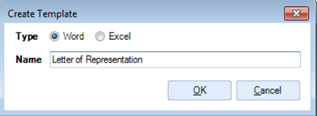
- Select the type of template you want to create, give it a name then click OK
- This will open the relevant program so you can edit your template
Microsoft Word
- The Insert Merge Field box will appear

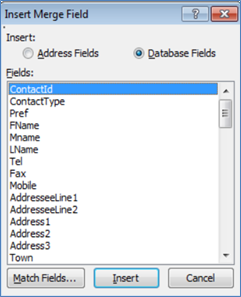
- These merge fields take their data from the Central database Insert any merge fields you require to your template Add any any other text to the templates at this stage If you need to re-open the Insert Merge Field box, select the Mailings tab on the ribbon and select Insert Merge Field

- Once you’re happy with the template, it needs to be checked back in to the system There are 2 ways to do this:-
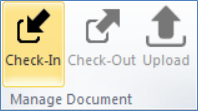
- Select Check In on the CCH Document Filing tab then close the document
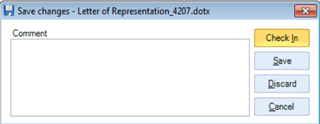
- Close the document and select Check In on the box that appears
Microsoft Excel
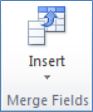
- The process to insert a merge field into an Excel template is slightly different The Insert Merge Field option can be found on the ribbon within the CCH Document Filing tab
Editing Templates
- Word and Excel templates can be edited within File > Maintenance > Working Papers > Templates by selecting Edit on the ribbon bar

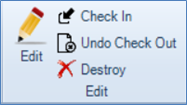
- To ensure the template is available for use, it needs to be checked in to the system once any changes have been made This can also be done from the ribbon (as above) If a template is checked out of the system the name of the user who has it checked out will appear next to the template name

Related documents
Quick Start Guide
The document provides an overview of CCH Working Paper Management, a module integrated with CCH Accounts Production that facilitates the organization and management of working papers linked to financial statements. Key features include customizable templates, review functionalities, and centralized storage, which enhance workflow consistency and transparency across accounting practices. The module is equipped with restrictions related to specific master packs and user permissions. Overall, it aims to streamline accounting processes, improve collaboration, and maintain document integrity within the CCH software environment.
Homepage
This document provides a step-by-step guide on setting up the homepage for CCH Working Paper Management. It covers selecting a view, customizing the layout using the Toolbox, resizing components, accessing hidden columns, and applying filters. Additionally, it explains how to add tabs for notes, links, and sign-offs, and concludes by instructing users to save their changes and rename the homepage.
CCH Working Paper Management - Known Issues
The document outlines known issues related to CCH Working Paper Management as of June 2022. It details specific problems, such as PDF preview failures, tree node collapses during reviews, and errors with the statutory database. Workarounds are provided for some issues, while others are marked "TBC" (to be confirmed). It encourages users to join the CCH Central 'Group' on the Support Portal for updates on management tools and issues.
CCH Working Papers 2020.3 Hotfix: Release Notes
The document presents the release notes for CCH Working Papers 2020.3 Hotfix by Wolters Kluwer (UK) Limited. It emphasizes the importance of consulting the latest release notes for updates. The document includes a legal disclaimer stating that the information provided is for informational purposes only, and Wolters Kluwer is not liable for any inaccuracies. It also notes that all content is confidential and proprietary. Trademark information for various software is mentioned, along with a copyright statement prohibiting unauthorized reproduction or distribution of the release notes.
CCH Working Papers 2024.2 Hotfix: Release Notes
The document contains release notes for CCH Working Papers 2024.2 by Wolters Kluwer (UK) Limited, emphasizing the effort to ensure accuracy and completeness. It includes a disclaimer noting that the information is subject to change and should not be relied upon as a detailed software specification. The content is confidential and protected by copyright. Trademark rights are acknowledged for various software products. The document serves informational purposes and outlines the company's legal position regarding liability and intellectual property.