
Toolbox: Budget Variance
Toolbox: Budget Variance Option
The Billing Variance Homepage control, allow users to have a flexible and detailed view of their Actual Fees V Budgeted Fees.
When you drag the Budget Variance option from the Toolbox, you see a chart that displays the budget as a line graph and the actual figures as a bar chart.
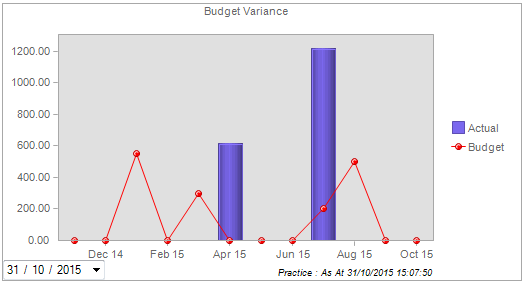
The Toolbox is displayed when you click on Customise homepage on the Task Bar.
Right-click the display to show the drop-down menu. From this menu you can change the filter criteria for the chart, for example:
The filter criteria name appears at the foot of the chart.
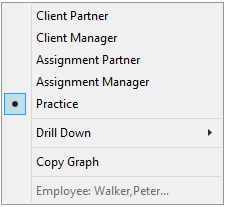
- Client Partner shows the budget variance information for clients when the Client Partner is the logged in user
- Client Manager shows the budget variance information for clients when the Client Manager is the logged in user
- Assignment Manager shows the budget variance information for clients when the Assignment Manager is the logged in user
- Practice shows the budget variance information for all clients in the practice regardless who is the logged in user
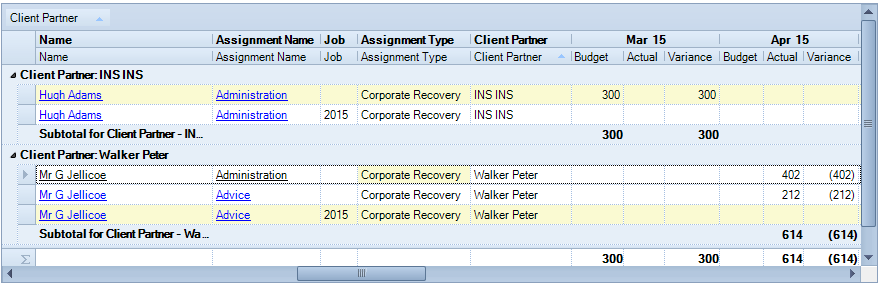
- Drill Down opens the Budget Variance window that shows the select month's budget and actual figures. From this window, you can navigate to the client page of a selected client to view or edit their assignment information.
Click on the name to open the client's assignment page.
-
Copy Graph allows the user to copy and paste the chart into another application.
The information from the Budget Variance screen is displayed against Job level if it exists, otherwise it is displayed at assignment level.
When viewing the 12 month display, the selected fields are fixed so that it is possible to scroll left and right to see specific months, as the amount of data that is displayed cannot be sensibly viewed without a scroll bar.
The Budget figures are populated from the information entered on the Assignment WIP tab. The Actual figures check both client and assignment bills and then displays the portion of the bill specific to each assignment/job. Assignment Name is hyperlinked to the assignment, so the user can either amend an existing budget or add a new budget.
Note: It is recommended to group the grid by Name or Client Code as this enables the user to easily see where a budget exists against a client who has not been billed or vice versa and the amount of the overall variance for that client. The assignment/job detail lines will further inform if there is specific work that was expected to be billed but has not been. The Name field cannot be removed from the grid.
After you select the filter criteria, the chart element box appears allowing you to change the way objects in the chart are displayed.