
Using the Find Data Control
Selecting Data
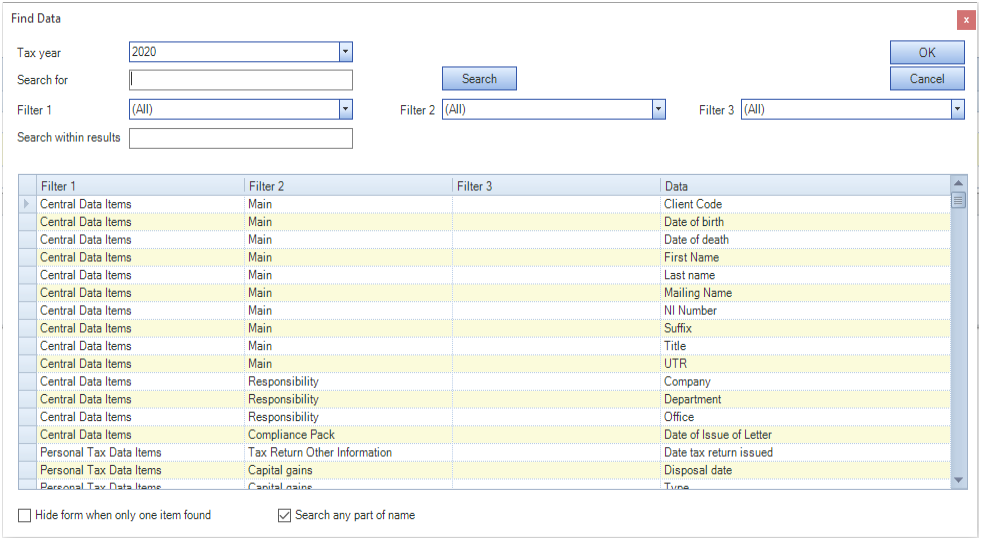
- Enter the search criteria in the Search for field.
- Click Search to display all the Data items matching your search criteria.
- Select the Data item you want to link to and then click OK or double-click on the Data item you want to select.
Filter Options
You can use the Filters to refine what Data items appear in the grid. The default value for each of the Filters is (All). Filter 1 is populated with the following values:
- Central Data Items
- Personal Tax Data Items
- SA100 Tax Return
- SA302 Tax Computation
Filter 2 will only be populated when a value is selected for Filter 1. Similarly Filter 3 will only be populated when a value is selected for Filter 2. Not all data items will have values for Filter 2 and Filter 3. When the value of a Filter is changed then the value(s) of the child filters are reset to (All).
Use the Search within results field to further narrow down the set of Data items returned. This field searches within the values of the Data items.
If the Search any part of name check box is not ticked then the Tax Return Bundle searches for values within the Data items. Else it searches based on Data items that start with that criteria.
If the Hide from when one item found check box is ticked then if the search returns one result then that result will be selected without you having to press the OK button.
Central Data Items
The following Central Data Items are available:
- Main window
- Client code.
- Date of birth.
- Date of death.
- First name.
- Last name.
- Mailing Name.
- NI number.
- Suffix.
- Title.
- UTR.
- Extra window
- The list of Name from this window
- Responsibility window
- Department
- Office
- Company
Personal Tax Data Items
The following Personal Tax Data Items are available:
- Capital gains window
- Disposal date.
- Type.
- Losses brought forward - Unused losses of 1995-96 and earlier years (Calculated)
- Losses brought forward - Tick to provide override figures.
- Losses brought forward - Unused losses of 1995-96 and earlier years (User entered)
- Enterprise Investment Scheme window
- Amount
- Company
- Tax Return Other Information window
- Date tax return issued