eSign

eSign allows you to send documents for approval from CCH Central to your clients’ CCH OneClick workspace that includes a simple electronic signature.

It is an integrated solution within the CCH Central suite that streamlines your document signing process. You will have the ability to load a pdf document from CCH Central, tag/highlight the areas in which a signature is required, and send/publish it to your client.

Video: eSign  Demo -
Full end-to-end flow of the eSign process
( 7 min)

clipboard_e438a82a74dcbae4d1f8d331f08ec22c2.png

Simple Signature

An electronic signature is a legal way to get consent or approval on electronic documents or forms. It can replace a handwritten signature in virtually any process. An electronic signature is a legal way to get consent or approval on electronic documents or forms. Our eSign solution currently provides what is known as a simple signature. This includes scanned signatures, tick boxes, and declarations.

Signatures in eSign

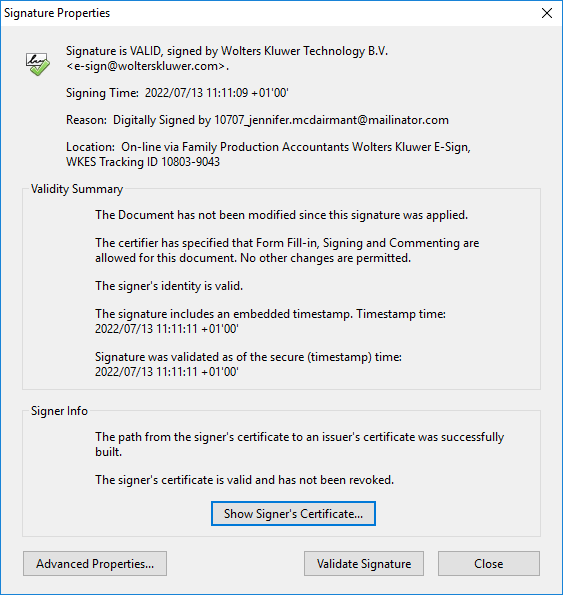
Currently, you can add a Date/Time acrofield along with a Signature acrofield onto a document which will populate and be recorded when the client signs the document. In addition, when clients eSign a document through CCH OneClick, we are embedding both a signature (scribble) and a digital certificate (with a date and time stamp) which validates and legalises the document accordingly. You can view this information when downloading the document and click/view the signature (and viewing the properties) as follows:
signature.png

Guidance on electronic signatures can be found here.

Related documents

Step by Step Guide to Making Tax Digital (MTD) : HMRC sign up
This user guide assists users in navigating the sign-up process for Making Tax Digital (MTD) for VAT, clarifying that while Wolters Kluwer does not facilitate the sign-up, it has provided this resource to ease the process. Key points include creating an Agent Services Account for agents, the significance of the Business Tax Account, the steps to link existing and new clients, and the requirement for MTD-compatible software for submissions. It also highlights deadlines and contact information for HMRC support. Additionally, it refers users to helpful webinars and resources related to MTD.
eSign User Guide
This document outlines the operational guidelines for using the eSign functionality within CCH Central, emphasizing the need for Microsoft Edge WebView2 Runtime installation. It details the eSign and Approval processes for sending documents, including directions for document preparation and the management of multiple signatories. Key features include newly added email templates, internal signature capabilities, and updated status tracking in both Message Centre and Document Centre. Users can utilize various acrofields for signatures and customize their signing experience. Enhanced communication is facilitated through automated notifications and document management functionalities.
CCH OneClick 2026.1: Release Notes
Release Notes for CCH OneClick 2026.1
Get Started with Making Tax Digital for VAT
This document outlines the essential resources and steps required for getting started with Making Tax Digital (MTD) for VAT. Key points include the necessity to register with HMRC, create an agent services account, and authorize Wolters Kluwer Software. It emphasizes the importance of having a CCH OneClick account to access MTD features. The document also provides quick start guides, video tutorials, and client resources to facilitate a smooth transition to digital VAT returns. Additionally, there are links to guides for both clients and advisors to enhance understanding and implementation of MTD processes.
Activating individual clients
This document provides a comprehensive guide on activating individual clients for the CCH OneClick client workspace. It outlines necessary pre-checks, including verifying unique client email addresses and team responsibilities. The activation process can be done for single or multiple clients, with detailed steps for each. Additionally, there are options for enabling various features within OneClick for clients, including sending welcome messages and monitoring activation status. The document also highlights optional features available for clients after activation, ensuring effective client management within the OneClick system.