Officers (in Accounts Production)
Introduction
To access this screen select Officers from the Financial Reporting folder in the Task list. A grid is displayed which will display contacts that have been associated as Officers for the entity. These may have already been imported into CCH Central through the Client's Associations screen, link: Associations for CCH Accounts Production or the grid may be blank. If blank contact will be linked through this screen.
Contacts that appear on the Officers screen will also be shown on the Client's screen under the Associated tab.
Adding an Officer
To link an officer to an entity, excluding the company secretary:
- Click in the first row of the grid (the data entry row).
- Type the officer's name, press enter,
- Select the officer from the resultant search box, click OK and enter to the end of the data entry row in the Officers screen.
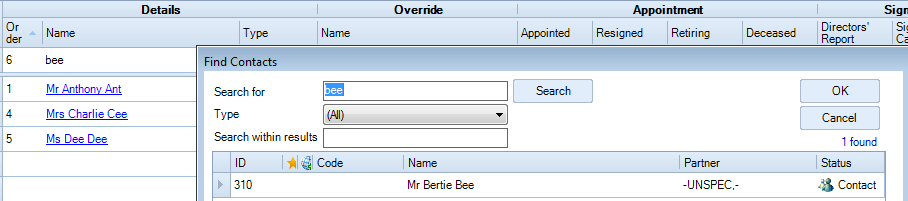
The order of the officers may be changed by changing the number in the Order column, note you cannot have duplicates.
Adding a Company Secretary
To select the company secretary, from the area above the grid, click the ellipsis button in the Secretary field. This brings up the search box, search for the required name, once found select and click OK. If the entity does not have a company secretary, click the box next to Dispense with Company Secretary, a message will be displayed advising that current details will be removed, click OK to continue.

Officer Maintenance
Name override
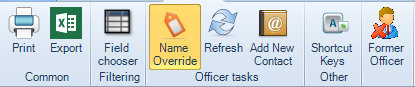
This is the option to override the name feeding through to the accounts. The name that feeds through to the Officers screen is the Central Contact/Client name. Depending on how the contact/client has been set-up this may not be how the name is to be displayed within the accounts. To be able to control how the Officer name is presented in the financial statements, click on the Name Override on the ribbon. This opens an Override field and the officers' names can be entered as they are to be displayed within the financial statements.
There is a Task Permission for this option called Name Override. If this permission has not been granted but is required contact your systems administrator. The override name will roll forward during the Year End routine.
Adding a new contact from within the Officers Screen
If a contact cannot be found when entering officers within the Officers screen, click on the icon 'Add New Contact' on the ribbon. This brings up the new Contact wizard and allows a new contact to be created, again subject to having the necessary Task Permission.
Accessing former officers of the entity
If an officer has a date of departure set during an accounting period, when that accounting period is rolled forward, the officer will be flagged as a former officer. To view select 'Former Officer' on the ribbon. Former Officers will be excluded from the list of officers displayed on the company (or partnership, etc.) Information page.
Directors Share Interests – required for ROI
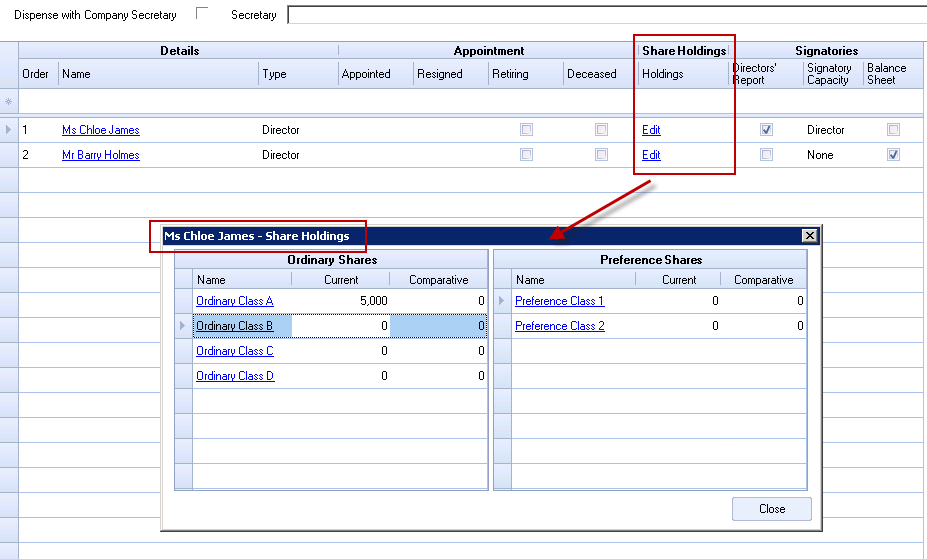
To disclose the Directors Share Interests on the Officers screen, first from the Field Chooser click and drag out the column header Share Holdings. Click the Edit link in the Share Holding column to display the data entry screen. A row will be displayed for each class of share that has been defined within the Statutory Database.