
Import: importing a trial balance or transactions
Set up
The standard structure of a .csv(comma delimited) file for a trial balance file to be imported is 3 or 4 columns for a single year dependent upon whether the debit/credit figures are in one column (credit will be entered as negative and debit as positive) or if they are split into two columns.
For example: column A = external code, column B = external description and column C = TB figures to be imported.
If you wish to use an alternative structure, before you use the import option, you need to setup the structure of the file to import and optionally a nominal mapping so that CCH Accounts Production understands how to import the data. The Mapping and File Structure areas are found under File > Maintenance > Accounts > Import/Export Definition and allow you to save the structure and mappings once created.
Importing a Trial Balance
- To import trial balances select Import from the Task Bar to the left of the screen.
- From CSV File click on the ellipsis button ... to browse and select the file to import (the file must be a .csv (comma delimited) file and must be closed). If your source file has headers, check this box and enter the number of rows. These will then be ignored when the import is processed.
- Import type click on the drop down arrow to select Trial Balance, selecting this will reverse any existing trial balance for the period.
- Mapping Name click on the drop down arrow to select the relevant mapping or leave as none if using CCH nominal codes.
- Structure Name choose the structure that relates to the file to be imported.
- Click Preview to show the details.
- Check the box Show Unmapped Only to show any unmapped items and map these directly in the grid. For the unmapped item the row under the column header To will be blank, click into this blank cell and enter the code or description, if the code does not exist press F10 will allow a new code to be created, if you have permission. Uncheck the Show Unmapped Only box to show all rows.
- Import button to the right Once you have reviewed all contents, click the Import button to the right of the screen to import the data.
Provided the imported data balances it will be posted, otherwise you will receive a message that the data does not balance and the batch will not be posted, you will need to make any corrections and re-import.
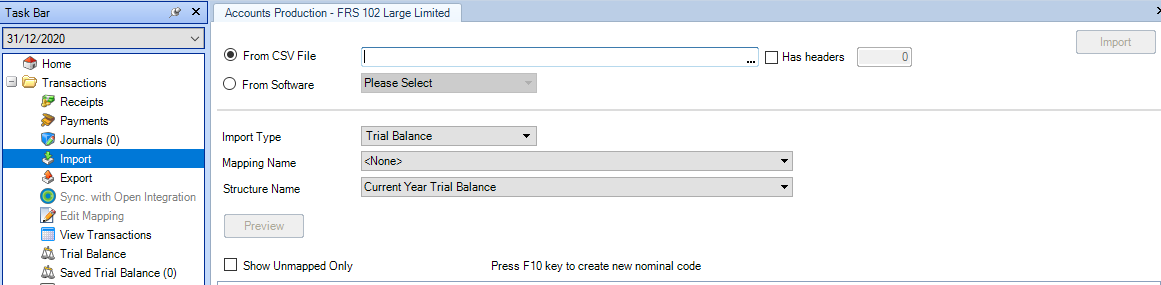

From: the nominals codes from the system being imported from, e.g. a 3rd party software.
Description: the 3rd party software / external description
To: The CCH Accounts Production nominal code
Amount: the current year's figures being imported, credits are shown as negative and debits as positive. Prior years will then follow to the right if applicable.
Importing Transactions
The process is similar to that described for importing a trial balance, the differences being:
- Import type chooseTransactions, the transactions imported will be appended to the existing transactions in the system and will be dated with the current period end date.
- Structure Name choose Transaction Listing (unless any others have been created within your organisation).
- You may only import transactions into the current year.
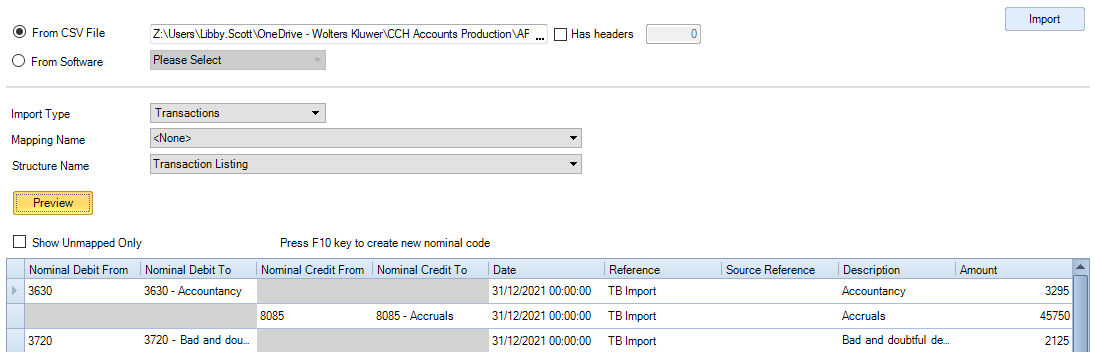
Nominal Debit From: The nominal debit codes from the system being imported from.
Nominal Debit To: The CCH Accounts Production nominal debit account that the balance will be posted to.
Nominal Credit From: The nominal credit codes from the system being imported from.
Nominal Credit To: The CCH Accounts Production nominal credit account that the balance will be posted to.
Amount: All amounts are shown as positive as the nominal determines whether a debit or credit entry
Ribbon

Print generates a formatted report of the trial balance(s) or transactions which may then be printed or exported to Excel, PDF, Html or Email.
Export allows you to export the trial balance(s) or list of transactions displayed to Excel.