
Claiming Relief for Losses / Loss Utilisation
Losses are dealt with in the Tax Planning area of the Data Navigator.
Losses are dealt with in the Tax Planning area of the Data Navigator.
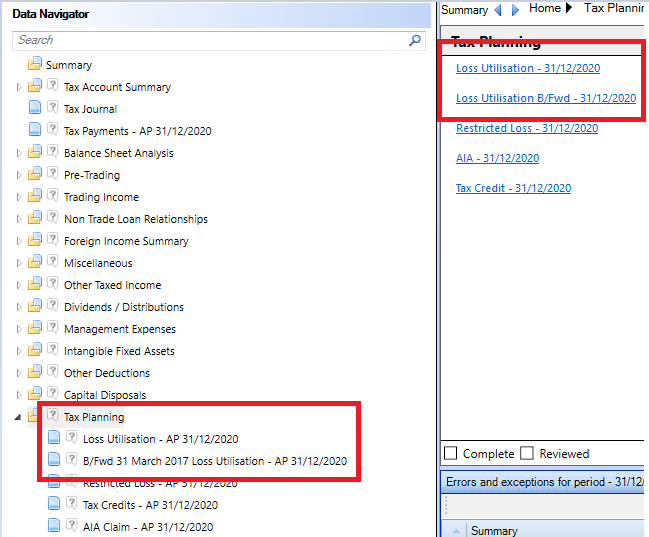
Within the Loss Utilisation input screen, the types of loss displayed in the loss utilisation matrix are determined the flags in the Manage Losses drop down menu.
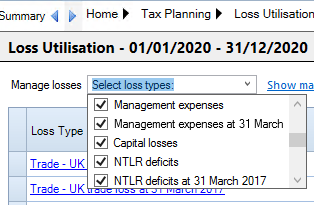
The losses brought forward should be split between losses brought forward pre and post March 17.
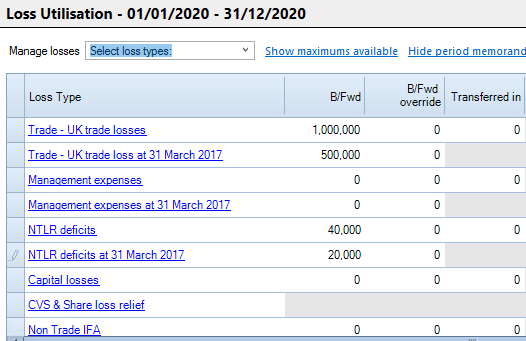
Enter the amount in the relevant loss B fwd column in the first period. In subsequent periods this will be initially populated with the Carry fwd from the previous period with a Brought Fwd Override to enter any overriding amount.
To utilise a loss brought forward, in the Bfwd March 31 Mar 2017 loss utilisation screen, located underneath the Loss Utilisation input screen within the Tax Planning area of the Data Navigator, enter the amount in the appropriate Utilised column against the type of loss.
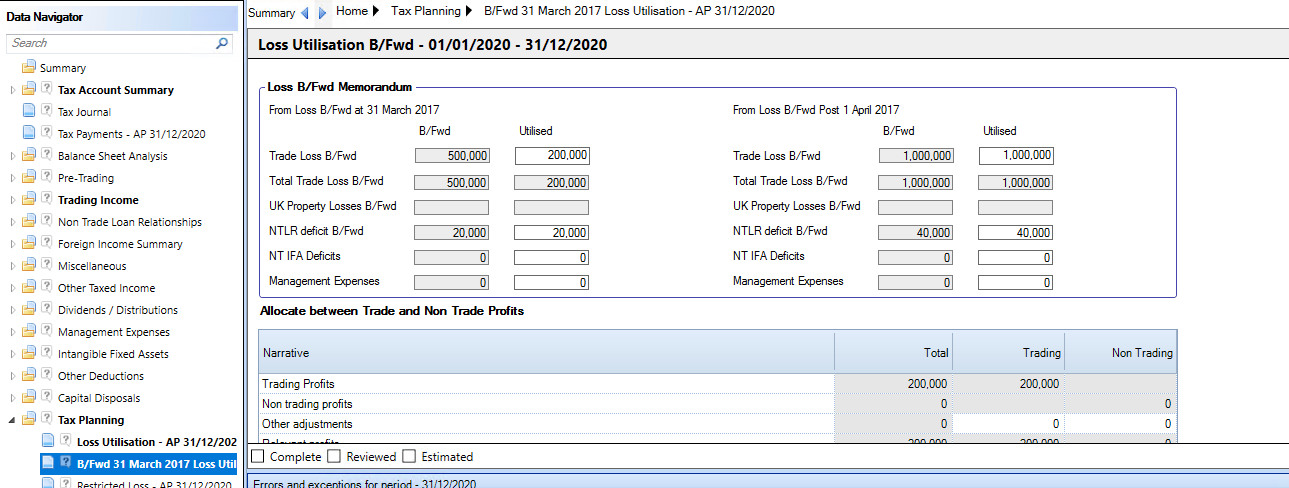
This will now populate the Loss bfwd and transferred in utilised column in the Loss Utilisation input screen.
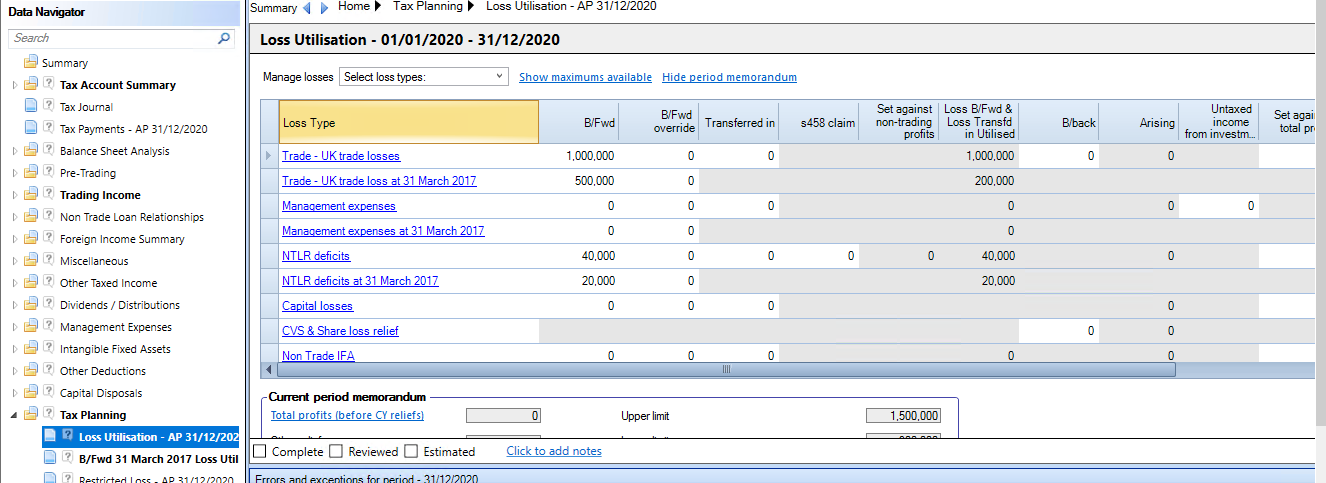
Any amount transferred in can be entered in the Transferred In column.
For any NTLR deficits brought forward there is an input for any s458 claim and amounts Set against non-trading profits are automatically calculated.
It is possible to show the amounts available for loss treatment by selecting the Show Maximums Available hyperlink which will inset a row in italics directly underneath each loss type row showing the amount available.
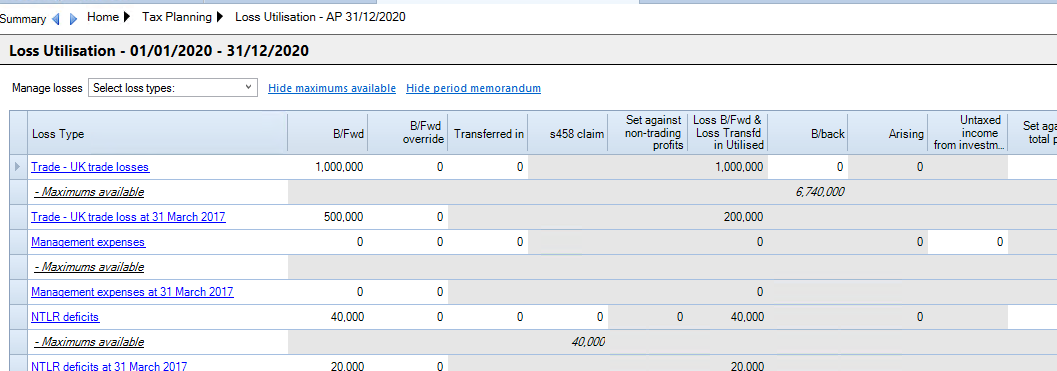
The maximum amounts available can be hidden by selecting the Hide Maximums Available hyperlink
Enter any losses brought back from subsequent periods in the appropriate row in the B/back column.
Any losses calculated for the period will show in the Arising column.
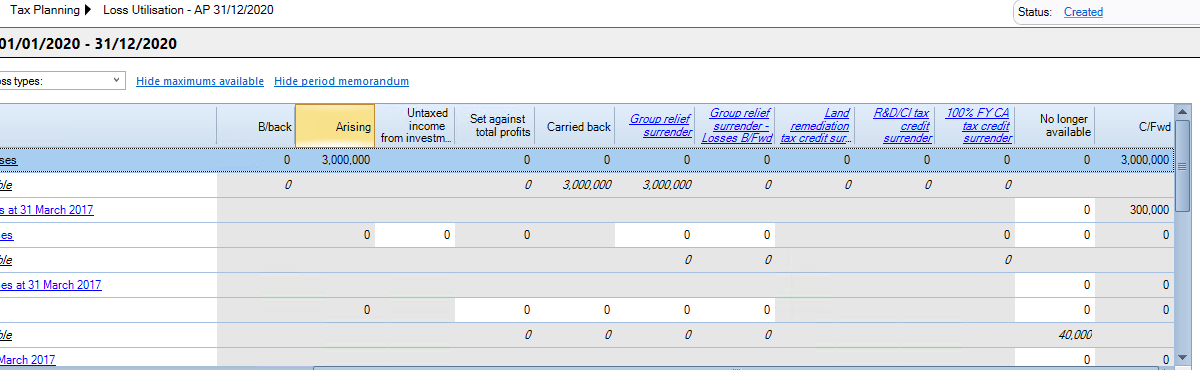
Enter any amounts to be Set against total profits or Carried Back.
If a repayment is required for any loss carried back, go to Main return data section within the CT600 section of the Tax Return Information section of the Data Navigator and tick the box A repayment is due for earlier period before completing the bank details in Repayments and Overpayments
For Terminal Losses, the trade should be given a Trade Cessation date in Trading Income.

For any Group Relief Surrenders, enter the amounts in either the Group relief surrender column or Group relief surrender - Losses B/fwd column as appropriate and complete the Surrender statement for the CT600C.
Enter any losses surrendered for tax credit in the R&D/CI tax credit surrenders for Research & Development and Creative Industry tax credits and complete the Tax Credits statement.
To relinquish a loss enter in the No longer Available column.
The Carry Fwd will be calculated and roll forward when the period is rolled forward.
The Current Period memorandum shows the total current year profits, less any reliefs and loss offset to show the remaining profits available.
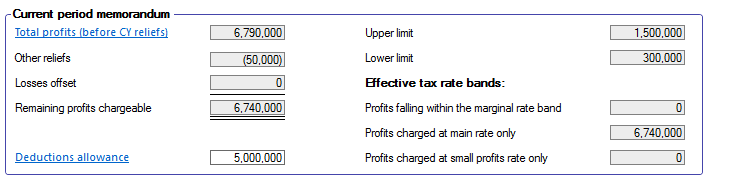
The Deductions allowance hyperlink links to the Bfwd Mar 17 Loss Utilisation statement which shows the Deductions allowance.
The Current Period Memorandum can be hidden via the Hide period memorandum hyperlink.
Losses from Partnerships
If a company is a member of a partnership and the company has a share of the partnership loss which has not been included in the accounts but which it wants to offset against total profits.
Create a second trade in Trading Income for the partnership and enter the loss arising in the the Trade summary for the partnership trade in Profit/(loss) before tax per the accounts.
For the main trade in Disallowable and other adjustments enter a negative figure for the amount of the loss in the Disallowables/adjustments column and leave the Per accounts column as 0.
In Tax Planning, Loss Utilisation, claim the loss under the Set against total profits column.
The share of the partnership loss appears in box 780 of the CT600 and that the amount offset against against profits appears on box 275 of the CT600