
Currency Codes
Trust Accounts supports transactions in non-Sterling currency and will convert a transaction into both an Investment Account base currency and also into a Book Currency if desired. For example, you could purchase some shares in French Francs using a US Dollar Investment Account and report back to Book in Sterling.
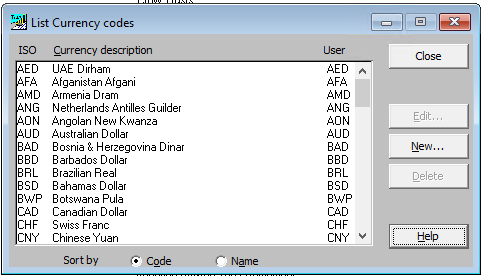
This summary window allows you to add, amend or delete Currency Codes from the Common Database. Any existing entries will be displayed. Even if you do not use cross currency conversion, you should ensure that UK Sterling is set up as it used as the default value in the system.
Note that Trust Accounts uses the ISO codes as the internal/system code for currencies as these are used by the majority of third party products (eg Data Feeds).
To Add a New Currency Code
-
Press the New button.
-
The Add/Edit Currency Codes window will be displayed allowing entry of the new code.
To Amend an existing Currency Code
-
Highlight the code which you wish to amend, by clicking on it, then select the Edit button or press RETURN.
-
The Add/Edit Currency Codes window will be displayed allowing amendment of the code.
To Delete a Currency Code
-
Highlight the code which you wish to delete, by clicking on it, then select the Delete button.
To Select a Currency Code
-
Highlight the code you wish to select and then press the Select button, or
-
Double click on the relevant code.