
Employee Record: Budget tab
Employee Record: Budget tab
The Budget tab displays the predicted budget for the employee for a financial period, broken down into the accounting periods that have been set up for your practice. You can view information for a previous year or select a new year to define by making your selection in the Budget Year list box.
The number of chargeable work hours that the employee is expected to do (as defined by the Employee Category they have been assigned to) are multiplied by the employee's standard charge rate so that a yearly employee budget can be estimated and used to track performance throughout the year. This information is used in reporting to compare budgeted figures against actuals.
Each accounting period is split into two rows, the top row displays the budgeted hours, the second row displays the budgeted values. The information in these fields can be entered automatically or manually. To automatically enter the information you can click the AutoFill button. This populates the time fields based on the employee category assigned to the selected employee, and the value fields based on the employee's standard charge rate.
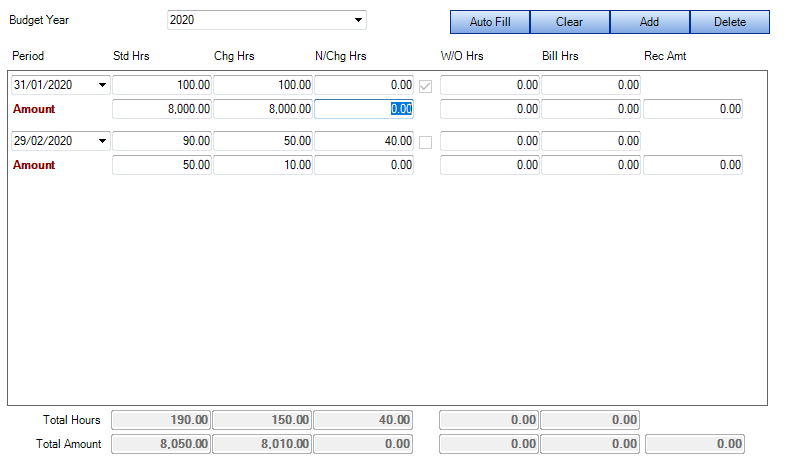
If you want to enter information manually, click the Add button to add an accounting period, then enter the hours for the employee into the fields.
The following information can be stored for each accounting period within the financial year:
- Std Hrs - Enter the standard working hours per month for the employee
- Chg Hrs - Enter the number of hours which are chargeable
- N/Chg Hrs - The number of non–chargeable hours per month. This will calculate for you automatically from the difference between the previous standard and chargeable hours.
- If the check box for an accounting period is selected, it means that reasons for the non–chargeable time have been entered. Click in this field to access the Reason for non–charge window where you can view or enter the reason for the non–chargeable time, for example 'Annual holiday' or 'Exam leave'. The reasons available for selection are the assignment types set up by your system administrator that are marked as internal.
- W/O Hrs - Enter the number of hours expected to be written off per month.
- Bill Hrs - The number of billable hours per month. This will calculate for you automatically from the other values entered, but can be overwritten.
- Rec Amt - Enter the amount to be receipted for the month. This figure will be entered for you if you use the Auto Fill option based on the number of chargeable hours multiplied by the employee's standard charge rate. This field can be used for each employee for the receipts to be collected from the time billed by them, or it can be entered for each partner (that is, the receipts to be collected for the clients belonging to the partner).
At the bottom of the tabs are the years totals.
You can delete an accounting period by clicking in any of the fields for a period and then clicking the Delete button. You can delete all accounting periods in the selected year using the Clear button.