
Entering opening balances
Opening balances in CCH Accounts Production
The opening balances need to be present within CCH Accounts Production, if the opening trial balance has not been set up:
- Enter the Opening Trial Balance as a journal. When the journal is posted, the system recognises the posting to one or more Cost B/Fwd accounts and an Analyse in Fixed Asset Register? message appears.
If the opening trial balance is present:
- Create the assets in the Fixed Asset Register to match the balances that have already been posted to the Cost B/Fwd and Depreciation B/Fwd accounts.
Adding assets
From within the Fixed Asset Register (icon on the CCH Accounts Production home screen ribbon) on the Asset Summary screen, click on the hyperlink of the Asset Class to add assets.
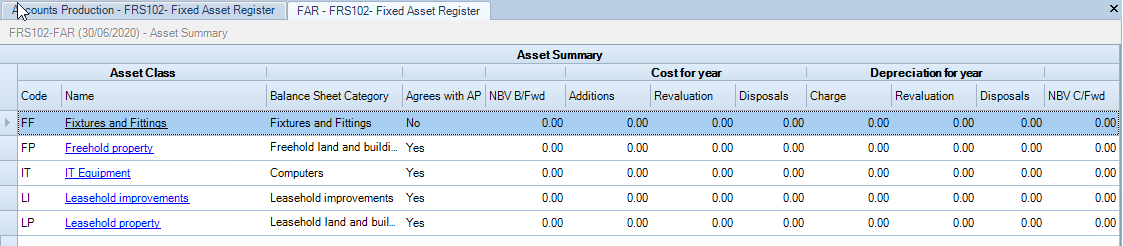
From the Asset Class screen, click on the icon New on the ribbon
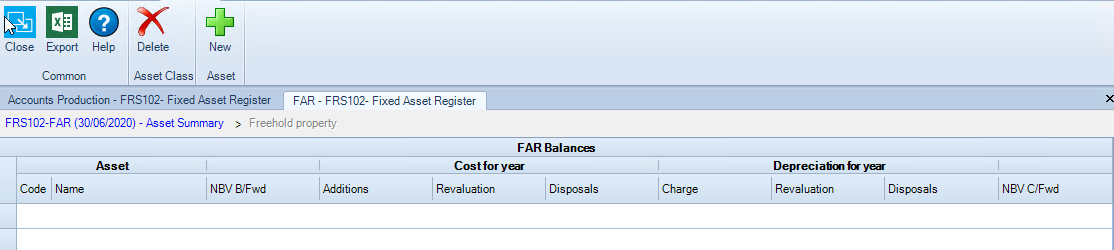
The Asset screen will open.
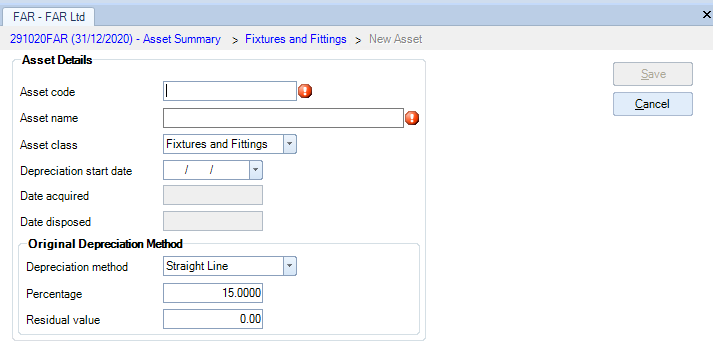
Enter the Asset Code (or accept the default), Asset Name and select the Depreciation method from the drop down menu under Original Depreciation Method. Click Save.
The Asset Movement screen opens.
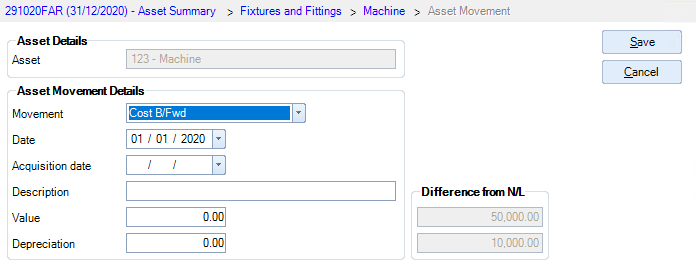
Select the Movement as Cost B/Fwd.
The date defaults to the year start date.
Enter the description, the Value as the cost b/fwd and the Depreciation. Click Save.
You are returned to the Asset screen and can browse from there, using the Breadcrumbs, to take on your next asset.
Continue until each Asset Class on the Asset Summary is listed with Agrees with AP as Yes.
Importing from MS Excel /CCH Accounts Production (VAP)
In this case you will probably wish to import the assets and their Costs B/Fwd. There are two options to do so:
- Import from Excel This option allows you to import assets and their Costs B/Fwd from a spreadsheet saved in a CSV file. The spreadsheet must be in the correct format to be imported. The Import from Excel is also useful if you want to import data from another fixed asset register system that has the ability to export data in Excel format.
- Import from VAP This option allows users of the old VAP FAR to import assets that they have exported to a CSV file.