
_CCH_Bill_Delivery
Introduction
Note that this workflow requires the modules CCH Practice Management and CCH Document Management to be installed in your system.
This workflow automatically attaches to bills after they have been posted and synchronised into CCH Document Management. It looks at the bills delivery method and if it is set to "Email", the bill is delivered by this method.
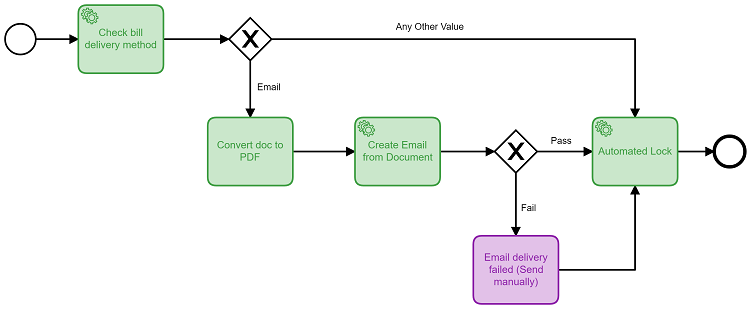
How to use this workflow
Pre-requisites
Configuration Keys:
PMDMEnable = 1
DMWorkflowEnable = 1
You may need assistance from your IT Team to configure these settings
SMTPServer = Your email server FQDN
SMTPServerPort = The port which your email servers receive connector is listening on
SMTPServerEncryption = Either Blank/SSL/TLS. Depends on your email server settings
Your IT Team will also need to allow relaying of emails from your database server
CCH Document Management Settings:
- Ensure a document type is configured that has a system type of "Bill". Ideally this would be a unique one used only for this purpose.
- Add this new document type to the Client Filing Library
- Ensure this document type has document security set for anyone who needs to view bills in Document Management (The 'Add Document' permission should not be needed here, as we only want the system to create documents using this type)
- You will find a CCH Document Management template called "CCH Bill Delivery Body Text", which contains the required wording for the body of the email.
Note:the assignment, job and document type for this template are irrelevant for its purpose.
- Set the To setting for this template to be your “has billing contact of” association type
Client Settings:
- Ensure all organisation type clients have an associated contact (such as has billing contact of) that also has a primary email address
Note: you do not need to set a billing association for individuals, if they themselves should receive the bills. The workflow will first look for the association, and then the main record if it doesn't exist.
Employee Settings:
- Ensure any employee who posts bills has their email address in the personal tab of their employee record
- Ensure any employee who posts bills has their SMTP username and password set in the passwords area of their employee record
Set the Workflow to Trigger automatically:
- In File > Maintenance > Document Management > Workflows
- Set the Source to Practice Management
- Set the Library to Client
- Set the Type to the “Bill” Document Type defined at the start
- Move the _CCH Bill delivery workflow to the right side and ensure the default tick box is ticked.
Possible Enhancements
Consider sending all bills from a centralised account (such as [email protected]). Create an employee record called Credit Control, and give it an email address of your centralised account. Then on the workflow step Create Email from document, set the "Reply to" field to specific employee and choose your credit control employee.
Set a default delivery method for the client’s assignments:
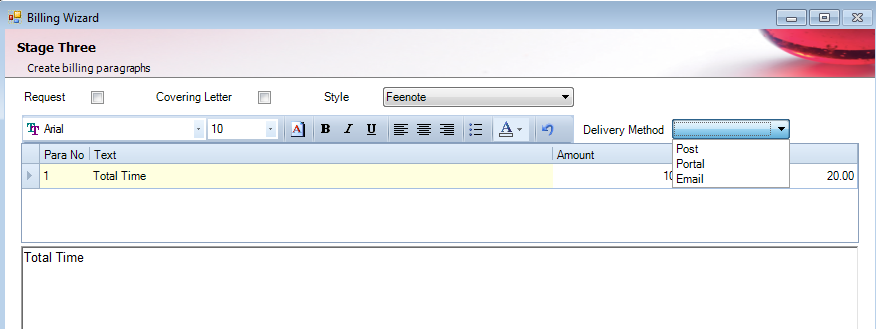
Ensure all the assignments on the client record reflect the delivery method required for that client. Go into each assignment and look in the WIP tab. At the bottom, change the delivery method.
Note: the default setting for this is blank. This can be changed in the maintenance menu, under assignment templates, and the billing tab.
Note: when raising a bill, the delivery method can be chosen from the paragraph stage. It will work out the delivery method by looking at the assignments that you bill WIP against. If all match, then that delivery method is chosen. If there is a mismatch, it will be blank, and treated as if you intend to send the bill by post.
Note: the delivery method drop down in the paragraph section of the billing wizard should be used to override the default delivery method to prevent it going to the client. E.g. if raising a nil bill (pure write-off), or an internal credit note.
If you are a CCH OneClick customer, and would like to send bills to CCH OneClick as well, consider the following workflow:
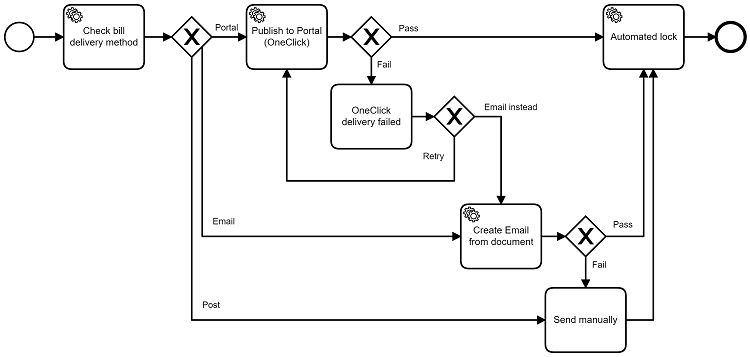
CCH OneClick Settings:
- Ensure your CCH OneClick environment is fully set up and each client is licenced for 'Messages and Documents'
- Create a CCH OneClick message template containing the wording for the message.
e.g. Please find attached your latest bill - Ensure this message template has the Bill document type set against it
Employee Settings:
- Ensure the employees who post bills are CCH OneClick enabled
- The employee must also be in the client team in order to send CCH OneClick messages