
Accessing CCH Company Secretarial
How to access CCH Company Secretarial
Accessing CCH Company Secretarial
CCH Company Secretarial is a cloud solution that is accessed either by using your browser or directly from CCH Central.
To launch the site via your browser, go to the following address:
https://app.thecosechouse.co.uk/cchcosec.php
The login screen appears:
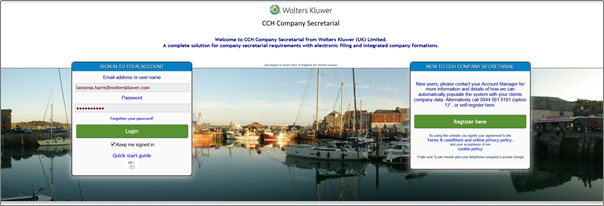
To access directly from CCH Central, click on CCH Company Secretarial within the ribbon bar

The login screen appears:
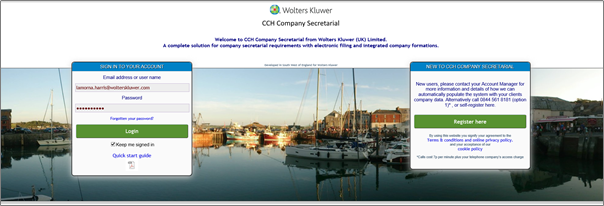
If you do not have an account
If you do not have an account and want to try the system, you can register for a trial account by clicking on register here in the panel on the right. Completing the details requested will create an account that will allow you to set up and manage 2 companies.
Note: this option registers a new organisation on the application. Do not use this option to try and add additional users to an existing organisation. Adding new users is a task carried out by the application administrator of your organisation.
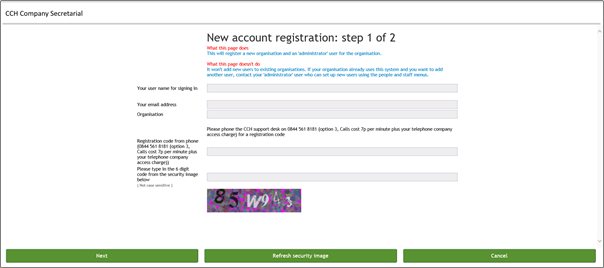
1. Enter the name of your organisation and your email account
The organisation name is displayed in the header of pages and does not have to match a company managed on the system.
Email addresses can be used to log into the application, although we recommend having a standalone ID which should be the same as your user name for CCH Company Secretarial within CCH Central.
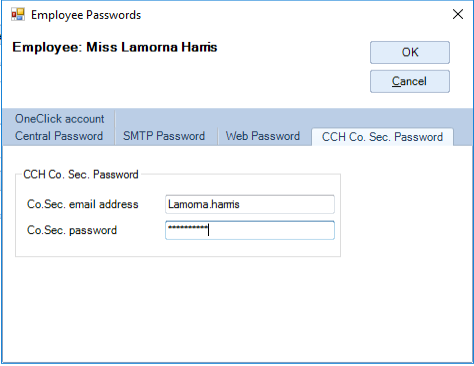
2. Call our support desk on the number shown on the screen to obtain an authentication code and enter this
3. Enter the 6-digit security code from the image and click Next
The system will create your account and request the following information:
- Password
- Forename
- Surname
4. Enter the information requested and click Register
5. You will see a message indicating that your account has been created. Click on Continue to return to the login screen
6. Enter your email address and password and click on Login to access the system
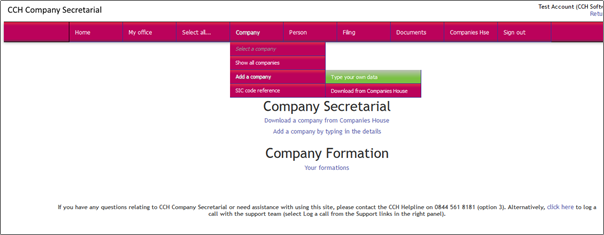
Logging into an existing account
If you are already set up on the application, enter your email address and password and click on Login. Provided the application recognises your credentials you will be presented with the CCH Company Secretarial main page:
When you log in you will see The Home page with Action Station pointing you to tasks that need attention and upcoming deadlines.
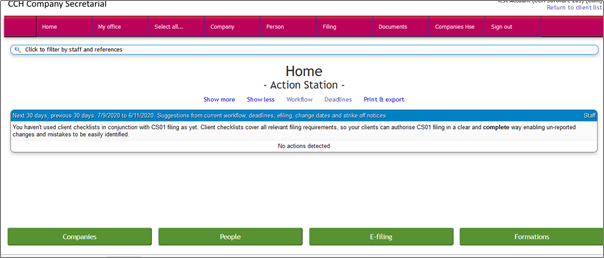
You can find all deadlines by selecting All Deadlines from the Main Menu. The page displays a list of filing deadlines, overdue, and those falling due within a specified period. The default notice period is 60 days.
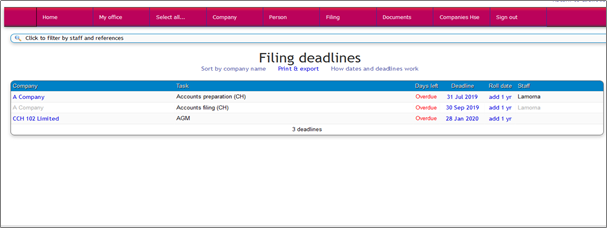
It is possible to restrict the contents of the list by clicking on

and the filter panel will open:

Using the options shown here, you can restrict the list to only show companies you are responsible for, search for a text string, or for deadlines in a specified period. It is also possible to change the default notice period of 60 days.