
Configuration for CCH Company Secretarial
Configuration options
Company Secretarial settings
Before configuring the system, CCH recommends that the data within CCH Central and CCH Company Secretarial is reviewed to ensure the data is as clean as possible. Users can compare CCH Company Secretarial with the CCH Central database and view the conflicts between the records before starting the synchronisation by using the Data Analyser feature.
To learn more about this feature, please read the Data Analyser - Ability to compare CCH Central and CCH Company Secretarial database section within this document. The synchronisation of CCH Company Secretarial client and contacts database within CCH Central can be configured to reflect the way that your practice operates. This is done by selecting to synchronise data one way for example synchronise the data from CCH Central to CCH Company Secretarial or from CCH Company Secretarial to CCH Central.
If you select the option to sync from CCH Company Secretarial only and the five optional fields listed below within CCH Company Secretarial are not populated, this will result in any current data within the five fields being deleted from CCH Central.
- Telephone number
- Fax number
- Mobile number
- Email address
- Date of birth
You should therefore review your data in CCH Company Secretarial before selecting this way of operating to ensure that all relevant fields remain populated.
- Navigate to Maintenance > Company Secretarial > Settings
- Start by checking the box Disable Polling – This will stop any updates from happening. Once you have completed the configuration and decided how you want the information to flow through, you can switch it on again
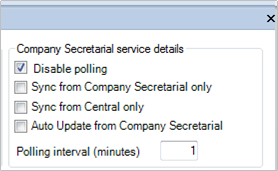
It is important to note to initially synchronise the companies in small batches of 10 - 20 (Do not synchronise all companies in one go). Once a batch of companies has been synchronised, check the CoSec homepage. If the line is red, disable the sync and log a support call, in order for the issue to be investigated. If there are no errors the batch numbers can be increased. Continue the process until all required companies have been synchronised. For more information on working with the CoSec homepage click here
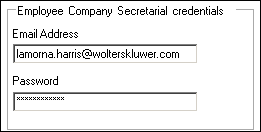
3. Add your Company Secretarial Login Details
CCH Company Secretarial is configurable to allow practices to choose how they wish the system to work.
- Sync from Company Secretarial only
Only data changes made in CCH Company Secretarial are pushed and updated into CCH Central. Any data changes made in CCH Central will not flow through to CCH Company Secretarial.
Note: if this option is enabled and the data is not populated in CCH Company Secretarial, such as telephone numbers, fax numbers, mobile numbers, email addresses, and date of birth, will result in any current data within those fields in CCH Central being deleted.
- Sync from CCH Central only
Only data changes made within CCH Central to Companies and LLP's, that have the extra field ‘Sync to Cosec’ set to yes are pushed and updated into CCH Company Secretarial. Any data changes made in CCH Company Secretarial will not flow through to CCH Central.
- Auto Update from CCH Company Secretarial
This option automatically adds the Sync to Cosec extra field for any Company and LLP and its associations that are pushed into CCH Company Secretarial or that are imported into CCH Central this is an efficient way of ensuring all the Companies, LLP's, Directors, members, and Company Secretaries that are imported into CCH Central this way is captured in future updates.
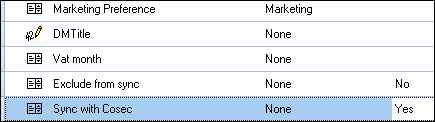
It is important to be aware of the additional rules surrounding which data is synchronised. For CCH Central data to push into CCH Company Secretarial you MUST have the extra field ‘Sync to Cosec’ set. If you do not have the auto-update switched on, you will need to set the Sync to Cosec extra field to yes manually.
Note: be aware of any test/dummy companies that might exist in CCH Central which could be synchronised to CCH Company Secretarial. To stop this from happening - change the extra field ‘Sync to Cosec” to No’.
Draft Contact Authorisation
When new Companies or contacts are pushed into CCH Central, they are pushed into CCH Central as draft contacts and require authorisation. Due to the nature of the application, normal draft authorisation by an employee is not possible. Instead, there is a button within the maintenance screen that needs to be clicked called Authorise Logged Employee. This will allow you to authorise the draft contacts and allow them to be converted into clients or contacts.

Address Configuration
The addresses pushed from and to CCH Company Secretarial are identified by the flags allocated by the system administrator within CCH Central > Maintenance > Address/Phone > Address Type

- Companies - The system defaults to the Registered Office Address Flag. This must be set to one of the address description types for the system to synchronise the data. You would expect to see the company address displayed in the Address tab not the Main tab within CCH Central
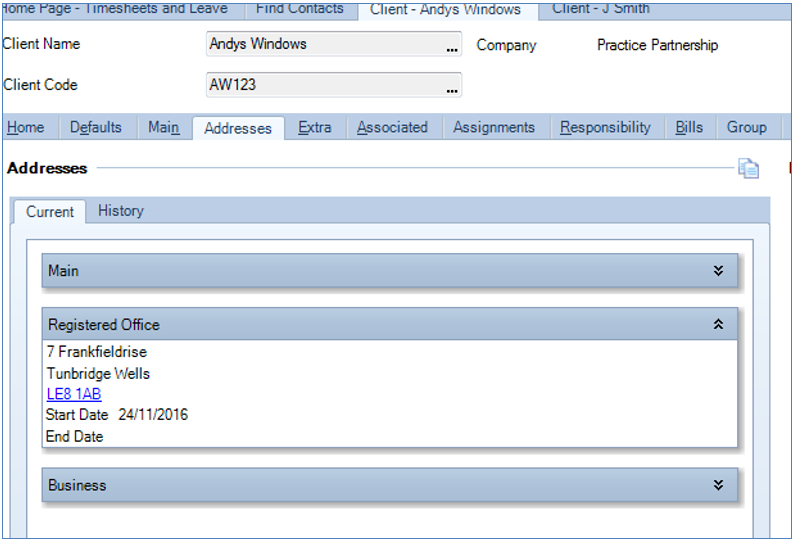
- People - the system will use the Primary Type Address Flag as the identifier as to which address it will push and pull the contact address

You will see this address for Directors and Company Secretaries appearing in the Main tab within CCH Central.
If you do not set the Registered Office flag to an address description, data will not synchronise between the two systems and you will see a red error light in the new CCH Company Secretarial Home Page Control (see below)
Once all of the above settings are complete you can Uncheck Disable Polling.
Note: VALIDATION ON CHANGE OF LINKED RECORDS
Where an address record in CCH Central has been linked to multiple clients or contacts and this is changed as a result of the address of one of those records being changed in CCH Company Secretarial, the change is correctly seen on all linked clients and contacts, however, no warning is provided about this consequence.
We have therefore decided to add a de-linking option which is now the default. The new configuration key “CoSecDelinkedAddresses”. The default is set to 1 which will only update the one recorded in CCH Central using that address and not all clients and contacts linked to that address. If you DO want all clients and contacts linking to the address to be updated, then you will need to change the key value within File>Maintenance>User Defined>Configuration to 0.