
Add Members
PLEASE NOTE: Only users with the Admin level permission can Add Members. Regular users can Invite several members with the Invitation link, but only an Admin user can Accept or Reject the Join requests.
Invite an Individual Member
PLEASE NOTE: If you have several colleagues to add, use the Invite Several Membersmethod described below
- Click ‘Invite New Member’ from the top right of your screen in the Members area.
- Enter the 'Email address*', 'First name*', and 'Last name*' of the individual you are adding.
- Select their member role. Read the Member permission levels page to see the key differences in permissions for each member role.
Product access
To set the members product access;
- Click on 'Product access'.
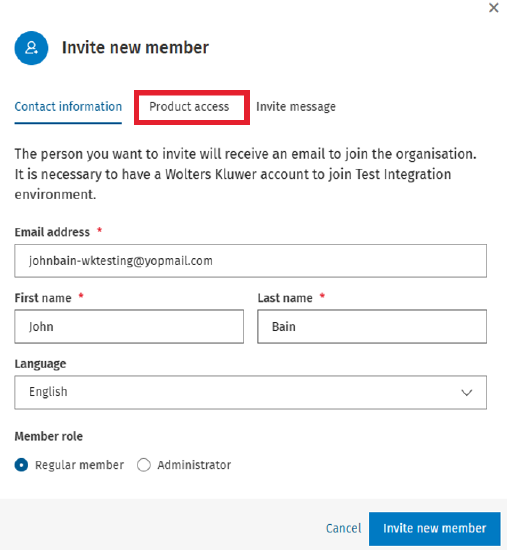
- If inviting a Regular member, select the products you would like your new member to have access to. Administrator members will have all products pre-selected these can't be deselected as Administrators have access to all products.
IMPORTANT INFORMATION! The Contact Management product will be selected by default as it is a mandatory product all CCH iFirm members must have.

Invite message
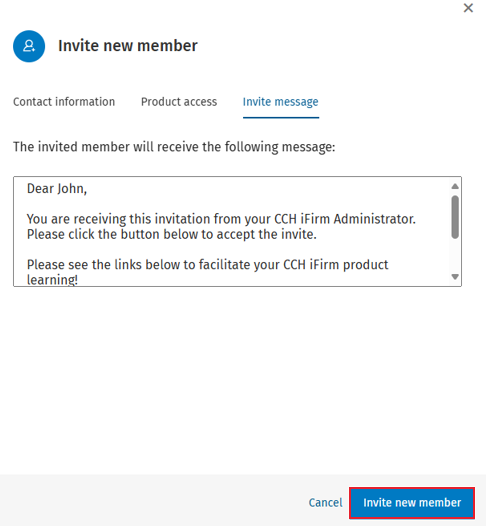
- Click on 'Invite message'.
- The invite message can be customised by typing in the message box.
Please Note: Links can be added to the Invite message.
- Once complete, click 'Invite new member' to send the invitation.
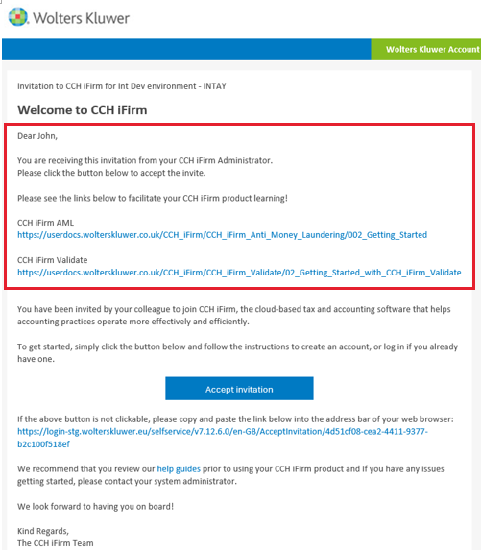
- Below is an example of a customised invite message received by a member. The customised text is highlighted below:
Please note: If you make a mistake when inviting a new member, please delete the invitation and re-invite the member. The member will have already received your first invitation which will become invalid if you delete.
The member will receive an email invite to join your Organisation and create a Wolters Kluwer Account. Once they receive the invite direct your members to Accept an Invite Link for information on how to complete this process.
You can view and monitor invite progress in the Manage Members area, in the Pending invites tab.
Invite Several Members
You can also click on 'Get Invite Link' to invite both administrators and regular members. The 'Get Invite' link enables you to share a URL with your colleagues in bulk rather than inviting them one at a time. When your colleague clicks the link and follows the prompts, you and/or any other admin users in your organisation, will receive an email asking you to approve or reject their joint request.

- To invite several members at once, click Get invite link (this is found on the Organisation overview page or on the Members tab).
- Click Enable the invite link in the bottom left of the pop up box to create a unique link that you can email to several Members at once.
- When the unique link has been created, copy the link and paste it into a new email message.
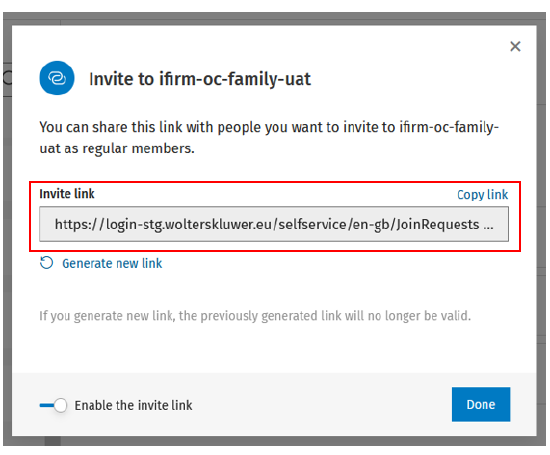
Click Done to close the invite dialogue.
If you have a welcome email that you send to new employees, you could insert this link along with some text for their information. Send to all of the Members that you want to invite. Once they receive your email direct your members to Accept a bulk Invite link for information on how to complete this process.
NOTE: Members invited by this method will not have Admin permissions by default. Once they accept the invite, you can amend their Permission level in the Manage Members area.
As each member completes the invite acceptance process, they will appear in your Manage Members area, in the Join requests tab. To learn about accepting and rejecting Join requests view the Manage Members page.