
Adding a property to the investment portfolio
Adding a new Property
By selecting New Property when Show Both is selected, or clicking on the New button with Show Properties selected, the Add/Edit properties window will appear
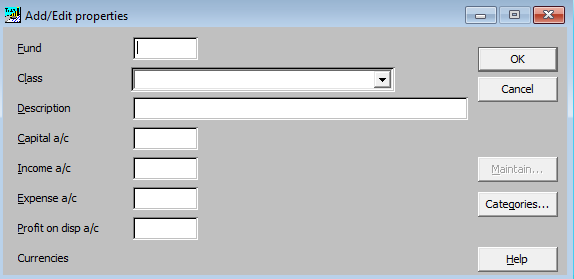
To aid data entry the F2 key on your keyboard may be used to enable further selection to be made.
|
Fund |
Shows which Fund the investment is to be added to. If a client has multiple funds, the F2 to select the relevant fund. |
|
Class |
Choose from the drop down e.g. Freehold Property. |
|
Description |
Enter e.g. the address of the property. |
|
Capital a/c |
Enter the nominal account for the book cost of the holding. F2 to select from the Client Chart. |
|
Income a/c |
Enter the default nominal account for income, this can be changed when entering a transaction. F2 to select from the Client Chart. |
|
Expense a/c |
Enter the default nominal account for expenses for this property, this can be changed when entering a transaction. F2 to select from the Client Chart. |
|
Profit on disp a/c |
To enter the nominal account for the capital profit or loss on disposal. The F2 to select from the Client Chart. |
|
Maintain… |
Extra user defined details relating to the property can be entered here. |
|
Categories… |
The property can be categorised using this option. |
Click OK to add the property to the portfolio, if finished, press Cancel to return to the investment portfolio list, otherwise continue to add more properties.