Adding investments to the portfolio
Adding an investment to the investment portfolio
From the Client Menu select the Investment Ledger tab.
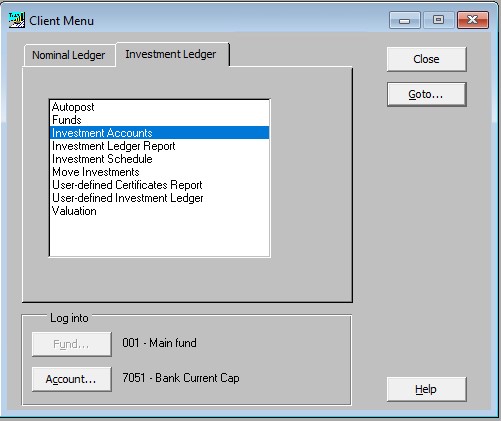
Either double click on Investment Accounts or highlight and click on Goto.
The following screen will be displayed:
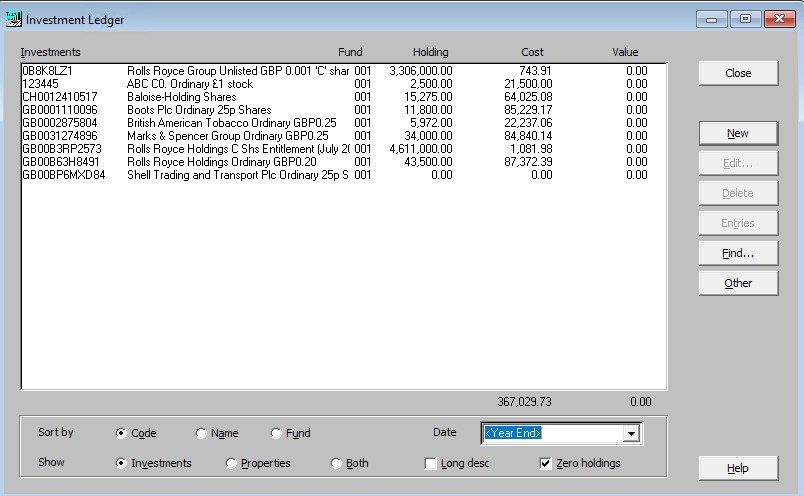
Click on New to add an investment to the list.
Once the Add/Edit Investments screen is displayed, enter the appropriate Fund reference or click F2 in the Fund field to select the fund.
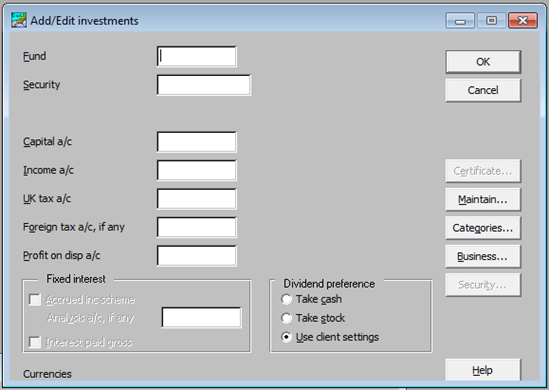
Clicking F2 in the Security field in the Add/Edit Investments screen shows the master securities database screen. This will be blank at first with a dropdown list of the initial letters of all the securites in the database at the top.
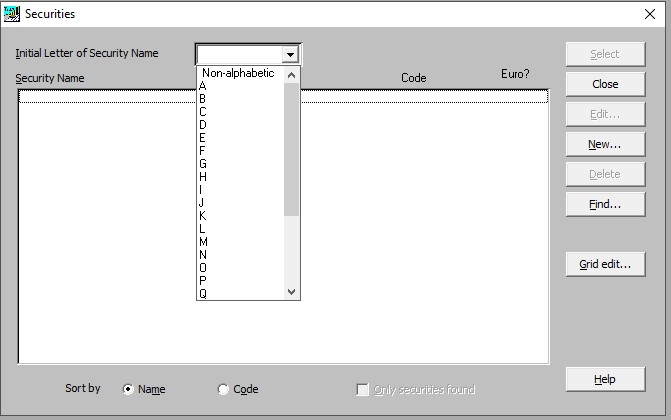
Selecting the initial letter of the security which needs to be added will show the list of all securities starting with that letter. The appropriate security can then be selected from the list. The ISIN number will be added to the Security field in the Add/Edit Investment screen with the security's name next to it in the grey area, and any default accounts associated with that security will be populated.
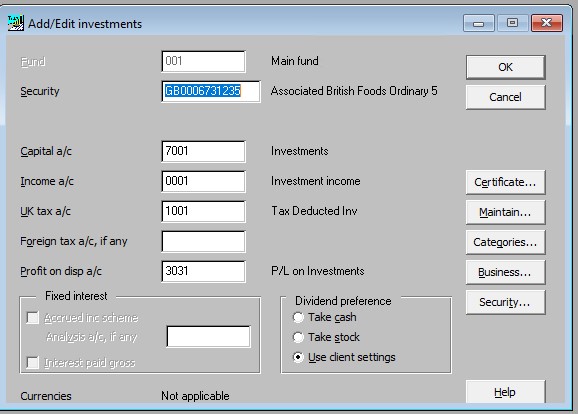
Click OK to add the security to the portfolio, if finished, press Cancel otherwise continue to add more securities.
Once investments have been added, the completed investments are displayed:
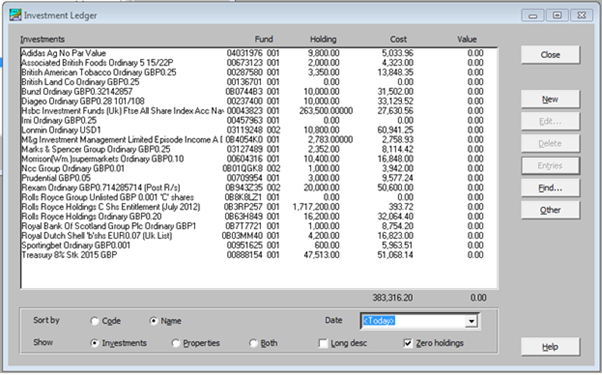
Click Close to return to the Client Menu screen.
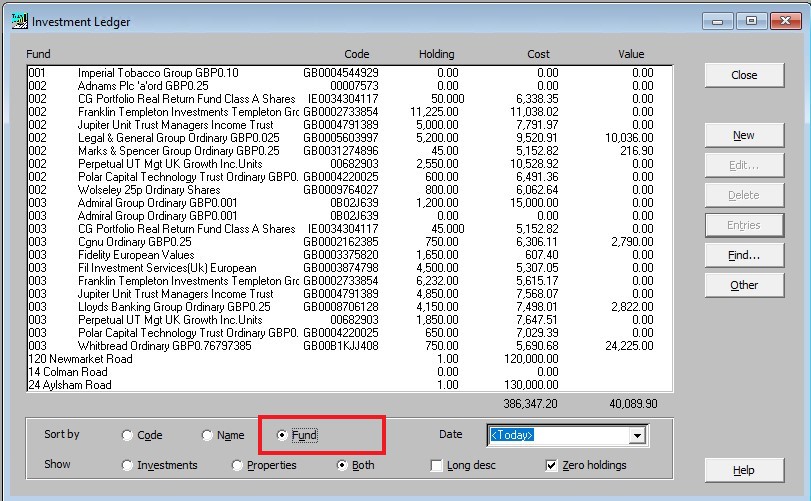
Where multiple funds have been used a radio button appears to allow the investments to be listed by name within fund.