
Assignment Details Page: Provisions tab
Provisions are made against an assignment if there is a doubt as to how recoverable the WIP and debtors might be on an assignment. The information you enter is recorded as memo information and cannot be deleted. When you create a new provision you need to select which provision type you are creating by selecting from the two options in the Ledger drop-down list (i.e. WIP or Debtors). You also select the date, enter the expected write–off amount in the Amount field and any comments in the Comments field.
WIP Provision setup
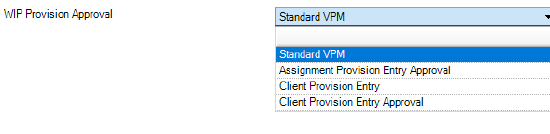
WIP Provision Approval
This functionality allows firms to select which mode of WIP Provision is enteredatapracticelevel.The four modesareasfollows:
- Standard VPM
- Assignment Provision Entry Approval
- Client Provision Entry
- Client Provision Entry Approval
The default setting is 'Standard VPM'. There is no functionality change to how existing WIP Provisions are applied i.e. WIP Provisions are applied at Assignment level only within the Provisions tab. Any WIP Provision added using Standard VPM does not require Approval.
To alter the default setting, navigate to File - Maintenance - Miscellaneoous - Miscellaneoous and select the required mode from the 'WIP Provision Approval' drop down list
Note: Access to the Miscellaneous menu option is controlled by the existing security permission key.
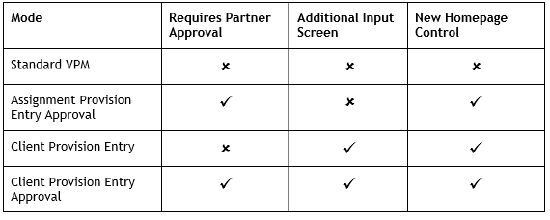
The table below provides a top level summary of the mode features:
Note: Entry of WIP Provisions via any of the above modes is controlled by the existing Task Permission #Assignment@Provisions task
WIP Provision Entry
Entry of Standard WIP provisions is accessed from the Provisions Tab within a client assignment. Enter the provision on the blank line and select WIP from the Ledger drop down menu. After adding the entry the following message appears:
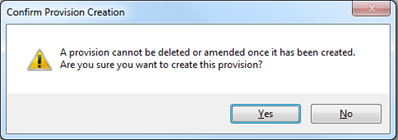
Yes - Commits the Entry. The provision is unable to be edited or deleted.
No - The date, value and reason on the provision are able to be amended until committed.
Assignment Provision Entry Approval
This new mode ‘Assignment Provision Entry Approval’ enables sites to apply partner approvalfor all WIP Provisions entered. The initial entry of WIP Provisions remains the same i.e. entry atassignment level, within the Provisions Tab.The partner (set within the Client responsibilitytab) is required to approve their WIP Provision.Approval of the WIP provision is achieved twoways:
- Homepage Control
- Provisions Tab
Cross Partner Approval
There may be times where a client partner is required to approve another client partner WIP Provision.This is achieved by the Task Permission:
- #Homepage #Provision Approval #Allow Cross Partner Approval
Additional options are available within the Homepage Control when the ‘Allow Cross Partner Approval’Permissionis set. These options are accessed through right clicking the homepage control:
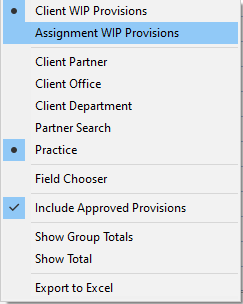
The options shown without Cross Partner Approval enabled, are the same with the exception of ability to swtich the view between Partners (inc. Partner Search), Offices, Departments and Practice view.
Note: This is related to Partner responsibility and NOT to security groups. A Superuser who isnotapartneris notableto carryout thisfunction.
Homepage Control
Approval: Alistofall‘Unapproved’WIPProvisionsforwhichthepartnerisresponsibleisdisplayed. Approval is achieved by selecting the applicable provision entries and clicking the 
Deletion: Partners are able to delete ‘Unapproved’ WIP Provisions by selecting the relevant provisionentriesandclickingthe 
Note: Client partners are only able to approve or delete unapproved WIP Provisions belonging toclients where they are the set as the partner responsible. Sites are required to grant the ‘CrossPartner Approval’ permission to enable Partners to approve Assignment WIP Provisions belongingtoother clientpartners.
Client Provision Entry/ClientProvisionEntryApproval
Either of these modes are selected from the WIP Provision maintenance area (File - Maintenance - Miscellaneous - Miscellaneous) and enables sites to quickly add WIP Provisions at Client level. The WIP provision is apportioned evenly against all open assignments for the client(s). Any WIP provision added using this mode does not require approval. With this mode enabled, users can still apply provisions at assignment level if required.
The Client Provision Entry can be accessed from the Ribbon on the Find Clients screen. Select your client(s) and naviagte to the WIP Provisions button:
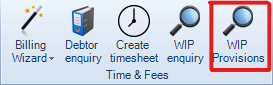
Entering a Client WIP Provision
Having selected your client(s) and entered the WIP Provisions screen using the above method, you can proceed to enter the following columns for each client:
- Amount
- Date
- Reason
After adding the required information, you will receive the following message:
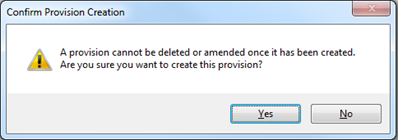
Yes - Commits the Entry. The provision is unable to be edited or deleted.
No - The date, value and reason on the provision are able to be amended until committed.
Clicking on the 
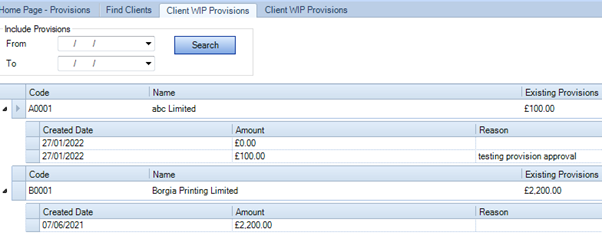
Note: If the entry option is greyed out on the Client WIP Provisions screen, the client is eitherclosed,ortherearenoopenassignmentsattachedtotheclient.
Smart Reports
Within the WIP group heading two additional reports have been created to enable users toreportonanyapprovedandunapprovedWIPProvisionswiththeirrelevantreasons:
- WIP Provisions By Assignment
- WIP Provisions By Client
- Control by Client WIP and Debtors with Provisions and Cash
- Provisions; to return values within the Provisions column, ensure the ProvisionsOn configuration key is set to 1. Any provisions added within adjustment mode (which match the report date range) is then displayed.
Two taskpermissionkeyshavealsobeencreatedundertheProductofVPM,withinFile > Maintenance > Security > Task Permissions:
- Smart Reports : WIP - WIP Provisions By Assignment
- Smart Reports : WIP - WIP Provisions by Client
Note: All unapproved WIP Provision values are excluded from any report using the WIPProvisionfield.