
Autopost (Client level)
For the Autopost routine to work, the securities database needs to be kept up to date with all the share transactions that have taken place over the period. Refer to Chapter 12 on how to enter dividend information into the Securities database.
Autoposting looks at the securities that a client has and applies the entries from the Security Database to the history of the security in the client.
To run the Autopost routine, ensure that you are within the client record and select Autopost from your toolbar.

The following window appears.
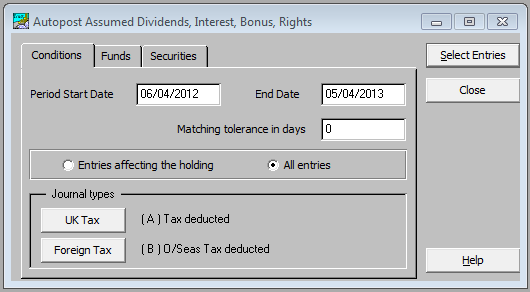
On the Conditions tab, the posting dates default to those set in the database parameters. They may be amended at this stage if necessary. Ensure the journal types for both UK and Foreign Tax are correct. Highlight the fund that you want to post to and then select the Securities tab.
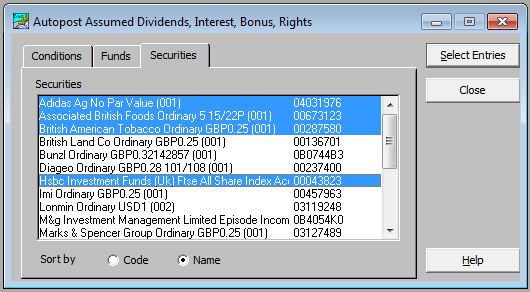
Select any or all of the securities from the list showing. Those selected are examined for automatic posting of income and capital items.
Click on Select Entries. The AutoPost Entitlements will be selected and progress is shown in a pop-up window.
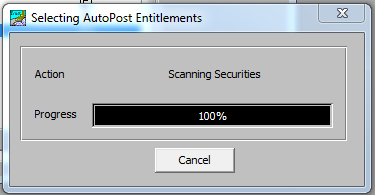
After it reaches 100% a window similar to the following one appears.
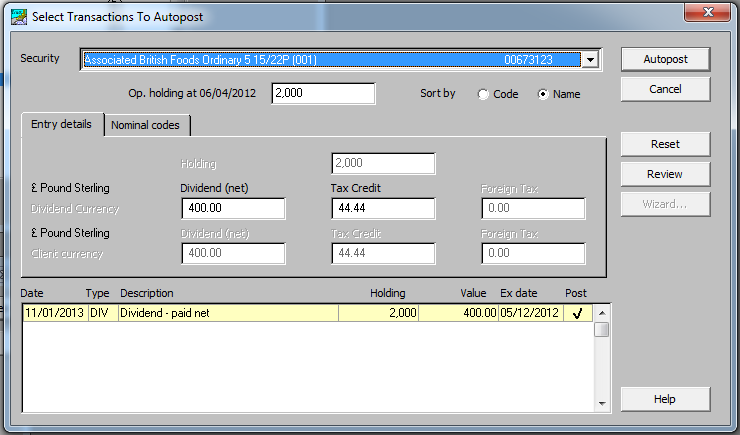
Each of the securities selected for auto posting can be highlighted in the security drop-down list.

The opening balance for the highlighted security is shown. The white boxes below show details in relation to the highlighted line in the lower section of the window.
The lower section of the window contains all the events found in the security database during the period chosen.
A tick indicates the items which will autopost. Choices may be made at this stage by ticking other items.