
How To
Change Client Class tab
CCH Trust Accounts
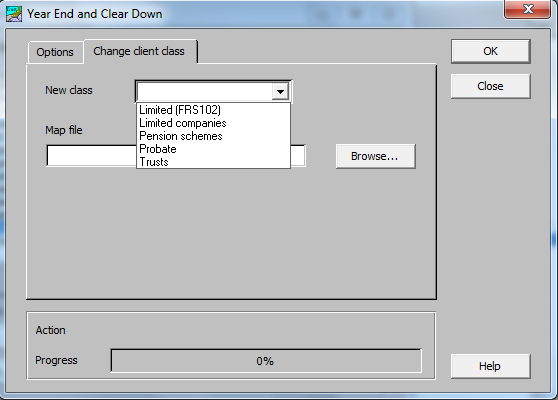
If Change client class is ticked on the Options tab then a tab appears to select the options to change the client class. Users sometimes change client class in order to adopt a new chart of accounts. This can be done globally, for all the clients in a class as described here, or individually, client-by-client. Usually it is better to perform the operation globally, but you can do it client-by-client using this option. The screen is as follows.
Fields
- New class The new client class is specified here.
- Map file Browse to a CSV file containing the mapping from every nominal account on the client to new nominals in the new master chart. The mapping file appears as follows.
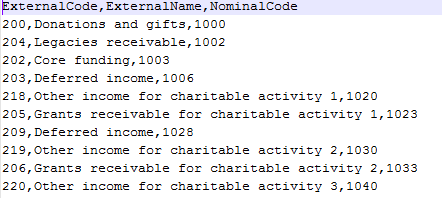
- The first row contains some headings
- The First column is the old nominal code
- The Second column is the account description, but is ignored by the conversion.
- The Third column is the new nominal code.
Notes:
- The map file can be edited or created in Excel, but care must be taken to preserve leading zeroes on account codes. Leading zeroes can be preserved using right-click > Format Cells > Number > Custom and specifying “000” for 3-digit codes. This cell format must be respecified every time the CSV file is opened in Excel.
- If the map file contains subaccounts as well as main accounts, then the codes are different lengths and it is easier to edit the file using Notepad.
- Sometimes multiple accounts in the old client class are mapped to a single account in the new client class.
- When you click OK to start the conversion to the new client class, the system verifies that all nominal codes in the client chart have been mapped before proceeding.
- The option to Change Client Class does not change the Format Type in Nominal Client Details and accounts pages and Statutory Database data are unaffected. If the client class is changed then you will usually need to switch to a different Format Type as described here.
Related documents
Linking to clients in CCH Central
This document provides instructions on how to link and unlink clients from CCH Central in the CCH Trust Accounts system. To link a client, the user must select the client, click "Edit," then "Link," and choose the appropriate client from Central. Once linked, certain fields become non-editable in Trust Accounts. To unlink a client, the user clicks the "Unlink" button, which restores editability but deletes any accounting periods in Central. Key fields updated from Central include client name, address, and contact details.
Database Parameters
Various features in Trust Accounts are optional. To set up many of these, from the Activities menu select System Management, and then Database Parameters.
Data Parameters
Various features in Trust Accounts are optional. To set up many of these, from the Activities menu select System Management, and then Database Parameters.
Database Parameters
Database Parameters
Passwords
Passwords