There are two types of email notifications used in CCH Workflow:

  • Notify User
  • Notify Team

Both email notification methods use the SMTP protocol (Simple Mail Transfer Protocol).  The E-Mail address supplied is within the employee record within CCH Central.  It is recommended that all active employee records are updated with their current email address.
Email_Notifications.jpg

Notify User

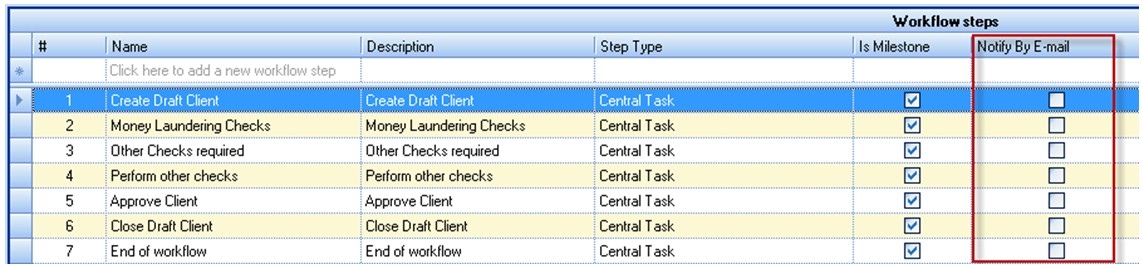
Within each task it is possible to send a notification to an employee advising that a task assigned to them is now active.  Notification is only sent once the preceding task has been completed.  This is achieved by selecting Notify By Email when designing or modifying the template.
Notify_User.jpg

The email generated is a standard template detailing:

  • Workflow name
  • Task name
  • Client code and Client name

Notify Team

A partner or a manager may wish to be kept up to date on their clients work; CCH Workflow does this via the Notification functionality. An email is generated at a specified time or at particular intervals during the day, detailing the tasks which have been completed in CCH Workflow.

To use notifications it is important that the following elements are set:

  1. Ensure all clients have a current client partner set
  2. If using Client Manager, ensure that the ‘Manager’ team responsibility is set on all clients (This can be achieved by using the Bulk Update facility within the Find Clients screen).
  3. Ensure that the required tasks within the template have the Notify Team option ticked.Notify_Team2.jpg

Indicate the interval for Client Partners/Managers to receive the notification.

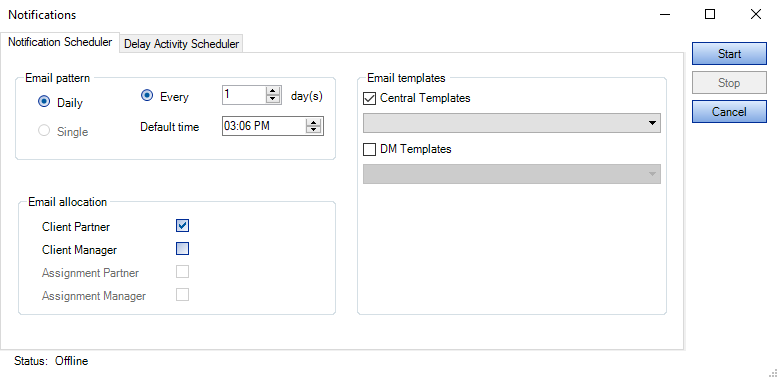
  1.  Select Maintenance > Central Workflow > Notifications
  2. Set the Email pattern and Email allocation
  3. Select Start to apply the email notification.
WFnotifications.png

  • Email pattern: Determines email frequency and delivery time.
  • Email allocation: Determines the recipient of the email notifications.

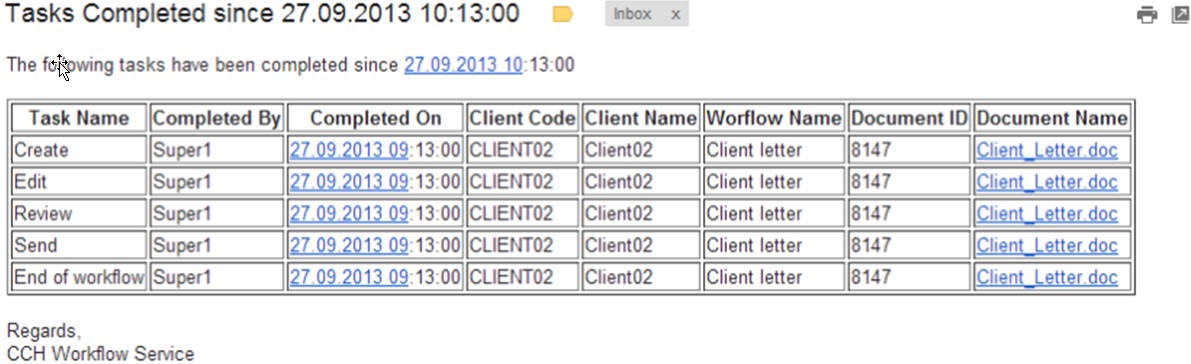
The email notification includes all tasks completed since the last notification was issued, where the Notify Team attribute is set.

Note:  Currently, the notification frequency is set globally.

Example of email received:
Email.jpg

Setting the Workflow EMailServer

To be able to use Email Notifications,  SMTP details are required to be amended on the dbo.ProductConfiguration table within the Central Database.  See Workflow EmailServer under Administration for guidance. 

Related documents

CCH Workflow 2025.3: Release Notes
The document provides release notes for CCH Workflow version 2025.3, highlighting installation prerequisites through the Central Suite Installer and introducing a new configuration key, Wf_DocumentExtraFields, which enables the merging of document extra fields. Firms wishing to disable this feature can adjust the key value. It includes legal disclaimers regarding accuracy and confidentiality, as well as trademark information. The content is proprietary to Wolters Kluwer (UK) Limited and is not to be reproduced without permission.
VAT Workflow : Quick Start Guide
This document serves as a comprehensive guide for managing VAT returns using the CCH Central Workflow system. It details the steps for creating a customized VAT workflow by saving the standard workflow as a practice-specific version, updating assignment responsibilities, and setting up VAT assignments and jobs. The guide covers the process for adding workflows to clients, customizing the homepage for workflow management, and tracking tasks within the workflow system. Additionally, it highlights automation features for task assignment and periodic workflow creation with links to further resources for detailed instructions.
Progressing the tasks
This document outlines the process for managing workflow tasks. Users can complete tasks via the Tasks homepage by selecting their names and using the ribbon bar for options like "Mark as complete." Multiple simple tasks can be completed in bulk. Tasks can also be reassigned to different employees, or specific employees can be selected for subsequent workflow steps. The document includes images to illustrate these procedures.
Progressing workflows
This document provides instructions on progressing tasks within a workflow homepage, detailing actions such as completing milestones, selecting outcomes, passing or failing tasks, and selecting employees. Users are guided on how to navigate the interface, including right-click options to manage tasks effectively. The document also mentions non-milestone tasks, directing users on how to reveal these tasks and proceed with their completion. Additionally, it highlights the ability to add comments to choices made within the workflow.
Introduction to the Workflow homepage control
The document provides an overview of the Workflow homepage control, detailing its functionality for monitoring workflow progression. It covers how to customize the interface, select workflows, and change view options, including due dates and employee views. The document also highlights the use of the "Field Chooser" for adding relevant columns, adjusting totals displayed for workflow steps, adding or editing comments, and applying filters to streamline the displayed workflows. Visual aids and step-by-step instructions complement the descriptions for ease of use.
