
Employment
Use the Employments section to enter details relating to income, such as wages, bonuses, and benefits. You will need to refer to your clients P45 or P60 to complete some of the fields. Before you can enter employment details, you must create an employer using the Employer wizard.
Employment
Create an Employer
- Open the Employments section. After you create an employer, it appears in a list when you open the Employments section.
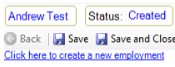
- Click here to create a new employment hyperlink.
3.A wizard appears which guides you through the employer creation process.
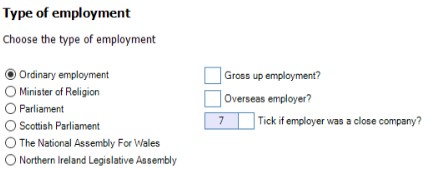
Note: If you enter a name similar to an employer that already exists within your Contacts, then you can select this contact from the list that appears.
The employment details that you enter in the wizard appear on the Employer tab in the Employment section. Once you complete the wizard the Details and income tab appears.
Add Employment Details
The Details and Income tab splits occupational details, such as occupation type, and employment income. Occupational details appears under the Details section, while income appears under Income from employment.
Before you can add employment details you must create an employer. See Create an Employer.
To Add Employment Details
- In Occupation enter the job title.
- (Optional) If employment commenced during the current tax year, then enter the date in Date employment started.
- (Optional) If employment ceased during the current tax year, then enter the last working day in Date employment ceased.
- (Optional) If the client is a director, then click Tick if company director. The No employment pages to be printed check box activates.
- If you do not want to print employment pages, click the No employment pages to be printed check box.
- Complete the following:
- Is this employment pensionable
- Superannuation contributions paid
A tax effective way of setting aside funds during working life for use as retirement income.
Edit Employer Details
The Employer tab allows you to edit employer details.
To Edit Employer Details
- Click Edit employer contact details to display the contact details for the employer.
- The Link to a different employer option displays a wizard, which allows you search for a different employer by PAYE or name.
- (Optional) Modify the following options:
- Close company check box
- Foreign employer check box
- Close company registration number, dividends received and percentage share (boxes only appear if client is a director)
Add Income from Employment
Complete the following task on the Details and income tab in the Employment section.
To Add Income Details
- Under Income from Employment do one of the following:
- Click in the Payments from P60 or P45 box and enter the income received before tax.
- Click Cash payments next to the Payments from P60 or P45 box. The Cash payments window appears for you to add detailed information relating to the income received.
- In Payments not on P60, add tips or other payments. Do not include expenses as these are entered on the Benefits and expenses tab.