
How To
Export
CCH Fixed Asset Register
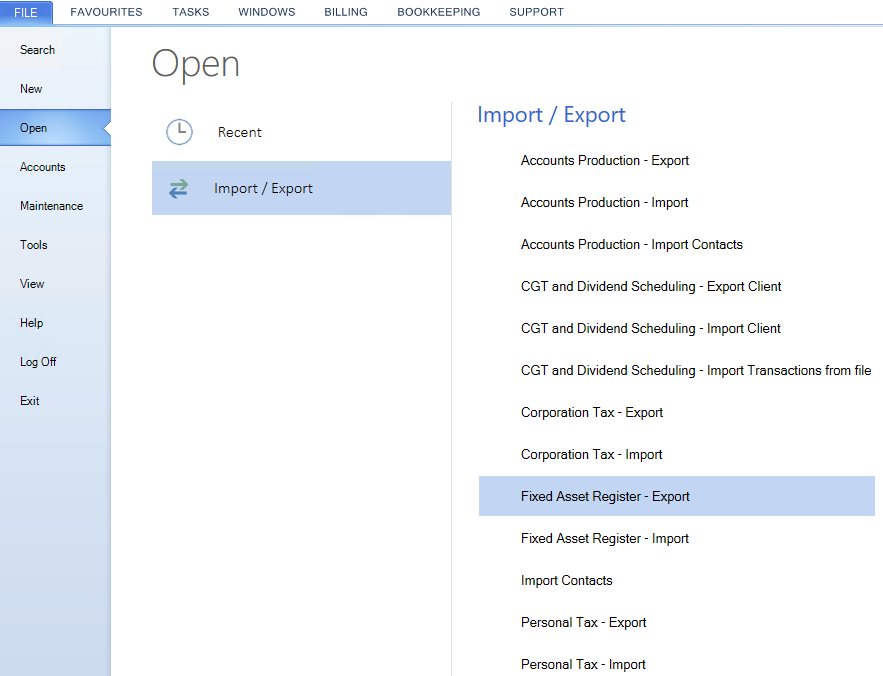
The Export screen is accessed via File > Open > Import/Export.
A Search control at the top of the screen allows you to limit the clients displayed to those matching part of a Code or Name.
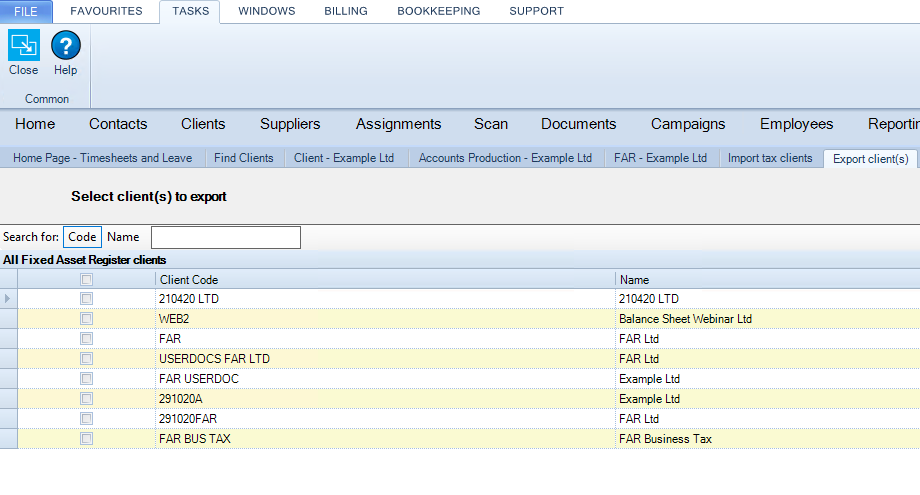
Click the columns headings to sort by Client Code or Name.
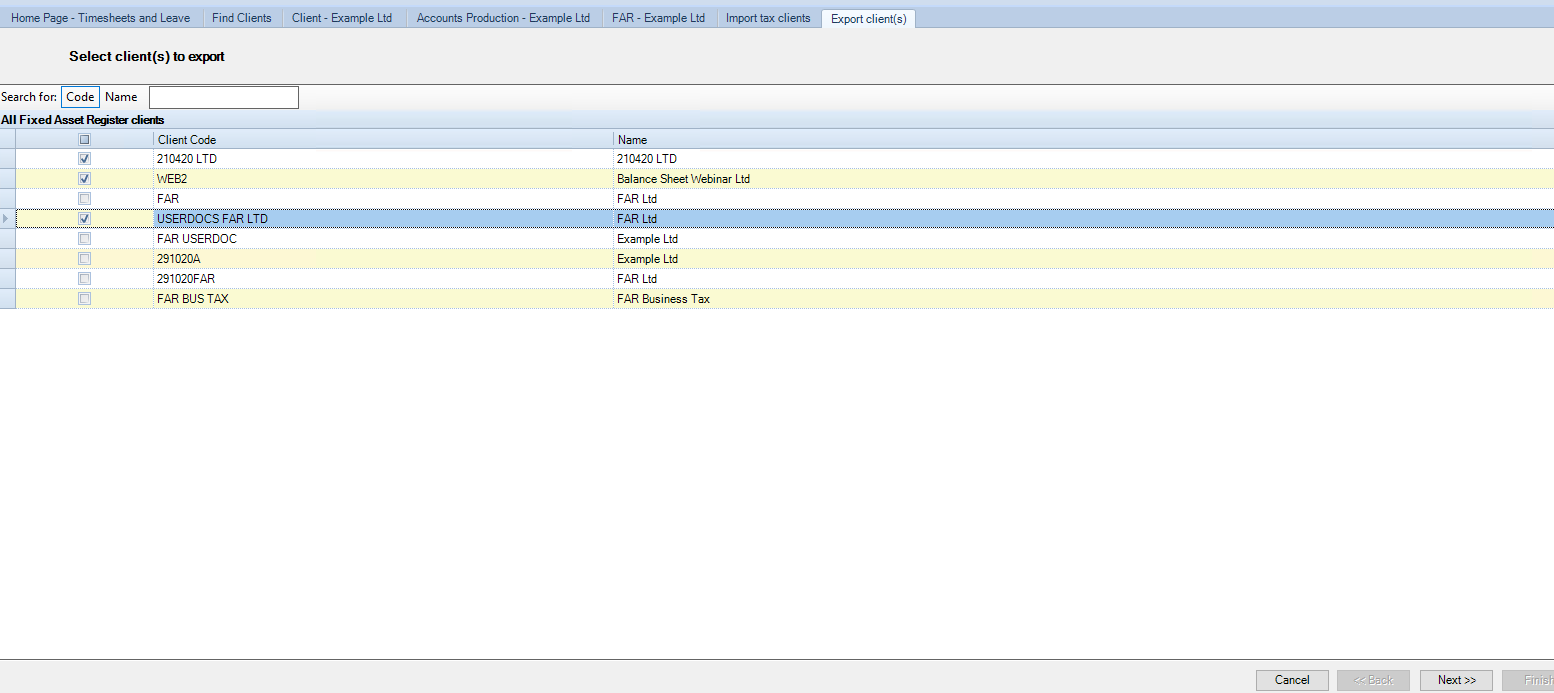
Tick the clients you wish to export.
Click Next.
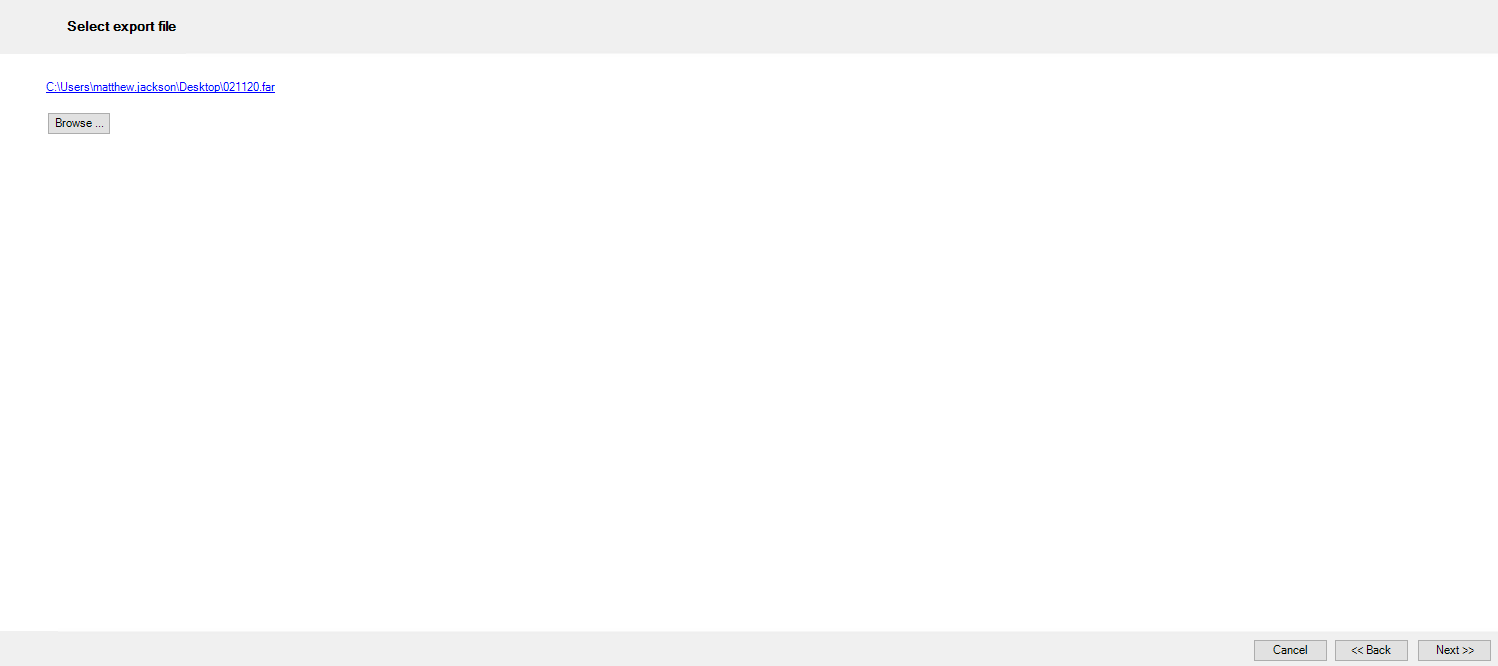
Click Browse or select the hyperlink.
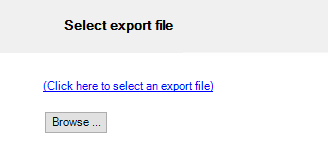
Choose a location to save the Fixed Asset Register data to .far file and enter a File name and select Save.

Click Next.
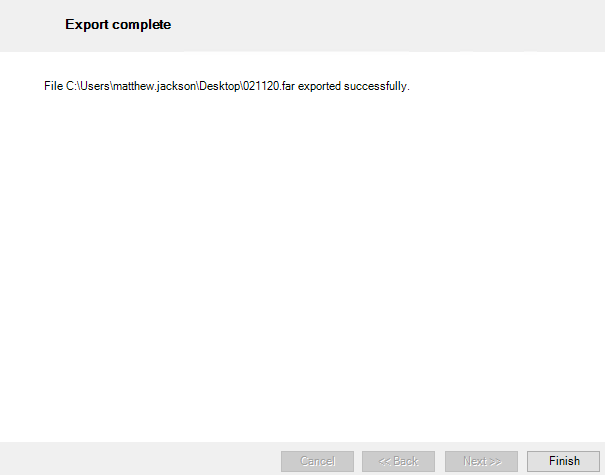
Once Export complete, click Finish.
Related documents
Part Disposals
Part Disposals
Changing Entity Type
Changing Entity Type
Asset Movement
The document outlines the functionality of the Asset Movement screen, detailing how asset transactions are recorded in the Fixed Asset Register, independent of CCH Accounts Production. It describes five types of movements: Cost B/Fwd, Addition, Adjustment, Revaluation, and Disposal, each with specific criteria and purposes. The document also covers the protocol for asset movement dates, especially concerning finalized periods, and discusses the Change of Method movement for altering depreciation methods. Additionally, it includes guidelines on how movements affect nominal accounts and the conditions under which movement deletion is permissible.
Asset Classes
The Asset class section is used to define the ledger accounts which must be used for the posting of the asset transactions and the method of depreciation.
Master Asset Classes: Fixed Asset Register
The document outlines the functionality of Master Asset Classes within the Fixed Asset Register's Set Up screen in CCH Accounts Production. These classes provide default settings for client-level Asset Classes and are integral to the CCH chart of accounts versioning system. While Master Asset Classes cannot typically be edited, users can modify them when creating a new Practice Master Pack. Access to Master Asset Classes is through the Set Up screen or the menu path: File > Maintenance > Accounts > Master Asset Classes.