
How To
Filing tax returns
CCH IFirm Personal Tax
Finalise tax return
To start the tax submission process, click Finalise tax return in the left menu.
In this section you can upload files, complete validations and submit to HMRC.
If submitting an Amended return, click on the amended return slider.
Attachments
In this area you can include any attachments you would like to send to your client and/or HMRC. If attachments have changed, please re-validate the tax return.
- To upload a file, click the Upload file(s) button.
- Navigate and select the .PDF files you would like to attach.
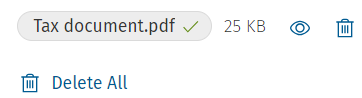
- Once you have attached a document, you can preview it by clicking on the eye icon.
Exceptions
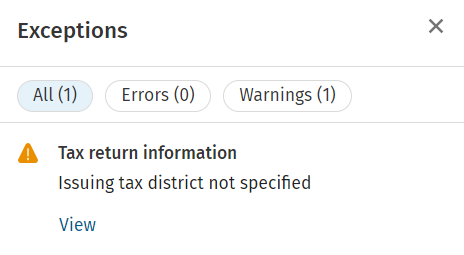
- To view the exceptions, click on Exceptions on the top right of the screen.

- The exceptions panel will now display the errors and warnings. As shown below.
- To address an error or warning click View.
Print/view options
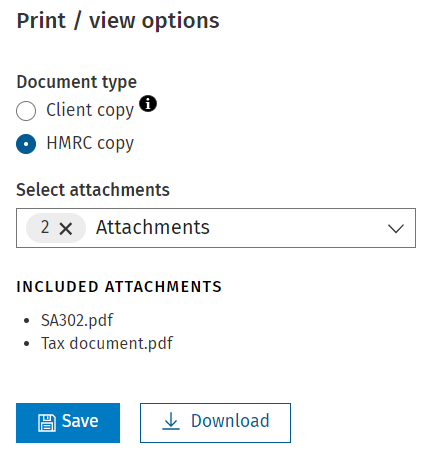
- To print/view the client or HMRC copy of the tax return documents click, Print/view options.
- In the Print/view options panel, you can select which document you would like to download.
- You can select which attachments you want to include by clicking on the Select attachments dropdown.
Validations
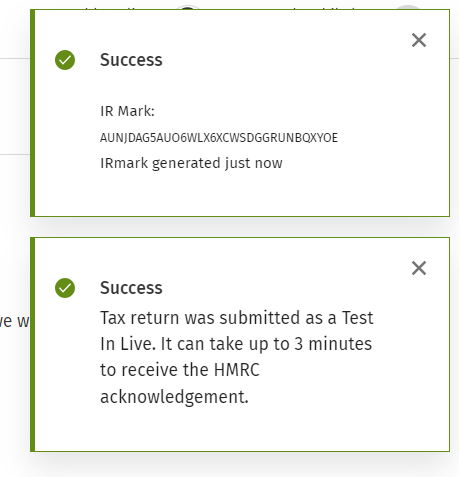
To generate the IR Mark and submit a Test In Live, click Validations.
- To run the validations click Run validations
- Success messages will display once the IR Mark is generated and the Test In Live is submitted.
Submit to HMRC
Once the validations are complete you can now submit the return.
- Click Submit to HMRC.
- Confirm this action by clicking Submit to HMRC.
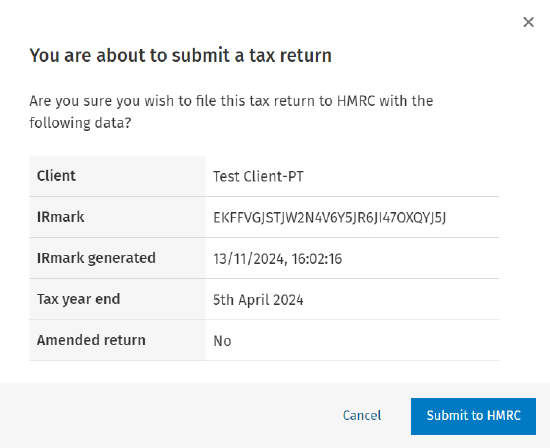
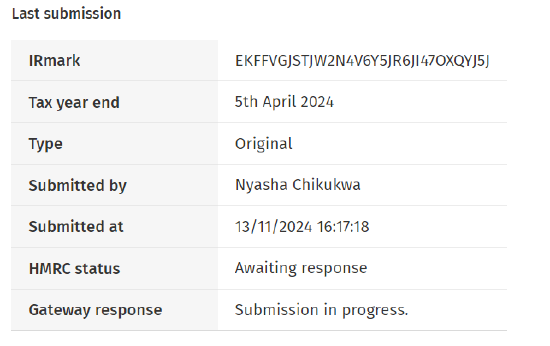
- Once submitted a summary of the submission will show on screen.
Submission log
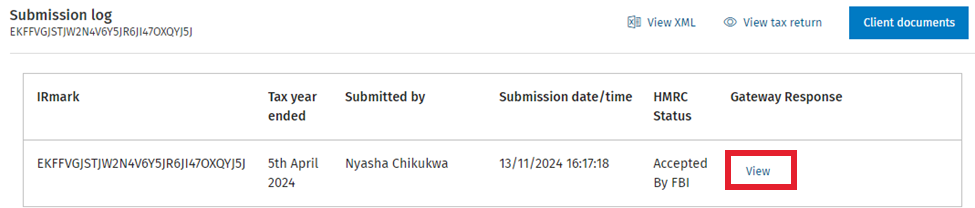
Once the submission is in progress, the gateway response can be seen in the Submission Log in the left menu.
- The HMRC Status will change to Accepted By FBI once the return has been submitted successfully.
- Click on View to view a copy of the gateway response.
Related documents
Removing linked Data
The document provides a brief guide on how to remove linked data in the Self Employment form by clicking the 'Unlink' button twice to confirm the action. An accompanying image illustrates the process.
Getting Started with CCH iFirm Personal Tax
This document provides a step-by-step guide for using CCH iFirm Personal Tax via CCH Central. Key prerequisites include having the latest version of CCH Central, necessary user permissions, and .Net 8.0 runtime installed. Users must access the CCH iFirm Console for authentication and synchronization. The process for creating personal tax returns in CCH iFirm is outlined, including selecting the tax year and necessary client details. Additionally, there are instructions for managing user access within Organisation Management, ensuring employees can utilize the software effectively.
Pension Contributions: CCH iFirm Personal Tax
To open the Pension contributions data source, click on Pension contributions from the data sources list.
NIC Adjustments
NIC adjustments are automatically added to the data source list when the Self-employment data source is added to the tax return.
UK dividends - Dividends from UK companies
This document provides instructions for entering dividends from UK companies in a tax management system. Users are guided to access the Dividends section, add company details, including name, description, date, and dividend details. It explains the process for modifying distribution types, adding multiple entries, and saving the information. A summary section is mentioned, which displays the compiled entries at the bottom of the screen.