
Generating a Nominal Ledger report
The Nominal Ledger Report details all of the transactions that have been posted to the nominal accounts between two given dates.
There are three ways in which a Nominal Ledger Report can be obtained:
- Reports - Nominal Ledgers - Nominal Ledger Report
- From the Nominal Ledger tab of the Client menu, click Nominal Ledger Report and then Goto.
- From the shortcut icon on the Nominal Ledger toolbar.
When you have selected the Nominal Ledger report, the following window appears:
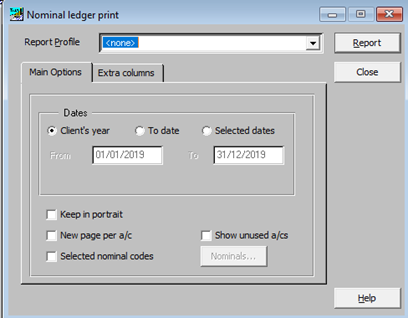
Select the relevant date and options from the Main options and Extra columns tabs in the Nominal ledger print box, click on Report to view and/or print.
Main Options
|
Dates: |
Controls which transactions are to be included in the report. |
|
Keep in portrait: |
Depending on the number of extra columns selected, the report prints in landscape. This can be overridden by ticking this option. |
|
Selected nominal codes: |
Rather than printing all the nominal accounts with balances, by ticking this option and clicking Nominals… you can select from the Client Chart. |
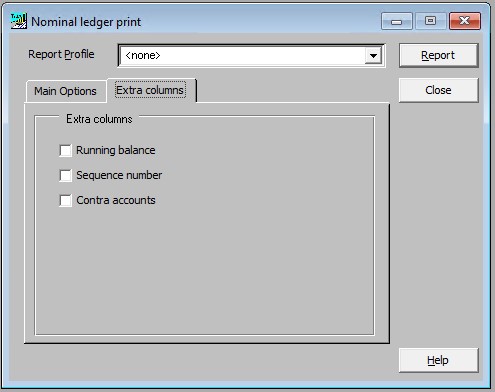
Extra Columns
|
Running balance: |
This option generates an extra column detailing the overall movement on each of the nominal accounts. |
|
Sequence number: |
This option generates an extra column showing the internal sequence number of the entries that have been posted. |
|
Contra accounts: |
This option generates an extra column showing where the opposite entries were posted to. |
Note: All reports always Preview to window, first allowing you to review the report before committing it to the printer.