
Getting Started with CCH iFirm AML: Setting up Data and Document syncs and document permissions for CCH iFirm AML
Ensuring that document and data syncs are turned on, and viewing AML documents in CCH Central.
Now that employees have access to CCH iFirm AML and the option to run checks on clients from CCH Central, The last step is to adjust the settings for the document and data syncs.
Ensuring the correct data is synced from CCH Central to CCH iFirm
Firstly, in CCH Central, the configuration key 'iFirm_EnableUpdateContact' must have a key value set to “1” via File > Maintenance > User Defined > Configuration.

Signing into the iFirm Console in CCH Central
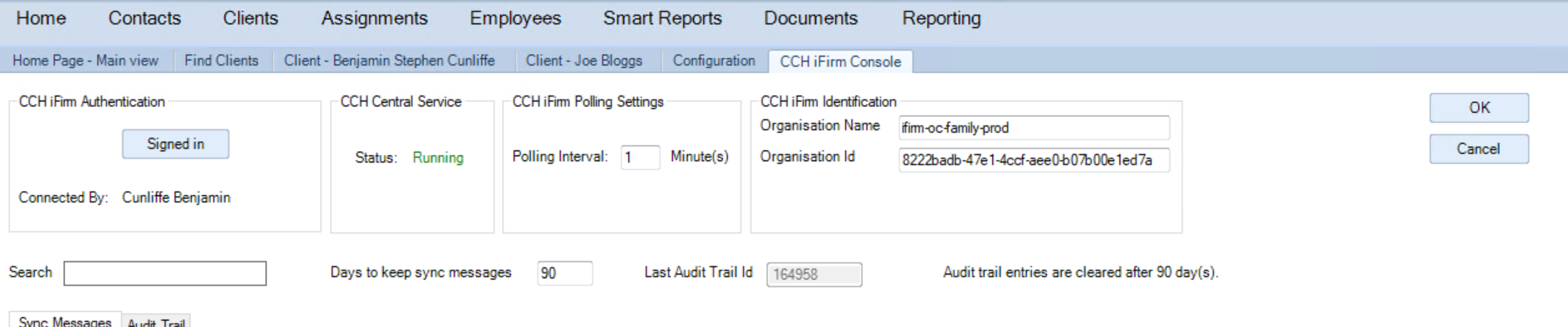
CCH iFirm Console
Signing into the CCH iFirm Console will ensure that a seamless link is established between data from CCH Central to CCH iFirm. To sign into the console go to File > Maintenance > Service Settings > CCH iFirm Console
Click the Sign In button, a pop-up is displayed:
The pop-up below only appears if the configuration 'iFirm_EnableUpdateContact' has a key value = 0.
Yes - This automatically updates the above-mentioned configuration key, setting its value to 1 and redirecting it to the CCH iFirm login page.
No - This cancels the sign-in and returns you to the console window.
Only one employee's credentials are required to log in, BUT that employee must be set as an Admin within CCH iFirm. (They need full rights to all contacts/clients to take action on the change requests).
Once the CCH iFirm login has been authenticated, CCH Central flashes and when re-accessed, the following message is shown: “A restart of the CCH Central service is required”. You can do this now, but it is best to follow the rest of these steps first
This sign-in option allows for the synchronisation of contacts/client records, edited records, and the saving of documents from CCH iFirm cloud products into CCH Document Management (where licenced).
Viewing AML documents in CCH Central
If you do not use CCH Document Management, then you can skip the document sync steps. If you use CCH Document Management, then you can expect documents to sync back to CCH Document Management
1. Library and Types
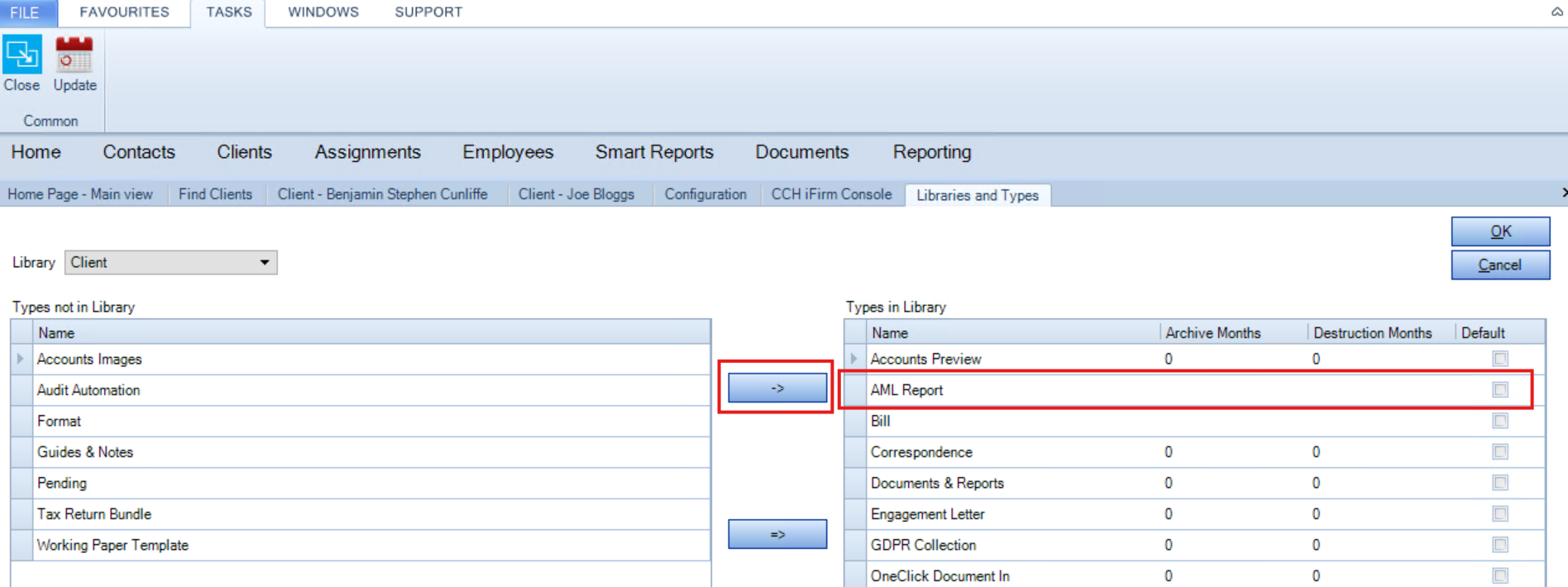
In CCH Central go to File > Maintenance > Document Management > Library and Types. Then select Client from the Library drop-down.
If the AML report displays on the left panel under the heading 'Types not in Library' then using the highlighted arrow in screenshot below move it to right hand panel under heading 'Types in library'.
2. Document Types
In CCH Central, go to File > Maintenance > Document Management > Document Types. Ensure the AML report is ticked as enabled.

3. Document Security
In CCH Central, go to File > Maintenance > Security > Document Security > Library. Then select Client from the library drop-down. Pick a security group that the user is a member of (e.g. AP Admin) and ensure that for the AML Report the Add and View checkboxes are ticked.

Once you have done the above, check the settings for each individual check.
Synching documents to CCH Document Management - CCH iFirm AML Data Checks
The document sync for Data checks is enabled by default as one of our most popular modules. The key iFirm_AMLPolling will define how often the document sync occurs. For example, 60 would mean that every 60 minutes we will check for new documents in iFirm to download in CCH Central. Set this by going to File > Maintenance > User Defined > Configuration.

Synching documents to CCH Document Management- CCH iFirm AML + Biometric KYC checks
In order to view the PDF Report of AML + Biometric KYC reports in the client Document Centre, the iFirm_AMLBioLicenceCheck configuration key must be set to '1' via File > Maintenance > User Defined > Configuration.
iFirm_AMLBioPolling will define how often the document sync occurs. For example, 60 would mean that every 60 minutes we will check for new documents in iFirm to download in CCH Central.

Synching documents to CCH Document Management- CCH iFirm Ongoing Monitoring
In order to view the PDF Report of Ongoing Monitoring reports in the client Document Centre, iFirm_EnableOMPolling configuration key must be set to '1' via File > Maintenance > User Defined > Configuration.
iFirm_OMPolling will define how often the document sync occurs. For example, 60 would mean that every 60 minutes we will check for new documents in iFirm to download in CCH Central.
True Postives in Ongoing Monitoring: Only reports marked as "True Postive" will be synched to CCH Central as to not fill up Document Management with false postives. However both true and false positives or available to view at any time in CCH iFirm


Synching documents to CCH Document Management- CCH iFirm AML KYB
In order to view the PDF Report of UK and/or International KYB reports in the client Document Centre, the iFirm_EnableKYBPolling configuration key must be set to '1' via File > Maintenance > User Defined > Configuration.
iFirm_KYBPolling will define how often the document sync occurs. For example, 60 would mean that every 60 minutes we will check for new documents in iFirm to download in CCH Central.

Synching documents to CCH Document Management- CCH iFirm AML IDV
In order to view the PDF Report of IDV Checks in the client Document Centre, the iFirm_EnableIDVPolling configuration key must be set to '1' via File > Maintenance > User Defined > Configuration.
iFirm_IDVPolling will define how often the document sync occurs. For example, 60 would mean that every 60 minutes we will check for new documents in iFirm to download in CCH Central.

History of AML Checks

Click the AML tag within a client to see a history of checks. If you have completed the above then the AML tab should be populated, alowing you to run reports out of CCH Central on these fields

All done!
If you're not seeing the status or the document update in CCH Central, You can adjust the polling interval for each type of check to shorten them (i.e change from 60 mins to 5 mins). if they still are not coming down, please raise a support ticket and one of our staff will be in touch to follow up.