
How to Import Expenses and Disbursements
Import expenses/disbursements
Users are able to import either expense or disbursements entries from an excel spreadsheet into their open sheet. There are best practice guidelines that should be referred to prior to using this feature. As specific column headings are required, two templates have been provided (These can be found within Deploy > PM Templates folder), one for expenses and one for disbursements. Please copy and distribute to the appropriate users.
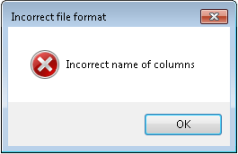
If different column headings are used, the following message is returned when trying to perform the import.
The ability to Import expenses and disbursements is controlled by a configuration key which is automatically created with a default value of 0 upon upgrade. This configuration key is found in File > Maintenance > User Defined > Configuration:
| Key Name | Key Value | Comments |
| PMImportExpenses | 0 | The Import option is not visible when in an open expense or disbursement sheet within CCH Practice Management. |
| PMImportExpenses | 1 | The Import option is available when in an open expense or disbursement sheet within CCH Practice Management |
The Key value being set to 0 or not present, results in no change to the application.
Importing - expenses
The user must first create an expense sheet in CCH Central for the required time period. Within an open expense sheet click Import Expenses from the Ribbon.
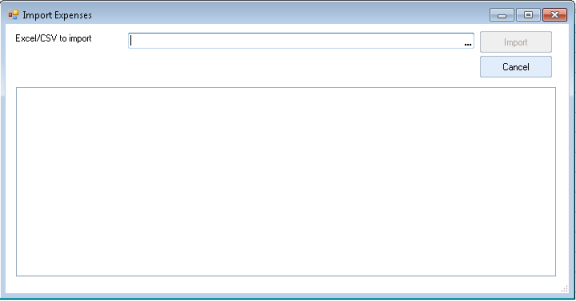
Browse to the completed expense MS Excel spreadsheet.
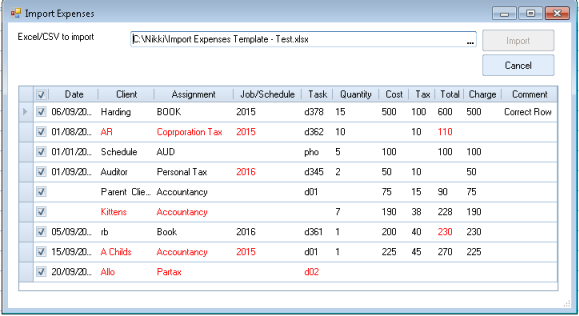
Items which fail validation appear in RED. Either correct the entries, or deselect line to exclude it from import.
Click the Import button to add these expense lines to the open expense sheet.
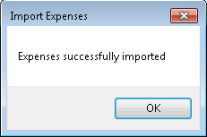
Click OK to close the success message box.
Note: The import button is only available once all selected rows pass validations.
Validation rules
It is important to note if entering the Client Name within the spreadsheet, where client names are NOT unique e.g. Smith,John upon import, the expense line is added to the first Smith,John. Where clients' names are not unique it is recommended to use the Client Code / Assignment Code combination.
The following table sets out the validation rules applied when performing the import.
| Name | Validation |
| Reference | No validation performed on this cell |
| Date | Date to be entered at dd/mm/yyyy |
| Client |
Validation is performed on the client code or client name
|
| Assignment | Use either assignment code/assignment name in this column. If client code is used in Client column, then use assignment code in this column. Similarly if client name has been used, then use assignment name |
| Job/Schedule | Validation is performed if a value is entered, it is then checked to see if this is valid against the associated assignment |
| Task | Validation is on disbursement task code or short name |
| Quantity | No validation performed on this cell |
| Cost | No validation performed on this cell |
| Tax | No validation performed on this cell |
| Total | Validation is performed on the total i.e. does cost + tax = total |
| Charge | No validation performed on this cell |
| Comment | No validation performed on this cell |
Note: The import expenses, maintains the same rules as entering onto an expense sheet, e.g. if a task/Client/Assignment code is not available when entering via the expense sheet, it is also invalid within the import window (appears as red)
Importing - disbursements
The user must first create a disbursement sheet in CCH Central for the required time period. Within an open disbursement sheet click Import Disbursements from the Ribbon.
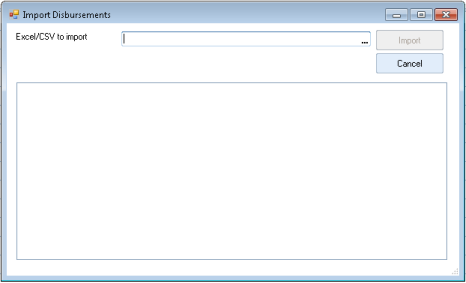
Browse to the entered disbursement MS Excel spreadsheet.
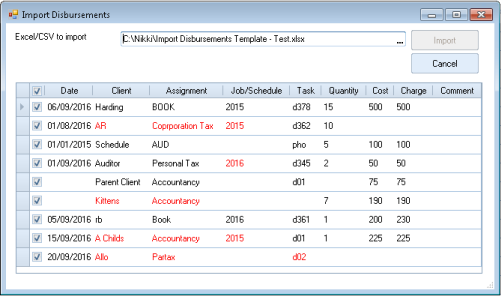
Items which fail validation appear in RED. Either correct the entries, or deselect line to exclude it from import.
Click the Import button to add these disbursements lines to the open disbursement sheet.
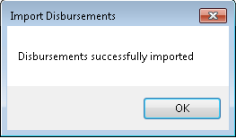
Click OK to close the success message box.
Note: The import button is only available once all selected rows pass validations.
Validation rules
It is important to note if entering the Client Name within the spreadsheet, where client names are NOT unique e.g. Smith,John upon import, the expense line is added to the first Smith,John. Where clients’ names are not unique it is recommended to use the Client Code / Assignment Code combination.
The following table sets out the validation rules applied when performing the import.
| Name | Validation |
| Reference | No validation performed on this cell |
| Date | Date to be entered at dd/mm/yyyy |
| Client |
Validation is performed on the client code or client name
|
| Assignment | Use either assignment code/assignment name in this column. If client code is used in Client column, then use assignment code in this column. Similarly if client name has been used, then use assignment name |
| Job/Schedule | Validation is performed if a value is entered, it is then checked to see if this is valid against the associated assignment |
| Task | Validation is on disbursement task code or short name |
| Quantity | No validation performed on this cell |
| Cost | No validation performed on this cell |
| Charge | No validation performed on this cell |
| Comment | No validation performed on this cell |
Note: The import expenses, maintains the same rules as entering onto an expense sheet, e.g. if a task/Client/Assignment code is not available when entering via the expense sheet, it is also invalid within the import window (appears as red)