
How To
How to set up a new client in CCH Central
CCH Trust Accounts
When the CCH Accounts Production formatter is going to be used to prepare accounts for a client in CCH Trust Accounts, the client should be set up in CCH Central first.
The essential steps are:
Open and log in to CCH Central.
Choose File > New > Client. This opens the Add New Client Wizard.
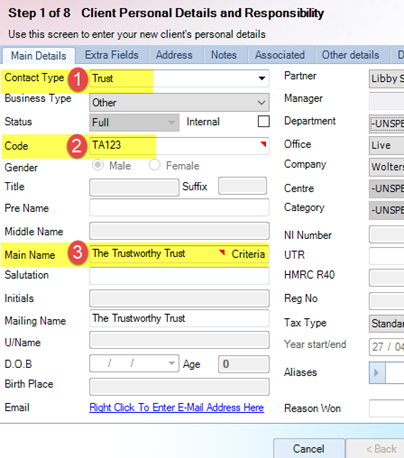
- Select the Contact Type as: Trust
- You must enter a Code, unless your database has been configured to automatically generate a code.
- Enter the Main Name of the Trust.
- You may Finish at this point, unless you have compulsory Extra Fields to be completed.
Full details of using the New Client Wizard can be found here.
Addresses and associations (links to other contacts such as beneficiaries, settlor, trustees and accountants) can be either set up in the client creation wizard, or afterwards from the client record in CCH Central.
Related documents
Linking to clients in CCH Central
This document provides instructions on how to link and unlink clients from CCH Central in the CCH Trust Accounts system. To link a client, the user must select the client, click "Edit," then "Link," and choose the appropriate client from Central. Once linked, certain fields become non-editable in Trust Accounts. To unlink a client, the user clicks the "Unlink" button, which restores editability but deletes any accounting periods in Central. Key fields updated from Central include client name, address, and contact details.
Database Parameters
Various features in Trust Accounts are optional. To set up many of these, from the Activities menu select System Management, and then Database Parameters.
Data Parameters
Various features in Trust Accounts are optional. To set up many of these, from the Activities menu select System Management, and then Database Parameters.
Database Parameters
Database Parameters
Passwords
Passwords