
How To
How to set up a new contact in CCH Central
CCH Trust Accounts
Contacts will need to be created In CCH Central for all trustees, beneficiaries, the settlor, the accountant, solicitors, bankers etc so that they can be linked using associations to the client.
To add a new Contact
Open CCH Central and log in.
Click on File > New > Contact. This opens the Add New Contact Wizard:
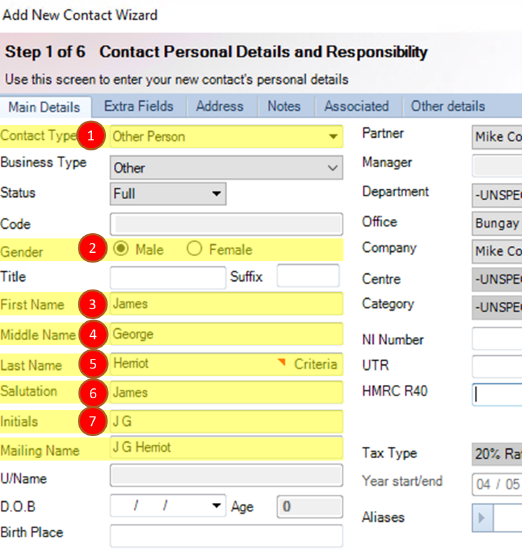
- Choose the appropriate Contact Type for the contact being added. i.e. Other Person for individuals, LLP for LLPs, Limited for companies etc.
- The boxes below (2-7) will change (or be greyed out) according to Contact type selected. For an individual select the Gender.
- Provide the First Name
- Middle Name (if known) or just their middle initial
- Last Name
- Salutation and
- Initials and Mailing Name will be auto-populated.
Click Finish to save the details (the other tabs don't need to be completed at this stage).
Note: A contact should only be set up once in CCH Central, then used multiple times using associations to link to different clients.
Please click here for more detailed information as to setting up contacts in Central.
Related documents
Linking to clients in CCH Central
This document provides instructions on how to link and unlink clients from CCH Central in the CCH Trust Accounts system. To link a client, the user must select the client, click "Edit," then "Link," and choose the appropriate client from Central. Once linked, certain fields become non-editable in Trust Accounts. To unlink a client, the user clicks the "Unlink" button, which restores editability but deletes any accounting periods in Central. Key fields updated from Central include client name, address, and contact details.
Database Parameters
Various features in Trust Accounts are optional. To set up many of these, from the Activities menu select System Management, and then Database Parameters.
Data Parameters
Various features in Trust Accounts are optional. To set up many of these, from the Activities menu select System Management, and then Database Parameters.
Database Parameters
Database Parameters
Passwords
Passwords