
Journals and other data
How to enter a Journal
Choose Journals from the Data Entry window and click on Add... button.
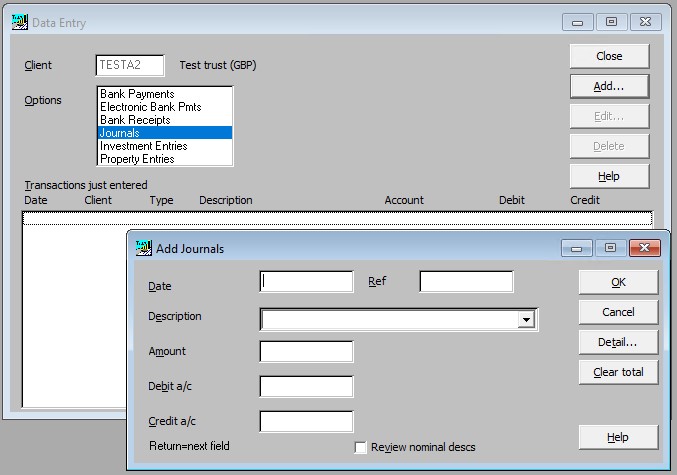
The procedure for entering Journals is similar to entering Bank Payments and Bank Receipts here.
The exception is that journals do not have a logged in account, the dialogue box will display Debit a/c and Credit a/c as above.
If you are entering a single item journal with only one debit and one credit entry then enter the amount and the debit and credit nominal codes. Then click OK to post the journal.
How to enter multiple rows of a journal
-
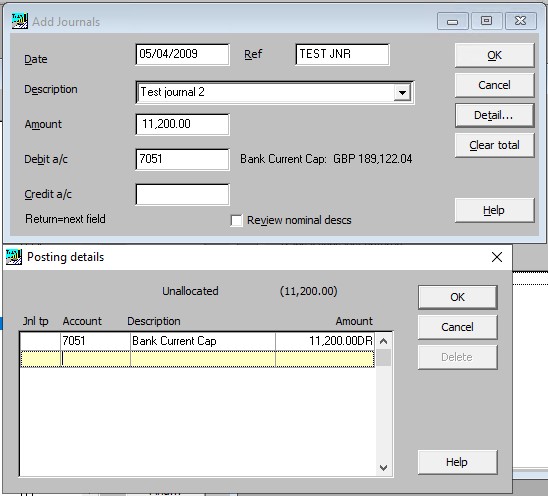
Enter a debit amount in the journal in the Amount field and the account to be debited in the Debit a/c. field.
-
Click on Detail.
-
The posting details dialogue box will be shown.
-
Now enter the remainder of the journal, enter row by row until the Unallocated amount is 0.00.
-
Use F2 in the Account column to select the nominal code or enter the nominal code directly.
-
Press Enter or Tab to move to the next input field.
-
Credit amounts must be entered as negative figures.
-
Pressing Enter when the Amount field shows as 0.00 will insert a balancing figure.
-
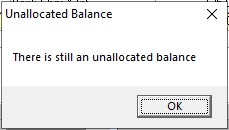
If you try to click OK when there is an unallocated amount you will get the message:
-
This should be reduced to zero and the journal can then be posted.
-
Click OK to post, then Close to close the Entry details screen.
-
Click OK to post the journal.
-
The journal will now be shown in the Transactions just entered screen.
-
You can now continue entering further Journals or click Cancel to return to the Data Entry screen.