
Linking associations to clients
Linking Associations (CCH Central)
To manage Associations from the client screen, choose the Associated tab.
Settlor, Beneficiary and Trustee associations specific to your Trust job work in conjunction with the Officers screen in CCH Accounts Production, the details of which appear in the Associations tab and the Officers screen. All other associations will be linked through the Associated tab within the individual client screen.
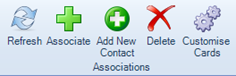
Click Associate on the ribbon
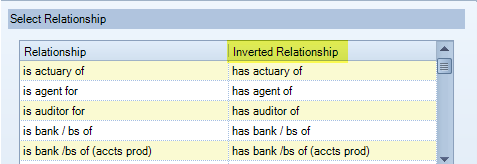
Choose the Inverted relationship from the pop-up, e.g. to show the firm of accountants select “has auditor of” or to show a bank select “has bank/bs of (accts prod)”

Click the Search button to search for the contact
Select OK to select and OK to close dialogue box.
The association has now been made. The delete option unlinks the association.
Start and end dates (CCH Central)
Associations and Addresses use start and end dates, if the start and end dates are blank, it will be taken that the record is relevant for all accounting periods. If the association/address is no longer relevant do not delete the association or address, enter an end-date.