
Logging into CCH iFirm Accounts Production
Important! As a CCH Central employee (user) who requires access to CCH iFirm Accounts Production you must first be invited to join CCH iFirm by your Organisation’s CCH iFirm admin user via Organisation Management. If you are not a member (user) of CCH iFirm, contact your internal System Administrator to set you up. Organisation Management Overview
Pre-requisites
Important! You need to have a CCH Central login and a CCH iFirm login and ensure that the CCH iFirm Console is running
To access your client in CCH iFirm Accounts Production
Select the CCH Central client
You will do this as usual through the Client search function or your Accounts Production Homepage.
You will see on the Accounts Production homepage which clients are already in CCH iFirm indicated by a blue star in the first column.
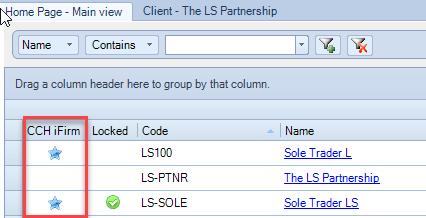
Logging into CCH iFirm Accounts Production
Having chosen a client, select the Accounts Production tab (or any tab with the CCH iFirm Accounts Production icon on the ribbon), click on CCH iFirm Accounts Production icon on the ribbon.
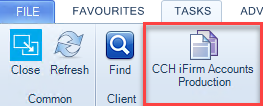
This opens a browser tab, from here enter your Wolters Kluwer Account registered email address, click the Continue button
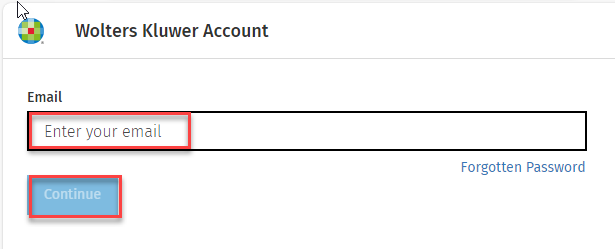
You will be prompted to enter your Password then click the Login button. If you have forgotten your password there is a Forgotten Password link
You will first be taken to the CCH Central iFirm tab, closely followed by the selected client being opened in CCH iFirm Accounts Production.
If you have not already migrated your client across see: Migrating your existing clients to CCH iFirm Accounts Production
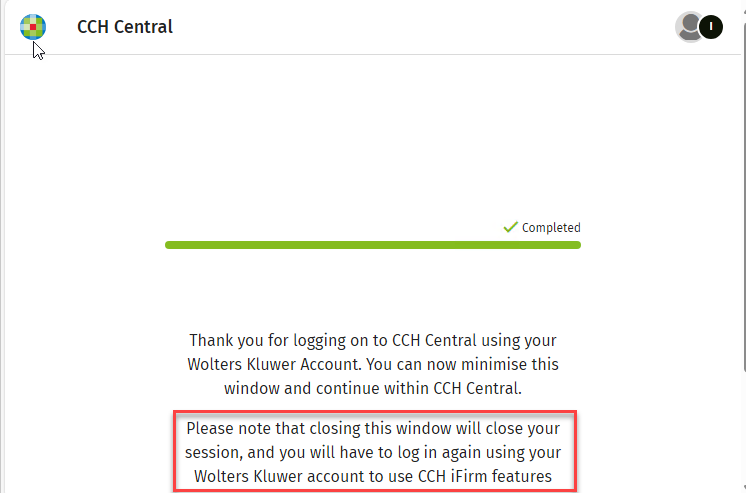
Important! When you have successfully logged in, Minimise, do not close this screen
.