
Migrating your existing clients to CCH iFirm Accounts Production
Migration steps
If you have not already migrated your accounting data to CCH iFirm Accounts Production, then follow these steps.
Select the CCH Central client you wish to migrate
You can check whether the client's accounting data has already been migrated by clicking on the Accounts Production tab within the client, you will see the accounting periods. To the far right is a column headed 'In CCH iFirm', if the accounting data is already in CCH iFirm these boxes will be ticked.

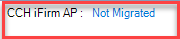
In addition, at the bottom right of the screen is a message to indicate whether the data has been migrated or not.
Important:
- Ensure that the 'CCH iFirm Console' service is running before migrating data to CCH iFirm. The CCH iFirm console allows firms to authenticate and monitor the syncing of edited Contact and Client records from CCH Central to CCH iFirm.
- A prompt may appear if the .NET runtime is not installed on this workstation
To migrate your client's accounting data from on-premise to CCH iFirm
Click on the CCH iFirm Accounts Production button on the ribbon, if you are not logged into CCH iFirm, you will first be prompted to login.
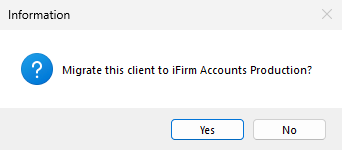
You will be presented with an Information box asking if you wish to migrate the client to iFirm Accounts Production. Click Yes to continue.
The status message will show you that the client is being exported.

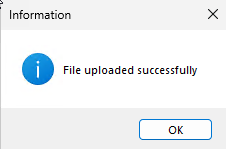
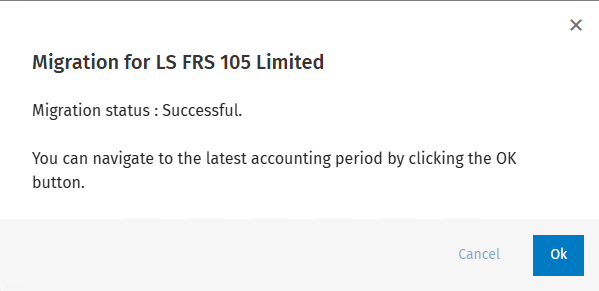
Once completed you will see an acknowledgement message, click OK, a further message will appear with the Migration status, click OK.
You are now ready to work on this client in CCH iFirm Accounts Production.
Acknowledgement message:
Migration status message:
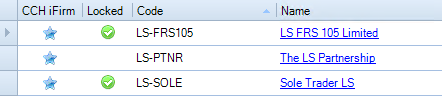
Once the data has been migrated the accounting period in the on-premise client will be Finalised, you will see ticks in the Finalised box(es) and in the CCH iFirm box(es) for the periods migrated. In addition, on your Accounts Production Home Page a blue star will indicate that the client's accounting data has been migrated to CCH iFirm.
From the CCH Accounts Production tab in CCH Central

From the CCH Accounts Production Home Page in CCH Central
To revert back to CCH Accounts production on-premise
Note: If you wish to revert back to preparing the accounts in CCH Accounts Production on-premise, delete the accounting periods within CCH iFirm Accounts Production. You will need to Undo Finalise within CCH Accounts Production.