
Movements
The Movements screen has extra columns when the Personal Tax client is linked to a Fixed Asset Register client. These columns allow imported movements to be allocated to the correct Asset/Pool type.
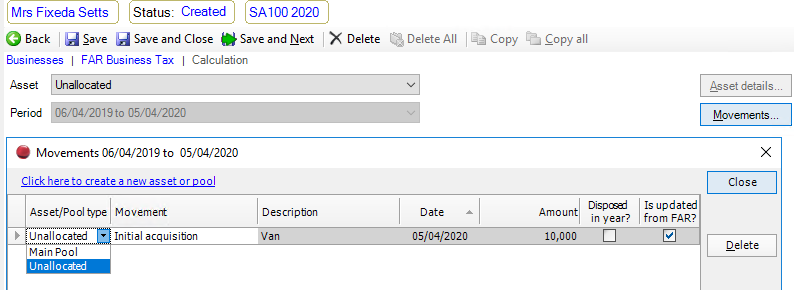
For imported movements, fields that come from the Fixed Asset Register, such as the asset Description, are greyed out and disabled. To change them, you need to update them at source in the Fixed Asset Register. The column Is Updated from FAR? is ticked for Movements that have been imported from the FAR.
Asset/Pool type is used to allocate the imported movement to the correct Asset/Pool type.
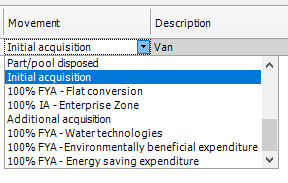
Movement - For imported movements, this column is set to Initial acquisition or Additional Acquisition for an Addition or Part/pool disposed for a Disposal. Other options are available from the drop down menu.
Select Click here to create a new asset or pool to create a new asset/pool type. Once added, it is available in the dropdown for the Asset/Pool type drop down menu.
Once a movement has been allocated to a different Asset/Pool type, it disappears from the Movements screen as soon as you move to a different row on the screen.
If you need to make further changes to the movement, go into the Asset/Pool type to which the movement was allocated and click its Movements button.
For Asset/Pool types other than the Unallocated pool, you can add movements manually in the usual way. If the PT client is linked to a FAR client, then the columns for Asset/Pool type and Is Updated from FAR? are uneditable.
If an imported movement is allocated to the wrong Asset/pool type, you can go into the Asset/Pool type to which it was allocated and reallocate it to the correct Asset/Pool type.
If you make changes to an imported movement in Personal Tax and then reimport the data from the Fixed Asset Register, the fields that came from the Fixed Asset Register are updated and your changes are retained.
To edit Fixed Asset Register imported fields un-tick CCH Accounts Production link - Balance sheet for the relevant period of account on the Tax Links screen and select Update from Accounts in the top Ribbon.
Disposals are imported and edited in the same way as Additions. But if there is an Addition in the same year as the Disposal, then the Addition is ticked as Disposed in Year? and the Disposal is not imported.
When all unallocated movements have been allocated, the Unallocated pool type is automatically deleted.