Navigation
Breadcrumbs
A standard means of navigating around web pages, the Breadcrumbs appear horzontally across the top of the ta return tabs. The provide a trail for you to follow back to the starting point or to navigate further into the tax return data entry screens.
Quickly navigate between screens in a given area based on the parent node. For example, the screen shot below details how to navigate between screens that relate to Trade items.
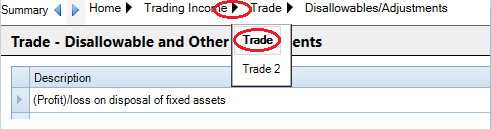
The relevant 'parent' (i.e. the screen to which that data entry is active) will be highlighed in bold font. In this example, the active data entry screen is the Disallowables/Adjustments for 'Trade'.
Clicking the black arrow to the right of Trading income displays all trades present in that company and the active one will be bold. Clicking on any of these trade names (or other relevant headings) will navigate to that screen.
Hyperlinks
Many of the data entry screens contain hyperlinks - a quick means of navigating to another screen which is relevant to the current data entry screen.
These links are displayed as blue underlined text and clicking on the text will navigate to the appropriate screen indicated in the link. In the example below, the hyperlinks will navigate to different areas in the software.
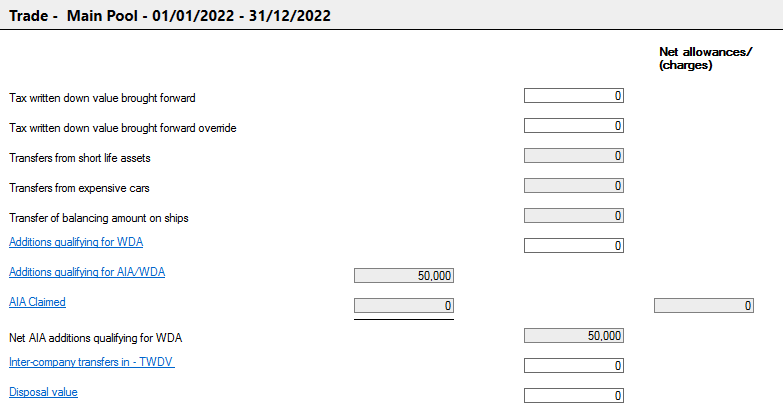
- Additions qualifying for WDA and Additions qualifying for AIA/WDA will navigate to the Fixed Asset Additions screen.
- AIA Claimed will navigate to the Tax planning > AIA Claim screen for the relevant accounting period.
- Disposal value will navigate to Fixed Asset Disposals.
CCH Corporation tax contains a number of methods of navigating around the software to enhance the user experience. Shortcut keys are available for users who prefer to use the keyboard predominantly, rather than the mouse.
Shortcut Keys
The following combinations of keys will allow you to navigate quickly around the application by using your keyboard.
- [Ctrl] + N
- This navigates to the Data Navigator where you can up or down arrow/tab or [Shift] + tab to move up and down the navigator.
- It will navigate to the data navigator entry for the data entry screen which is currently active.
- The navigator node will be highlighted as below, so you are able to recognise where in the Data Navigator is active.

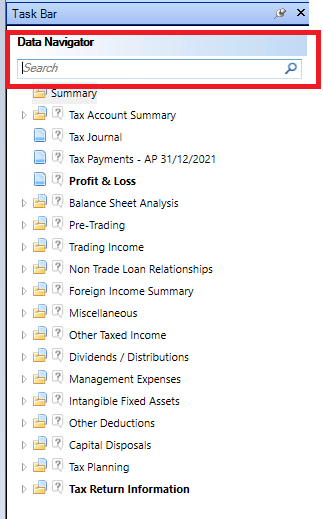
- [Ctrl] + F
This navigates to the Search field at the top of the Data Navigator.
- [Ctrl] + B
This combination of keys will navigate to the the Summary field on the Breadcrumb.

- [Ctrl] + W
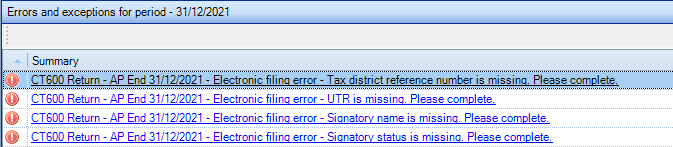
This will navigate to the first message displayed in the Errors and Exceptions panel.