
Overview and setting up clients and accounting periods
Overview
The CCH Trust Accounts Estate (Probate) formats comprise a standard chart of accounts, accounts pages and a Statutory Database.
The standard chart of accounts uses 4-digit nominal codes within CCH Trust Accounts.
The chart is distributed in a file, S6Prob.imp and imported using File Import. This sets up the probate chart of accounts as a Client Class. If the Client Class number already exists, then it should be edited to a different number before importing S6Prob.imp. No changes are required at the client level for this process.
Data entry using the specific nominals is made within CCH Trust Accounts. The output of formats is in CCH Accounts Production. CCH Trust Accounts and CCH Central (CCH Accounts Production) will be linked to enable this.
Creating a client and setting up accounting periods in CCH Trust Accounts
Ultimately, a client will be created in both CCH Trust Accounts and CCH Central and will be linked. It is possible to have both clients unlinked until ready to link.
Below covers the scenarios where the client already existing in CCH Central and where it does not.
Before starting the client creation process, check to see if the client exists within CCH Central to ensure you will be linking to the correct client. The client code is the field that matches the clients.
The client codes MUST match to enable them to be linked. If they differ, it is more usual to change the code in CCH Trust Accounts rather than CCH Central
1. If the client already exists in CCH Central
Having checked the client details in CCH Central, within CCH Trust Accounts, from the Client listing Select New…
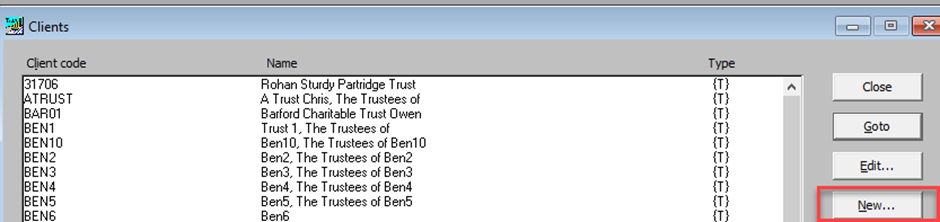
A message will appear giving three options, Yes, No and Cancel.
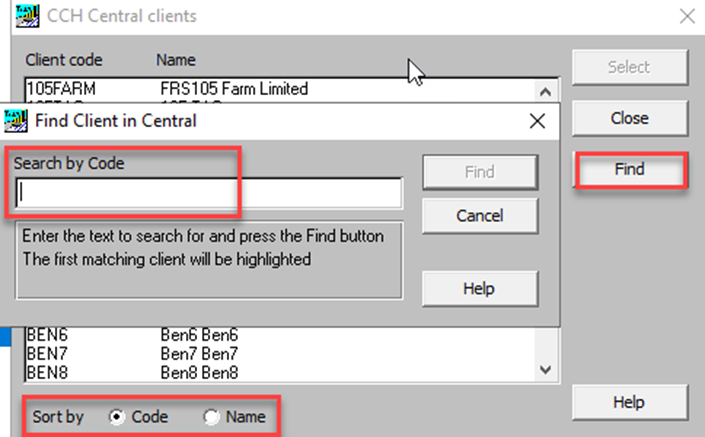
Select Yes, and your list of CCH Central clients will be displayed, you can search this list using the Find option, ensure you have selected right correct filter e.g. Code or Name as indicated below, or scroll through the list to find the correct client to link to. Once you have chosen the correct client clikc Select to close.
The client in CCH Trust Accounts is now linked to the same client in CCH Central.
In CCH Trust Accounts the Code and Surname will be greyed out in the Edit client details box, the client may be unlinked from this box. To access the client details after set up, select the client from the Clients listing and click the Edit… button.
2. If the client does not already exist in CCH Central
From the Client listing Select New…
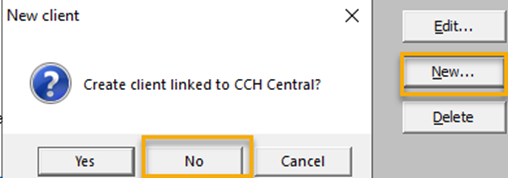
This time select No to the linking question, then the Edit Client details box will open, enter the Client Code, the Name / title as appropriate. See screen shot below.
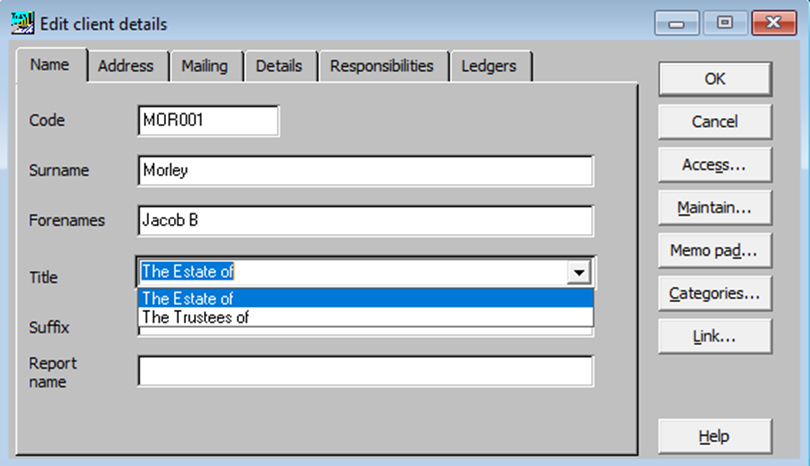
Note: The report name field is an override field that feeds through to CCH Accounts Production if the name on the report is to be changed.
The Link… button may be selected later when the client has been set-up in CCH Central.
Click OK, the Nominal Client Details box will open
Setting up the first period of account - Nominal Client Details
This applies to all clients (linked or unlinked) where the accounting period is being set up for the first time. Either you will have selected OK, as above, and this box will open, or, you will select Nominal Client Details from the Nominal Ledger options. Explanations are given below the screen shot below.
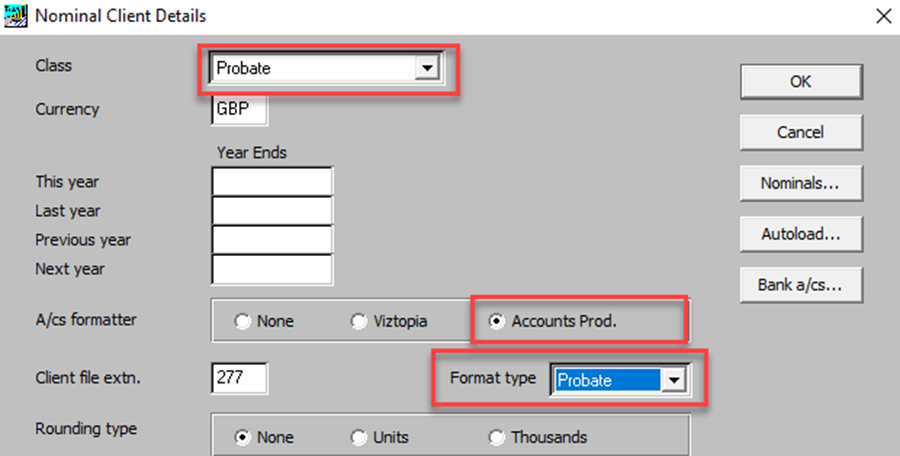
- Class = Probate – cannot be changed once the Nominal Client Details screen is set-up
- Currency: will already be populated
- This year: will be the day before the date of death. This ensures that when the client is balanced forward the accounts begin on the date of death.
- Last year: will be any date prior to the date of death (this date cannot be changed)
- Previous year: will be any date prior to last year (this date cannot be changed)
- Next year: will auto populate with a date 12 months forward, and may be amended later to the accounts date.
You will set up the various periods of account you wish to produce using Autoload and not the year-end function. You will perform one year-end once all entries after of death have been entered. See setting up subsequent periods of account - Autoload below.
- A/cs formatter: Accounts Prod.
- Client file extn: will already be populated
- Format type: = Probate
- Rounding: None
- Divisions and Beneficiaries: N/A.
Setting up subsequent periods of account - Autoload
Estate accounts are a form of periodic accounts. The accounts cover the period of administration starting on the date of death. If the period of administration covers more than one tax year, a separate Income Account is prepared for each tax year. The Balance Sheet shows the position at the accounts date.
The periods required are:
Date of Death
This period is for a single day and is used to show the opening position.
It is possible to use comparative balances to show the position at the date of death (DoD). However, it is simpler to set up a one-day period as adjustments are frequently made to DoD values during the period of administration. Changing current year values is easier than making prior year adjustments.
First tax year
This is the period starting the day following the date of death and ending on the first subsequent 5th April. This period is used for preparing the first Income Account.
Subsequent tax years
Each subsequent tax year of the period of administration ending on the 5th of April is set up as a period. The last period ends on the date of the end administration (accounts date).
These periods are set up in Nominal Client Details using Autoload and the period end dates are also set up in the Statutory Database in CCH Accounts Production.
Each period is assigned a letter starting from “g”. These letters are used in within the accounts formats to access balances for the relevant period.
Using Autoload
Autoload is used in CCH Trust Accounts-Estate accounts to set-up subsequent periods when the period of account spans more than one year. Each period is assigned a letter and name, dates are defined, and movements allowed.
Steps:
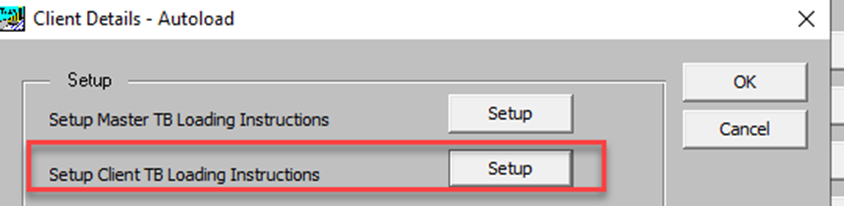
1. Select Autoload… from the Nominal Client Details screen (shown above), clickthe Setup button beside Setup Client TB Loading Instructions, then New…
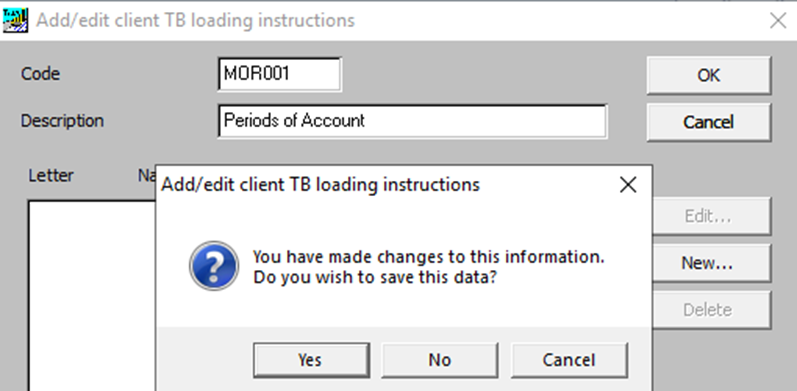
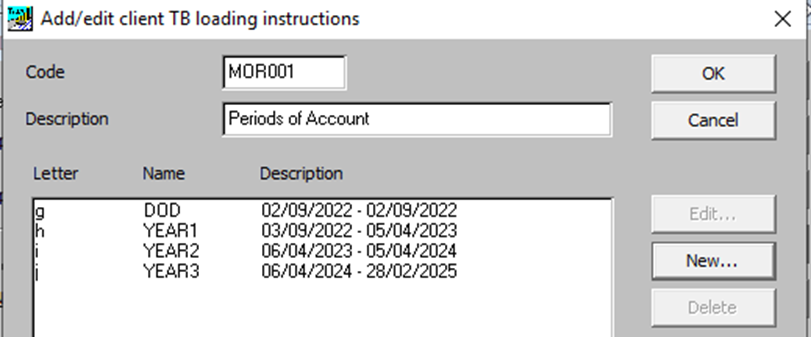
2. Enter a Code (e.g. the client code) and a Description, e.g. MOR001, Periods of Account. Click the button New… and Yes to the Add/edit client TB loading instructions message that appears.
3. In the Add/edit client TB loading instruction line box, enter the first period of account being the date of death (DOD), see below, click OK.
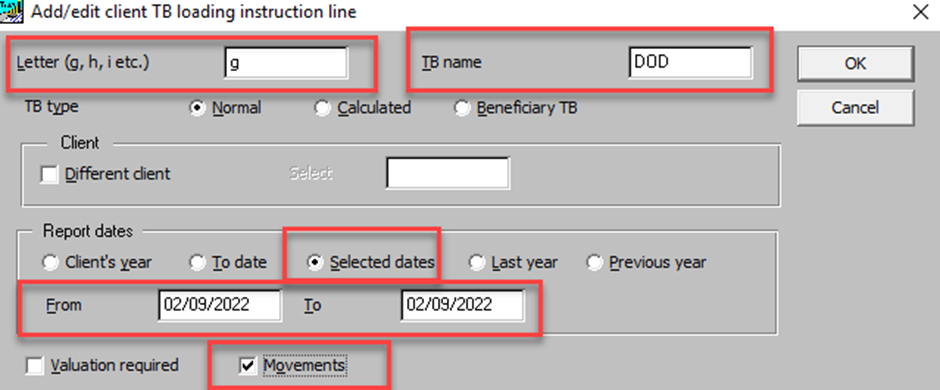
When setting up these periods tick the Movements box to ensure that the balances shown on the Income Account are the balances for the tax year rather than cumulative balances.
Then click New… to open the box to set the details for the next period, OK to close.
Repeat the steps above until all are set.
e.g. h = for Year 1, i for Year 2 and j for Year 3 – see Add/edit client TB loading instructions screen shot below.
You may not know how long the period of adminstration will last and therefore may only set up the DOD and first year, then subsequently set-up future years/periods as they arise.
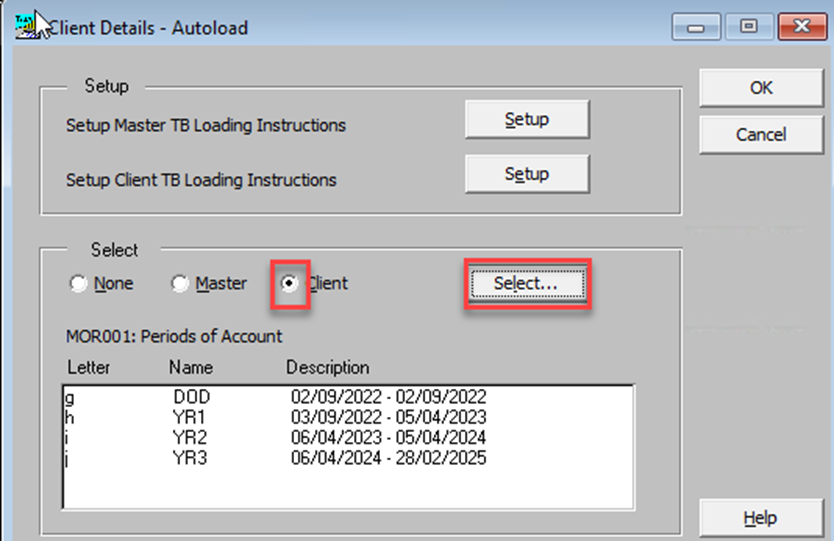
4. From the Client Details - Autoload screen, add the periods of account to this screen.
Click Client and the Select button to open the Client TB loading instructions screen, select e.g. “Periods of Account” that you have just set up.
The periods of account are now displayed in the Client Details - Autoload box. See below.
You must carry out the step above for the periods to feed through to CCH Accounts Production.
Period letters and nominal codes
With the periods defined, g,4101 picks up the date of death balance from account 4101 (Investments), whereas a,4101 picks up the current balance, i.e. the remaining probate value of any investments left at e.g. 28/02/2025; h,0001 picks up the balance on account 0001 (Investment Income) falling in the first tax year; i,0001 picks up investment income in the second year and so on; and a,0001 is the total of h,0001+i,0001+j,0001.
Income that arose on the date of death is part of the assets as at the date of death and is not posted as income.
The periods set out above will also need to be set up in Statutory Database as Accounting dates within CCH Accounts Production.
It is sometimes necessary to produce Interim Accounts during a long period of administration. In this case the Year End date in Trust Accounts is moved to the required accounts date and the periods in Trust Accounts and Statutory Database are adjusted in the same way.
Note: The Year End date in Trust Accounts is edited to make this change. Do not run a Year End. It may also be desirable to produce accounts showing the position at an earlier date than the current Year End date. In this case the Year End date in Trust Accounts can be edited back to the earlier date and the periods in Trust Accounts and Statutory Database edited to match.