Step 1 of 4: Add Retirement Annuities Policies (RAP)

  1. Open the Pension Contribution section.

  2. Ensure that the RAP tab is selected.

  3. Click elipsisicon.png in Provider Name to link to a pension provider or manually enter the Provider Name.
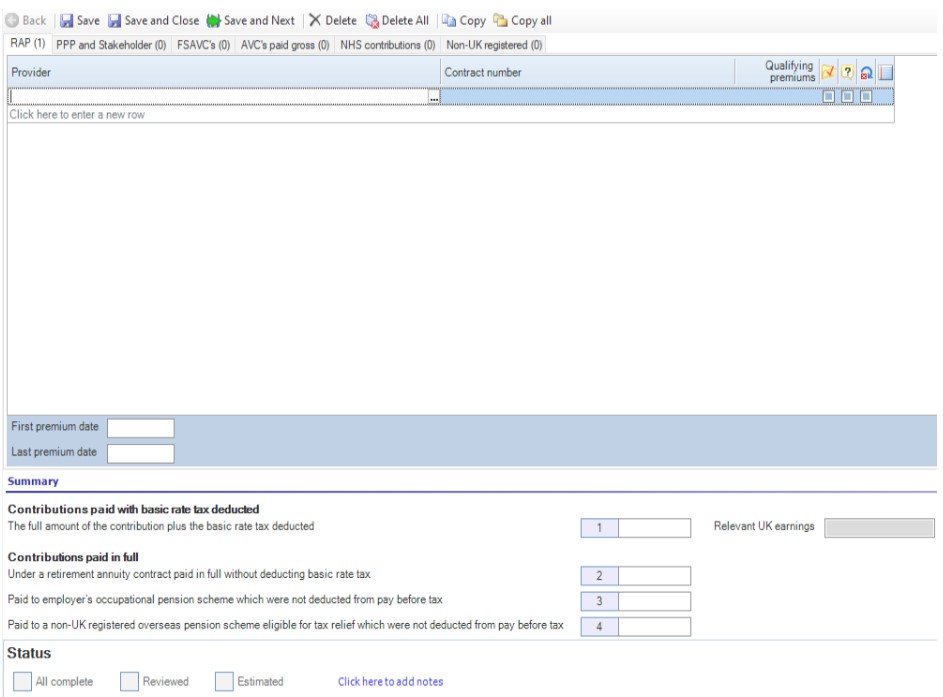
  Personal_Tax_Tax-Return-Data-Entry_Pension_Contributions_1.jpg

 4.  In Contract Number enter the policy number.

 5.  Enter the amount of qualifying contributions in Qualifying premiums.

 6. (Optional) Enter the first payment date in First premium date.

 7. (Optional) Enter the last payment date in Last premium date.

Note: Under Summary you can see information relating to all contributions made.

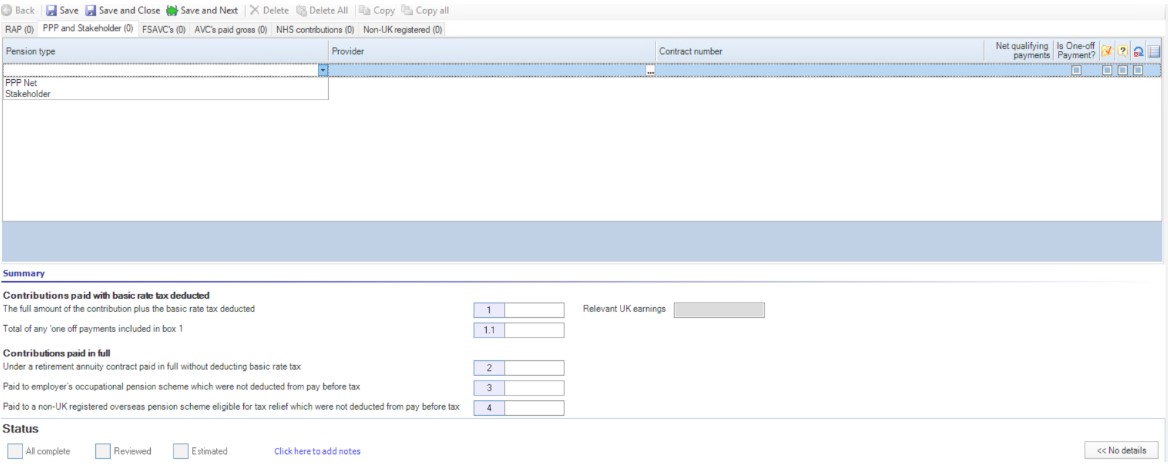
Step 2 of 4: Add Personal Pension Plans (PPP) and Stakeholder

  1. Click the PPP and Stakeholder tab.

  2. Select PPP or Stakeholder from the Pension Type drop-down.

  3. Click elipsisicon.png in Provider Name to link to a pension provider.

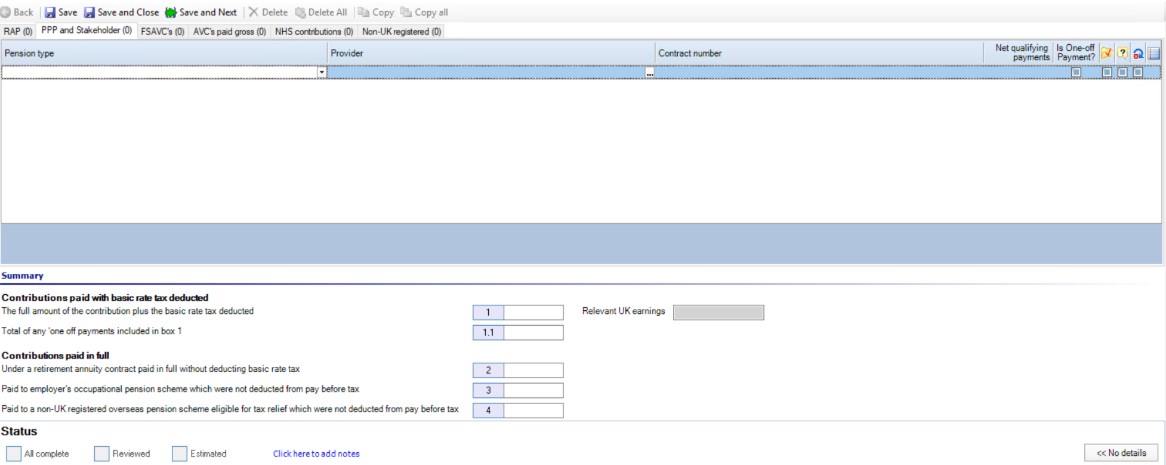
Personal_Tax_Tax-Return-Data-Entry_Pension_Contributions_2.jpg

 4. In Contract Number enter the policy number.

 5. Enter the total of qualifying contributions excluding tax in Net qualifying payments.

 6. Tick the box if this is a One-off payment.

Step 3 of 4 : Add Free Standing Additional Voluntary Contribution (FSAVC)

  1. Click the FSAVC's tab.

  2. Click elipsisicon.png in Provider Name to link to a pension provider or you can manually enter the provider name.

Personal_Tax_Tax-Return-Data-Entry_Pension_Contributions_3.jpg

3. In Contract Number enter the policy number.

4. Enter the total amount paid excluding tax in Net qualifying payments.

5. Tick the box if this is a One-off payment.

Step 4 of 4: Add AVC's Paid Gross, NHS Contributions, and Non-UK Registered

  1. Select one of the following tabs:

  • AVC's paid gross
  • NHS Contributions
  • Non-UK registered
  1. Click elipsisicon.pngin Provider Name to link to a pension provider or manually enter the provider name.


3. (Optional - AVC's paid gross tab only) Enter the provider reference number in Contract number.

4.  Enter the total amount paid before any deductions in Gross amount paid.
     The amounts appear in Summary under Contributions paid in full.

5.  When you have completed all the tabs, do one of the following:

  • Click Save and Close.
  • Click Save and Next to open the next tax section.

Related documents

Removing linked Data
The document provides a brief guide on how to remove linked data in the Self Employment form by clicking the 'Unlink' button twice to confirm the action. An accompanying image illustrates the process.
Enter Agent Credentials
The document outlines the procedures for adding online filing credentials for tax returns, prioritizing employee, departmental, and database credentials. Instructions for adding login details for individual employees involve searching for the employee and entering agent credentials in the Online Filing Details tab. Additionally, there are steps for entering organizational login details via the Tax System Parameters menu, specifying user ID, password, and email, followed by selecting the filing organization type. The document emphasizes related topics for further reference.
CCH Personal Tax 2026.210 Service Pack: Release Notes
CCH Personal Tax 2026.2: Release Notes
Release Notes for CCH Personal Tax 2026.2
Generating the Online Filing Submission and IR Mark
The document outlines the process for validating a tax return before submitting it to HMRC. It specifies steps to open the tax return, validate it against HMRC standards, and correct any errors. It also describes how to add attachments, including schedules and the SA302 form, while noting attachment size limitations. Finally, the process to generate the IR mark is detailed, highlighting that it occurs only when no validation errors remain. This includes data saving, error checks, and snapshotting the tax return for database records.