
Reporting
Export to Excel
The export to MS Excel functionality from the Workflow Homepage grid, provides you with the ability to export to MS Excel the details from the grid when either 'Use Icons' right-click option is selected or not.
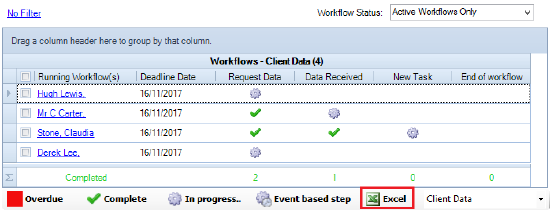
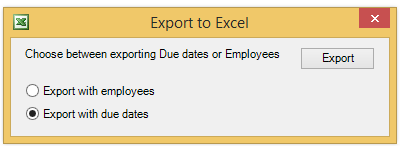
When Excel option is clicked, you are prompted to select whether you want to export the details from the grid showing the Due Dates or Employee names.
In the example below, the details from the grid has been exported to Excel with the Due Dates option set.
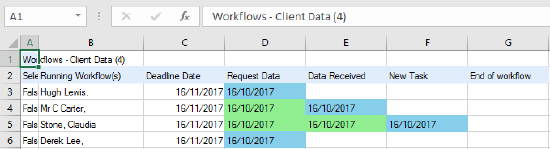
Note: No changes have been made to the existing Export to Excel right click option.
Workflow Report Charts
The Workflow Report Charts is available within the Workflow Homepage controls, allowing you to view a statistical graphic divided into sectors that illustrates the milestones that are in progress for a specific workflow.
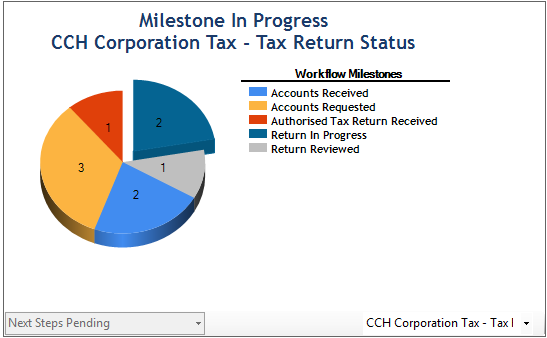
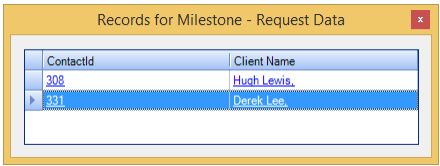
If an area is selected, the Records for Milestone dialog will pop up displaying the clients that have the milestones in progress.
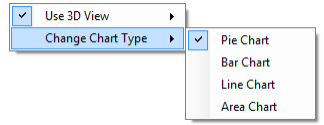
You can customise the chart by using the right click options of the Workflow Report Charts control:
CCH Reporting
The following fields are available for use within CCH Reporting. You are able to create reports that use data from all fields in Central and the plug in modules that the practice is licensed for. See CCH Reporting for further information on how to create reports.
|
Group Description |
Sub Category |
Role |
| Reporting | ClientId | The clients id used within the database |
| Comment | Displays the comments entered on steps | |
| Completion Date | The date the workflow was completed | |
| Due Date | The date the workflow is due | |
| Is Milestone | Displays if the step was set as a milestone | |
| Step Name | Displays the step name | |
| Step Status | Displays step status, In Progress, Not Started, Completed | |
| Step Type | Displays the step type; i.e Central Task | |
| Workflow Name | Displays the workflow used | |
| Workflow Status | Displays workflow status, Active, Cancelled, Completed and Terminated | |
| Workflow Subject | Displays subject, i.e Client/Contact, Document Management, Accounts Production etc |
Each field is covered by an individual task permission. See Workflow Task Permissions for further information on how to provide access to these fields.
CCH Reporter (Smart Reports)
It is possible to create reports within Smart Reports to provide information on how the workflows are progressing. Two Reporting areas have been created within Workflow:
- Tax Return Next and Last Steps
- Tax Return Steps
Within Tax Return Next and Last Steps two layouts have been automatically created:
- Last Step Completed
- Next Step Due
The following fields are available within both layouts.
Smart Report Standard Fields - Client Code, Client Company, Client Dept, Client Name, Client Office, Client Partner, Completed Date, Emp Centre, Emp Company, Emp Dept, Emp Name, Emp Office, Task, Workflow Status, Workflow Step, Workflow Template, Year.
In addition to the above Standard Fields, all Extra Fields, Addresses and Team Responsibilities are available for use within the report.
Useful Information! If Tax Return Next and Last Steps or Tax Return Steps are not displayed under Workflow for selected employees, ensure that their security group has the permission to view the two layouts.