
How To
Setting up new clients
CCH Trust Accounts
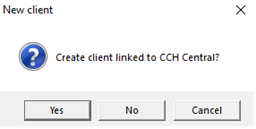
From the Client list in Trust Accounts, click the New button, select Yes on the New client message.
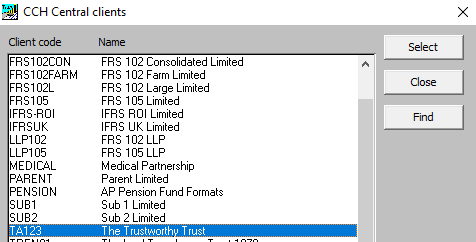
The dialogue box CCH Central clients is now displayed, click onto the relevant client, click the Select button.
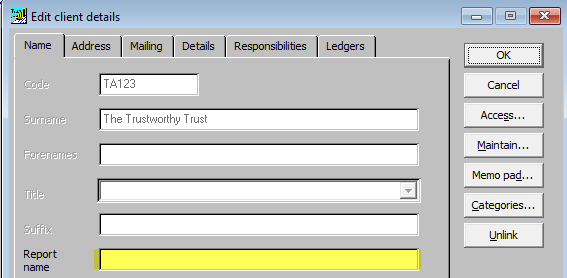
The dialogue box Edit client details will then open, if required enter the Report name, click OK. The tabs on this dialogue box are not relevant for most jobs as they have been superseded by Central.
To access the client, double click on the client name from the Client list (or single click, click on the Goto button on the right). The first time the client record is entered the Nominal Client Details dialogue box will open.
Related documents
Linking to clients in CCH Central
This document provides instructions on how to link and unlink clients from CCH Central in the CCH Trust Accounts system. To link a client, the user must select the client, click "Edit," then "Link," and choose the appropriate client from Central. Once linked, certain fields become non-editable in Trust Accounts. To unlink a client, the user clicks the "Unlink" button, which restores editability but deletes any accounting periods in Central. Key fields updated from Central include client name, address, and contact details.
Database Parameters
Various features in Trust Accounts are optional. To set up many of these, from the Activities menu select System Management, and then Database Parameters.
Data Parameters
Various features in Trust Accounts are optional. To set up many of these, from the Activities menu select System Management, and then Database Parameters.
Database Parameters
Database Parameters
Passwords
Passwords