
Setting up the client's investment portfolio
Introduction
Before postings can be made the client’s investment ledger must first contain the securities belonging to them. They can be added at the same time as posting to the Investment ledger, but the posting process is quicker if they have already been selected and the portfolio created.
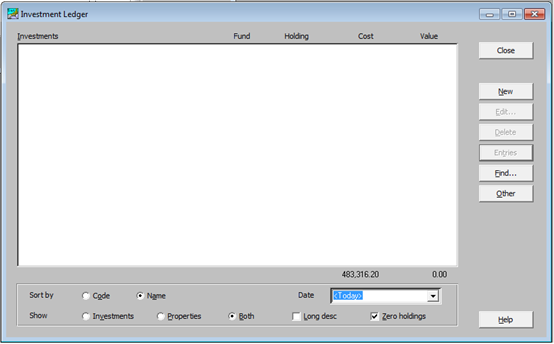
Click on Investment Accounts. The following window appears.
|
New |
Allows a new investment or property to be added to your client. |
|
Edit… |
Allows details relating to the investment to be edited. |
|
Delete |
Allows the investment to be deleted. An investment with transactions cannot be deleted. |
|
Entries |
Allows you to view all the transactions relating to the currently selected investment. |
|
Find… |
Allows you to search for an investment. |
|
Other - Grid Edit - Copy from Other Client - Override security prices |
Allows details held in the main security database to be amended within one window. Allows investments to be copied from another client. Allows client level security prices to be entered. See more detail here. |

When adding new investments or properties the following menu will only appear if the show radio button is set to Both (see above).
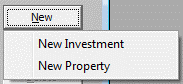
If the radio button is set to Investments or Properties the Add/Edit Investments or Add/Edit Properties screens will be displayed directly as appropriate when the New button is clicked.
Adding a new Investment
By selecting New Investment when Show Both is selectedor clicking on the New button with Show Investments selected, the Add/Edit investments window will appear
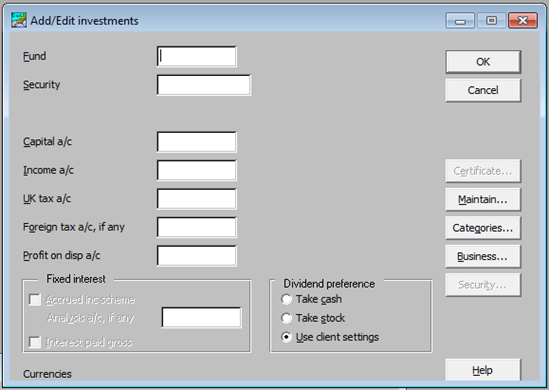
To aid data entry the F2 key on your keyboard may be used to enable further selection to be made.
|
Fund |
Shows which Fund the investment is to be added to. If a client has multiple funds, the F2 to select the relevant fund. |
|
Security |
The ISIN code for the security is entered here. F2 to access the Securities database. |
|
Broker |
The broker responsible for this holding may be selected here if set up within Standard Descriptions in Activities > Common/Shared data. |
|
Capital a/c |
Enter the nominal account for the book cost of the holding. F2 to select from the Client Chart. |
|
Income a/c |
Enter the nominal account for income. F2 to select from the Client Chart. |
|
UK tax a/c |
Enter the nominal account for tax credits. F2 to select from the Client Chart. |
|
Foreign tax a/c, if any |
Enter the nominal account for foreign tax credits. F2 to select from the Client Chart. |
|
Profit on disp a/c |
To enter the nominal account for profit or loss on disposal. The F2 to select from the Client Chart. |
The following additional buttons and checkboxes are also available if required.
|
Fixed Interest |
|
|
Accrued Income Scheme |
If ticked for a Fixed Interest stock, Trust Accounts prompts you for the amount of interest included in the sale price. |
|
Analysis a/c, if any |
If the accrued income needs to be analysed in the accounts, a separate nominal account may be entered here. |
| Interest paid gross | This option should be ticked if the Fixed Interest stock receives gross interest. |
|
Dividend preference |
Take cash Take stock Use client settings (this is the default) |
|
Certificate |
If the Certificate Ledger is to be used, then the required details can be entered here. |
|
Maintain… |
Extra user defined details relating to the investment can be entered here. |
|
Categories… |
The investment can be categorised using this option. |
|
Business… |
If the investment is a business asset, then details can be entered here. |