The only type of journal that can be synchronised back to the bookkeeping products are Adjusting journals within the Advisor journals.

Reclassification is used to reclassify nominal ledger postings for the year-end accounts within CCH Accounts Production.  Potential Journals are used for “what if” scenarios. You can create a potential journal save and review the Potential Report to see the effect this adjustment would have on profits.
 clipboard_efae1f5dc6db1a36db4100c113db319ed.png

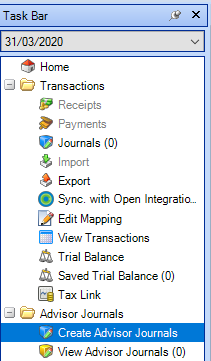
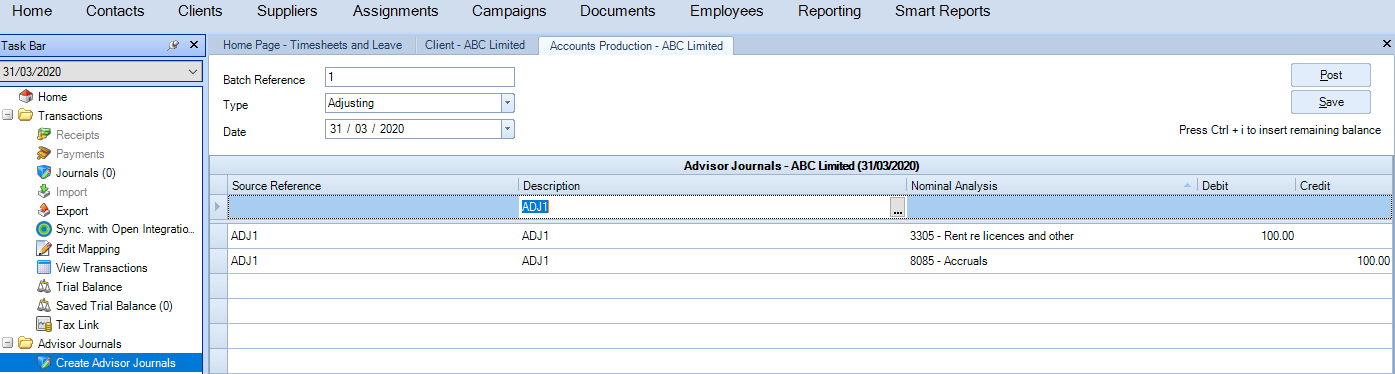
  1. To post an adjustment back to the bookkeeping products, click on Advisor Journals and select type Adjusting
clipboard_e5f12821ac83d9c7521659578eebcffc2.png

The Advisor journals can be posted at the time of creating them or saved and can be posted at a later date.

2. Click on Post  

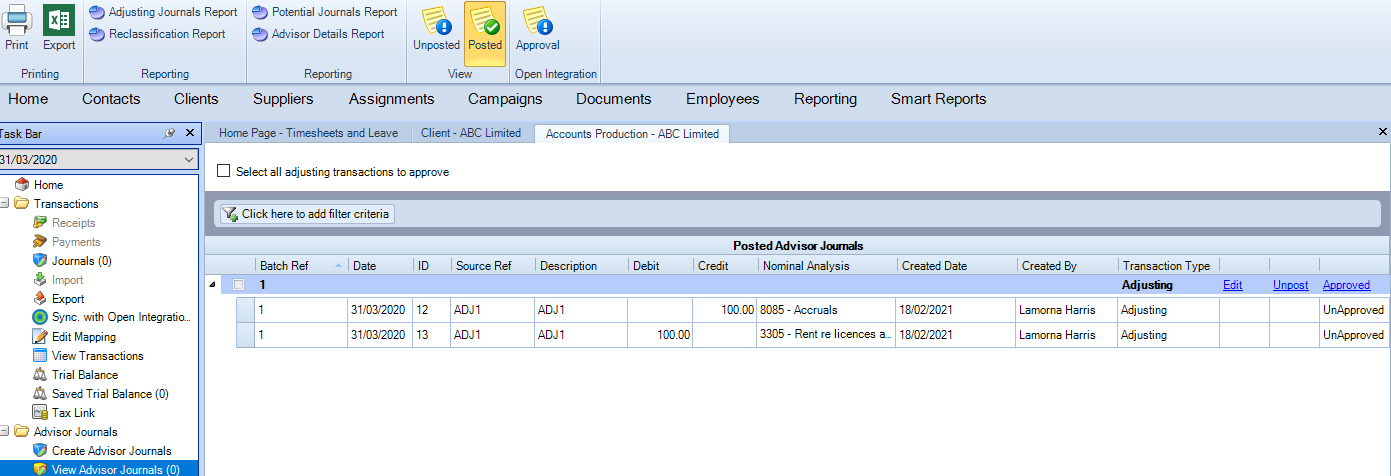
If you want to unpost the journal, this can be done by selecting the Unpost as shown in the screenshot below
clipboard_e22c42fd12454fb080adc52e830729a7d.png

Adjusting journals need to be approved before they can be synchronised back to the bookkeeping product.

4. Post all required adjusting journals

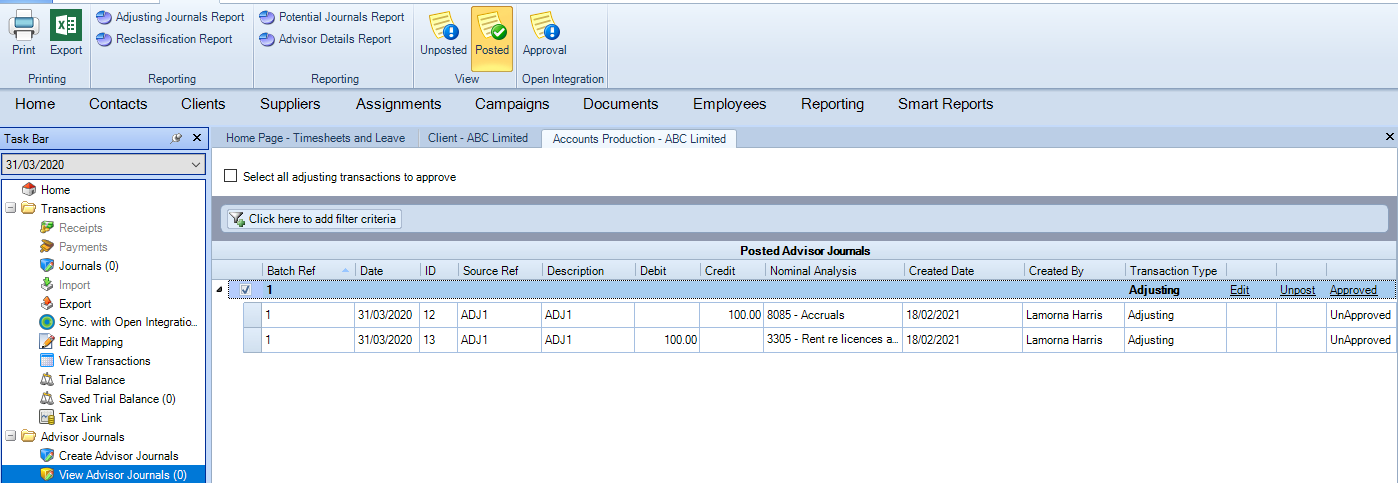
5. Select the journals to be approved
clipboard_ec13a7a39844124a0fb88bf027c1e7636.png

6. Click on Approved

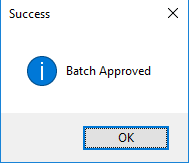
The following message is displayed 
clipboard_e0fe877c5fda54d4c2e850ccbfb38316b.png

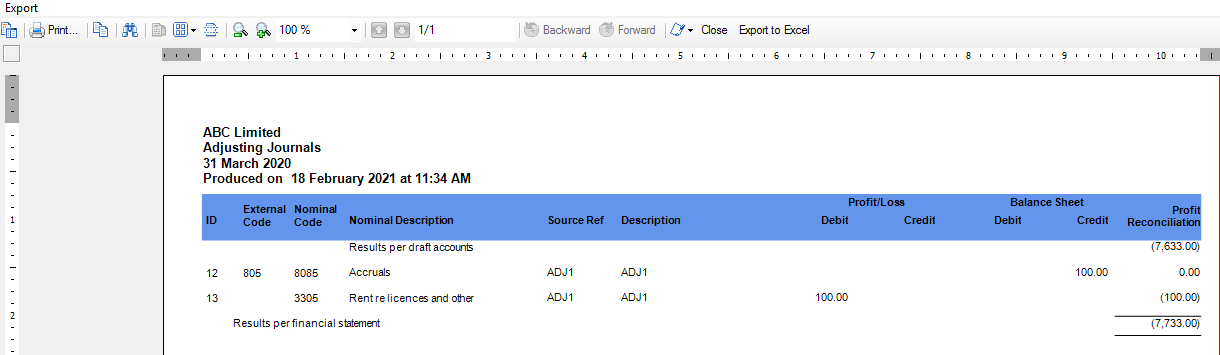
7.  within the ribbon bar select Adjusting Journals Report to view the detail 

8. Select yes or no to display the external code.  I.e. the Xero nominal codes
clipboard_e21f399ca92ee7cabd010ed2ddb93f618.png

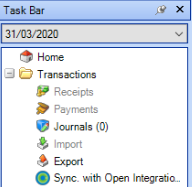
9. Click on Sync with Open Integration
clipboard_ef91192324ab1e242dc4828e24308e617.png

10. Click on synchronise

clipboard_eed635673b3899a95727d091d02758ef1.png

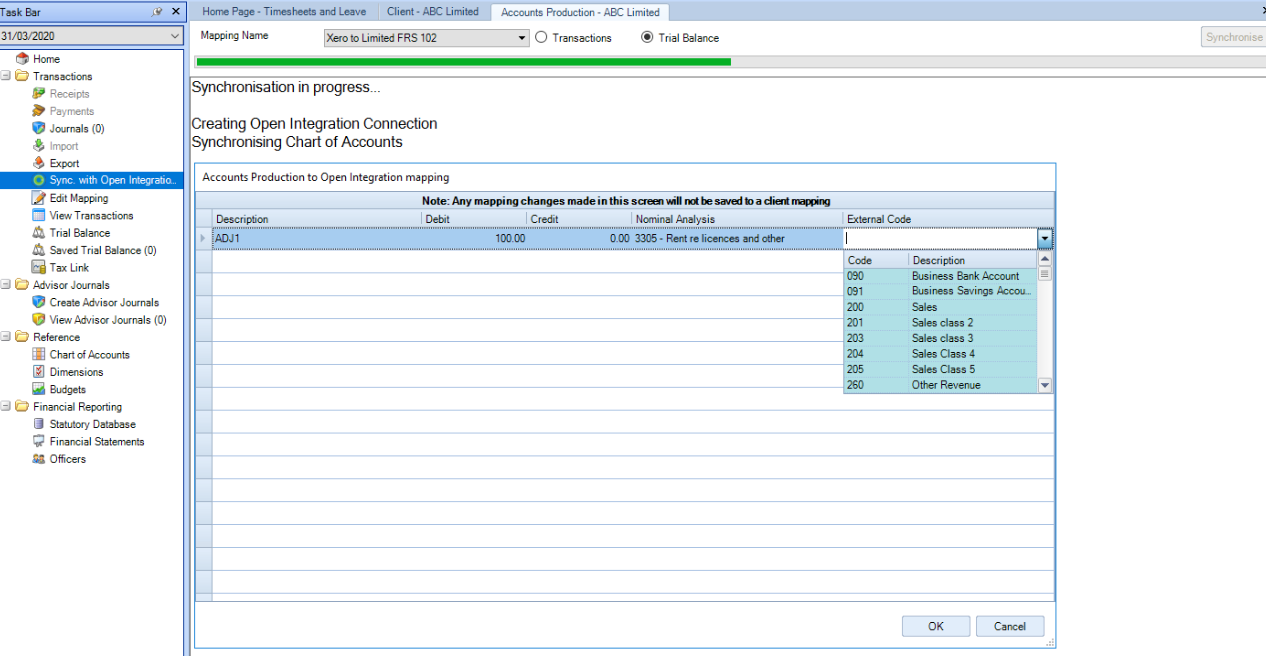
11. If prompted, select the relevant nominal code/codes to be mapped
clipboard_e17e7e359902c56cd9aabdad949e3a88d.png

12. Click OK

Please note: if the nominal code does not exist within the list of available codes, create the code in the bookkeeping product first.

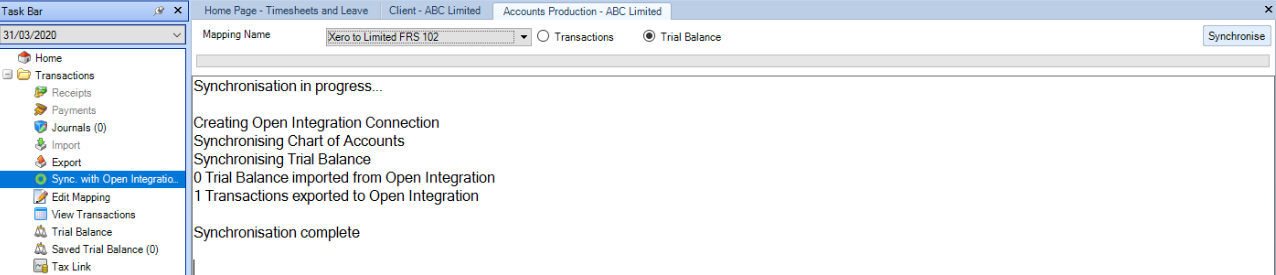
The following screen is displayed: 
clipboard_ef2e73c5be31d6200860d10f2e2048f95.png

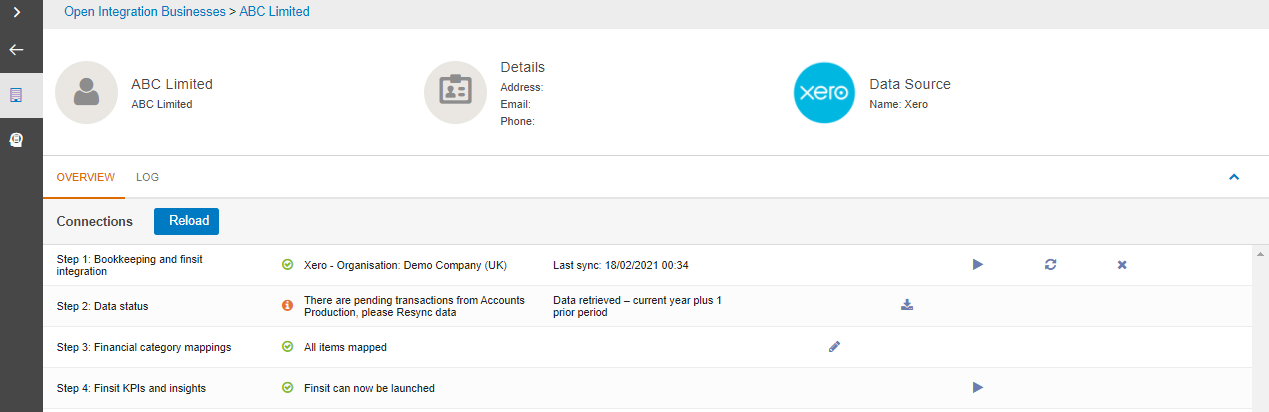
12. Within Open Integration, once you have accessed the business the following screen is displayed with a warning that there are pending transactions from Accounts Production, please Resync data
clipboard_e87361ce859ba827f76dd72e71878fcdd.png

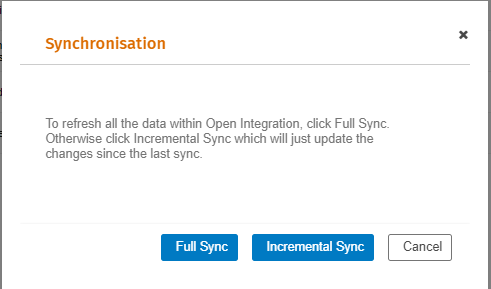
13. Click on the refresh icon to Re synchronise the transactions, this will also update the bookkeeping product with the CCH Accounts Production adjustments clipboard_e1dd9a4a977e5967a44e68661c8f4a248.png

clipboard_ebe3cd3e78111de7c974eb9bdd440c01d.png

14. Click on Incremental Sync 

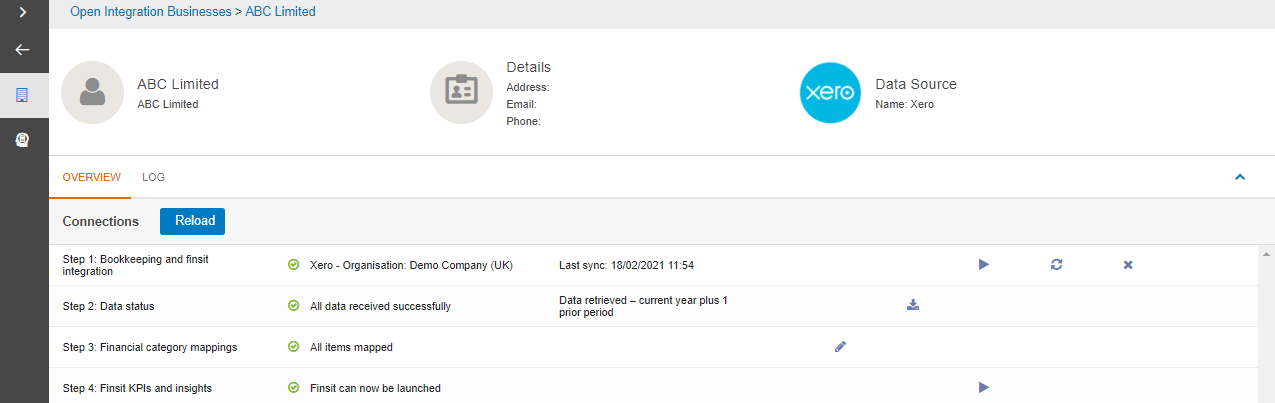
15. Click on the Reload button to refresh the screen
clipboard_e2d61fa412eefd5e8b6314965676f772c.png

Related documents

Step by Step Guide to Making Tax Digital (MTD) : HMRC sign up
This user guide assists users in navigating the sign-up process for Making Tax Digital (MTD) for VAT, clarifying that while Wolters Kluwer does not facilitate the sign-up, it has provided this resource to ease the process. Key points include creating an Agent Services Account for agents, the significance of the Business Tax Account, the steps to link existing and new clients, and the requirement for MTD-compatible software for submissions. It also highlights deadlines and contact information for HMRC support. Additionally, it refers users to helpful webinars and resources related to MTD.
eSign User Guide
This document outlines the operational guidelines for using the eSign functionality within CCH Central, emphasizing the need for Microsoft Edge WebView2 Runtime installation. It details the eSign and Approval processes for sending documents, including directions for document preparation and the management of multiple signatories. Key features include newly added email templates, internal signature capabilities, and updated status tracking in both Message Centre and Document Centre. Users can utilize various acrofields for signatures and customize their signing experience. Enhanced communication is facilitated through automated notifications and document management functionalities.
CCH OneClick 2026.1: Release Notes
Release Notes for CCH OneClick 2026.1
Get Started with Making Tax Digital for VAT
This document outlines the essential resources and steps required for getting started with Making Tax Digital (MTD) for VAT. Key points include the necessity to register with HMRC, create an agent services account, and authorize Wolters Kluwer Software. It emphasizes the importance of having a CCH OneClick account to access MTD features. The document also provides quick start guides, video tutorials, and client resources to facilitate a smooth transition to digital VAT returns. Additionally, there are links to guides for both clients and advisors to enhance understanding and implementation of MTD processes.
Activating individual clients
This document provides a comprehensive guide on activating individual clients for the CCH OneClick client workspace. It outlines necessary pre-checks, including verifying unique client email addresses and team responsibilities. The activation process can be done for single or multiple clients, with detailed steps for each. Additionally, there are options for enabling various features within OneClick for clients, including sending welcome messages and monitoring activation status. The document also highlights optional features available for clients after activation, ensuring effective client management within the OneClick system.