
Tax System Parameters and Client Tax Links
Tax System Parameters
Link Products
-
From the menu select Maintenance > Tax Settings > Personal Tax > Tax System Parameters.
-
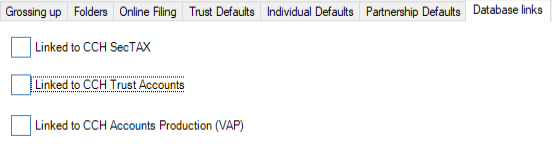
Click the Database Links tab.
-
To link to CCH SecTAX, Trust Accounts, or Accounts Production (VAP), click the relevant check boxes.
Then use the related named buttons for the Linked database window to appear.
-
In the Linked Database window do one of the following:
- In Path enter the location of the database manually.
- Click the
button to navigate to the database path. The browse folder window appears (with the appropriate database type name).
- Navigate to the folder that contains the database or executable file and then click OK.
Note: When you link to CCH Accounts Production (VAP) on the Linked database dialog, you will also need to specify the location of VPerTAX connectivity utility as well as the statutory database.
- To enable the automatic update of Business Tax data from CCH Accounts Production, tick the check box
.
-
To link CCH PerTAX (Wingen) or CCH Gains (legacy) do one of the following:
- Enter the location of the database under
- Click the
- Navigate to the folder containing the database and then click OK.

-
To change the default links for CCH CGT and Dividend Scheduling click the relevant check boxes:
- Linked transactions: Income only, CGT only, both Income and CGT
- Import UK Totals
- Exclude foreign income
- Exclude foreign disposals
Client Tax Links
Each client’s links to other CCH product data is controlled in the Tax Links tab from the Client .
Before setting a client’s link options, please ensure that the system default settings are applied in Tax System Parameters.
Investment Client Link
- Bring up the client's details, select the Tax Links tab.
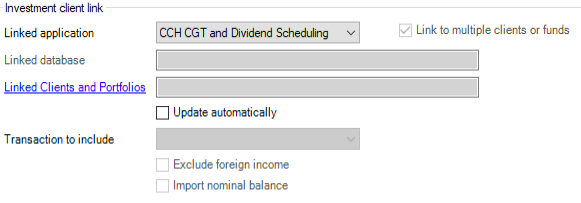
- Select the product that you want to link to from the Link applicationdrop-down. If the database is found then Default database appears in the Linked Database field.
- Click Linked Client Code. The Select Client window appears, listing the clients found within the database.
- Select the client that you want to establish the link with and then click OK.
- To automatically update linked data on opening the Tax return, tick Update automatically.
- Select the Transaction to include:
- income and CGT transactions
- Income transactions only
- CGT transactions only - Tick the required boxes to Exclude foreign income, and Import nominal balance.
Automatic Links
On opening the Tax Return, CCH Personal Tax detects if new linked data is available, or if the data has changed.
Active links
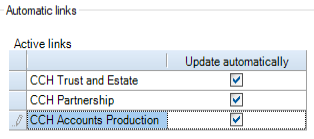
If the Update automatically option is selected all data is automatically updated, otherwise a message is displayed advising the data is not up to date. Selecting this message updates the CCH Personal Tax data.
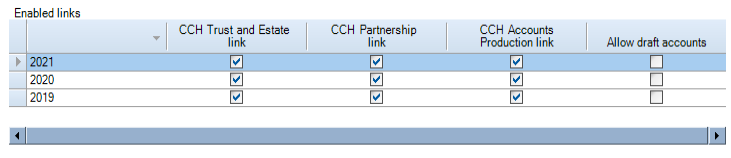
Enabled links
The link between CCH Personal Tax and other CCH Central suite products is enabled automatically upon creation of the return. It may be disabled separately for each tax year if required. When the link is removed, no messages are displayed or data updated on opening that year’s Tax return, regardless of the Update automatically setting.
Task Permissions
Access to the Tax Links Tax Links tab is controlled by the #Client #Tax Links task permission.
Additional control is available with the following permissions:
- #Client #Tax Links #CCH Accounts Production link #Can Modify
- #Client #Tax Links #CCH Partnership link #Can Modify
- #Client #Tax Links #CCH Trust and Estate link #Can Modify
The following Accounts Production permissions must be enabled when using draft accounts:
- #Client # Tax Link Amend Draft