
How To
The Drafts homepage
CCH Trust Accounts
Another way of approving draft contacts is to use the Drafts homepage. To add it:
- Go to the Homepage.
- In the Views section, select an unused view (or you can add the Drafts homepage to an existing view with some free space on it).
- Select Customise homepage. A Toolbox appears.
- In the Central section there is a homepage called Drafts.
- Drag it on to the empty homepage and resize it.
- Close the Toolbox.
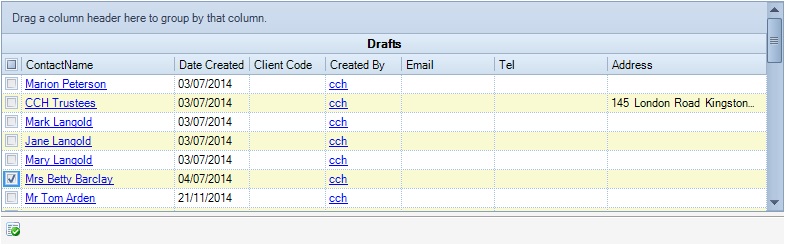
The Drafts homepage lists all the draft contacts you are able to approve. You can also see all the draft contacts in the practice by right-clicking the Drafts homepage and selecting Practice. The advantage of the Drafts homepage is that it lists all draft contacts in one place instead of having to search for them using Find Contacts to approve them.
To approve one or more draft contacts, tick them and then click the tiny green tick icon in the bottom left of the homepage.
More details about draft contacts can be found in the Central 2013.4 Release Notes.
Related
Related documents
Linking to clients in CCH Central
This document provides instructions on how to link and unlink clients from CCH Central in the CCH Trust Accounts system. To link a client, the user must select the client, click "Edit," then "Link," and choose the appropriate client from Central. Once linked, certain fields become non-editable in Trust Accounts. To unlink a client, the user clicks the "Unlink" button, which restores editability but deletes any accounting periods in Central. Key fields updated from Central include client name, address, and contact details.
Database Parameters
Various features in Trust Accounts are optional. To set up many of these, from the Activities menu select System Management, and then Database Parameters.
Data Parameters
Various features in Trust Accounts are optional. To set up many of these, from the Activities menu select System Management, and then Database Parameters.
Database Parameters
Database Parameters
Passwords
Passwords