Uploading Documents

Tick the documents you wish to upload, click Add in the Documents group in the ribbon.

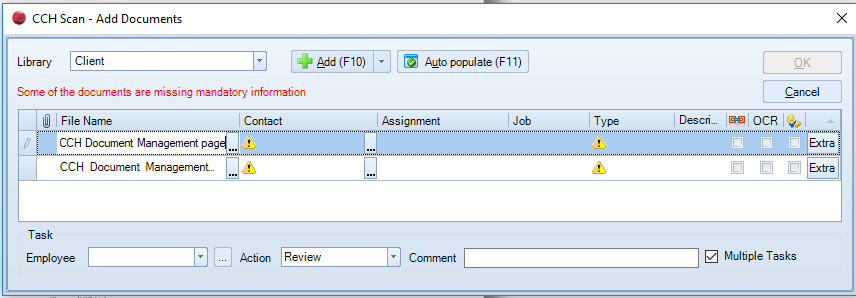
When filing to the Client library the following basic document profiling information is required, other fields may be populated according to your own company policies.

The following fields are mandatory:

  • Filename - this can be amended if this was not changed in the preview screen.
  • Contact - client or contact(s)
  • Type - document type

clipboard_eb1e58cb99339bbdcdfe05e52af26ddc4.png

  1. Click in the Contact field and enter the name/code of the client/contact that you want to upload the document to and then press Enter or Tab on the keyboard. If a client matching your criteria is found then it appears in the contact field, otherwise the Find Contacts dialog appears for you to search for the client/contact. Alternatively if the required client/contact is one of the last 5 used then use the dropdown arrow and select.

    Note: when selecting other Libraries, the profiling options in the add document form will change to reflect the library chosen.

 2. Complete the following: 

  • Assignment  - optional depending on your own company policy
  • Job - optional depending on your own company policy
  • Document Type (mandatory) and the options available will reflect the assignment selected.
  • Description - optional depending on your own company policy
  1. Repeat action for each document row or use Auto populate

  2. If required complete the task section to allocate the document(s) to a staff member in their Document Inbox.

    Note: the Task option may be overridden by an automated workflow reflecting your companies document policies.

  3. Click the 'OK' button

All documents selected for upload disappear from the Scan screen once the upload is complete. 

Related documents

CCH Scan 2025.3 Service Pack: Release Notes
The CCH Scan 2025.3 Service Pack Release Notes outline the installation process using the Central Suite Installer, ensuring all prerequisites are met and products are installed correctly. It highlights a quality improvement regarding the Scan Profiler homepage, specifically noting an issue where users cannot preview the last document. The document also includes legal disclaimers regarding accuracy and proprietary information, emphasizing that it is confidential and not to be distributed without consent.
CCH Scan 2026.3: Release Notes
1. Scan Profiler Considerations
The document outlines the functionality of the Scan Profiler, a tool integrated with CCH Document Management, enabling users to route scanned documents from a Multifunction Device (MFD) to their CCH inbox. It describes the process of scanning documents to a designated network folder that is monitored by a service routing the PDFs to the CCH pending library. Requirements include proper MFD configuration, staff homepage access, and installation of the Scan Profiler Service. Additionally, it highlights the importance of aligning with company document policies regarding profiling and retention.
Set up and Profile documents from the Scan Profiler homepage
This document provides a detailed guide on setting up and profiling documents using the Scan Profiler Homepage. It includes steps for creating the homepage layout by selecting views, customizing the Toolbox, and adding document-related tasks. Essential components for profiling documents are outlined, such as entering mandatory fields like description and document type. Furthermore, it describes how to profile documents both from the Scan Profiler and the Document Inbox, along with necessary actions to complete the profiling process. The document emphasizes the requirement for certain fields and actions to facilitate efficient document management.
Installing and Configuring the Scan Profiler Service
This document outlines the configuration and installation process for the CCH Scan Profiler Service. Key considerations include configuring backup options, addressing potential issues with domain names and file length, and setting default folder locations. Installation steps involve using the Central Suite Installer and adjusting service properties to log on as a local system account. Configuration adjustments include specifying SQL server details, import folder location, default employee settings, and polling intervals. It emphasizes the importance of saving changes and restarting the service post-configuration.