To complete the Request for Payment billing process, once payment has been made by the client, there is the ability to produce a VAT Invoice from within the software.

VAT Invoices to Print 

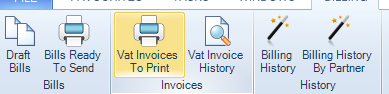
Once a receipt has been allocated against a RFP type bill, there is a requirement to produce a VAT Invoice. To produce this document you will need to:

  1. Receipt, allocate and post the payment against the RFP
  2. Select the Billing tab

clipboard_e00275d1f2a6d4576b895073713d5fa96.png

  1. Select VAT Invoices to Print

clipboard_eff7b131d8efa76b7e6743294f7299bd8.png

  1. You will be taken to a screen showing any VAT Invoices previously produced but not yet marked as Printed
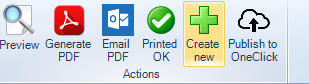
  2. Select Create New

clipboard_e7e1de56d9b06f1c332e29ebdd3fedaed.png

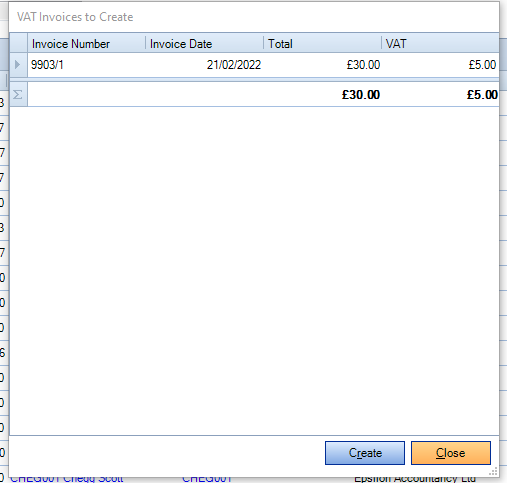
  1. A window will appear listing all the VAT Invoices awaiting creation. Select Create (please note, it is not possible to select individual VAT Invoices to create)
clipboard_e2d98a362f023e53eb23665cf9ddb6d11.png

  1. Once a VAT invoice has been generated, users can choose to either generate a PDF, ‘generate and email’ the PDF, or publish to OneClick. Once sent, the VAT Invoices can be marked as Printed OK to clear from the list.

A VAT Invoice History screen is available in which users can view, generate a PDF, ‘generate and email’ the PDF, or publish to OneClick historic VAT Invoices

VAT Invoice address

By default, the address used on a VAT Invoice is the address that was used when generating the original RFP. This can, however, cause issues where the client had changed address between the date of the original RFP and the creation of the VAT Invoice.

A configuration key can be entered which, when set, uses the following rules to determine which address to use when generating the VAT Invoice:

  • If there is a default Billing address on the client then this will be used
  • If no Billing address exists on the client, then Primary address is used
  • If neither Billing nor Primary addresses exist, then the address from the original RFP is used.

This only applies to VAT Invoices raised on or after setting the configuration key, it will not change historically generated VAT Invoices.

 Configuration key

The following configuration key needs to be entered in File > Maintenance > User Defined > Configuration

Key Name Key Value Comments
PMVATAddress 0 When creating a VAT Invoice, the address used is the same as the address as the RFP Request
PMVATAddress 1 When creating a VAT Invoice, where a Billing address is present, this is the address used, or if not present, then the Primary address is used.

The Key value being set to 0 or not present, results in no change to current behaviour.

Related documents

CCH Practice Management 2026.2: Release Notes
Release Notes for CCH Practice Management 2026.2
CCH Practice Management 2026.3: Release Notes
Release Notes for CCH Practice Management 2026.3
CCH Practice Management: enhanced - billing training online (10133815)
This document outlines a 3-hour training course on CCH Practice Management, focusing on the chargeable work process for clients. Participants will learn how to authorize timesheets, expenses, and disbursements, access prebilling reports, and utilize basic billing functionalities. The course is aimed at users involved in the billing process and requires prior completion of CCH Central and CCH Practice Management essentials courses. It will be delivered via an interactive environment called CloudShare. Additional resources such as eLearning courses, videos, and webinars are provided for further learning.
CCH Practice Management: essentials training online (10133814)
This course is designed for staff involved in completing Timesheets, Expenses, and Disbursements within the CCH Practice Management system. It covers the creation and submission processes, as well as utilizing CCH homepages for efficiency. Prerequisites include completed CCH implementations and internal agreement. The training lasts for two hours and is conducted via the interactive CloudShare platform. Topics include job structure, month-end processes, and practical hands-on exercises. Resources such as eLearning, videos, and webinars are also available to enhance learning.
Software and database installation (10091331)
This document outlines the installation process for software and a pre-configured database following an order confirmation. It emphasizes the importance of ensuring that the IT environment meets necessary hardware and software specifications, as well as the role of a Consultant in reviewing infrastructure and advising on deployment options. Key areas covered include SQL revisions, resource allocation for installations, workstation deployment methods, and scheduling installation access rights. Users are encouraged to review a hardware system requirements guide prior to installation discussions.