When a bill is created for a client it is held as a draft bill until it is posted.

Way you can view a draft bill

Draft bills can be viewed from three places:

  • the Draft Bills page which lists all current draft bills for the practice

  • the Client record > Bills tab which lists all the draft bills for the selected client, whether raised at the client level or assignment level

  • the Assignment page > Bills tab, which lists all the draft bills raised for the selected assignment.

From all of these places, when you view a list of draft bills you can also see the date the bill was created, and the entry and authorisation status. The Draft Bills page also tells you the name of the employee who created the bill, and any write off amount and the invoice total.

Note: if you are responsible for authorising bills and are set to have either the Partner or Practice view of the main Home Page, you can choose to display the Bills Approval window. This will list any bills that are ready for your authorisation and will also show you the current status of each bill. From here you can click an item to jump to the relevant client or employee Home Page. You can also authorise the items directly from here using the buttons at the bottom of the window.

View a draft bill for the practice

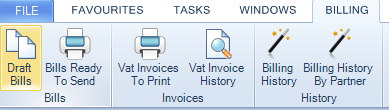
In the main menu,  select Billing tab from the top of the screen and then Draft Bills.
clipboard_ee8bccfa0998eec223664fd90df37c9d0.png

  1. In the Draft Bills window, click:

  • a Draft Bill number to open the Billing Main window for the draft bill
  • an employee name to open the selected employee's Home Page
  • a client name to open the selected client's Bills tab.

View draft bills for a specific client

  1. Open the Client or Assignment window for the client or assignment for whom the draft bill was created and then click the Bills tab.
    All the current draft bills for the client or assignment are listed in the Draft Bills area.

Note: if you want to view a draft bill created at the client level you will need to open the Client page. If you want to view a draft bill created at the assignment level, you can do this through the Client page or Assignment page.

  1. Double–click the draft bill you want to view.
    ​The Billing Main page opens showing the details of the selected bill. From here you can continue with the billing process or submit, authorise and post the bill (depending on your security settings).

Related documents

CCH Practice Management 2026.2: Release Notes
Release Notes for CCH Practice Management 2026.2
CCH Practice Management 2026.3: Release Notes
Release Notes for CCH Practice Management 2026.3
CCH Practice Management: enhanced - billing training online (10133815)
This document outlines a 3-hour training course on CCH Practice Management, focusing on the chargeable work process for clients. Participants will learn how to authorize timesheets, expenses, and disbursements, access prebilling reports, and utilize basic billing functionalities. The course is aimed at users involved in the billing process and requires prior completion of CCH Central and CCH Practice Management essentials courses. It will be delivered via an interactive environment called CloudShare. Additional resources such as eLearning courses, videos, and webinars are provided for further learning.
CCH Practice Management: essentials training online (10133814)
This course is designed for staff involved in completing Timesheets, Expenses, and Disbursements within the CCH Practice Management system. It covers the creation and submission processes, as well as utilizing CCH homepages for efficiency. Prerequisites include completed CCH implementations and internal agreement. The training lasts for two hours and is conducted via the interactive CloudShare platform. Topics include job structure, month-end processes, and practical hands-on exercises. Resources such as eLearning, videos, and webinars are also available to enhance learning.
Software and database installation (10091331)
This document outlines the installation process for software and a pre-configured database following an order confirmation. It emphasizes the importance of ensuring that the IT environment meets necessary hardware and software specifications, as well as the role of a Consultant in reviewing infrastructure and advising on deployment options. Key areas covered include SQL revisions, resource allocation for installations, workstation deployment methods, and scheduling installation access rights. Users are encouraged to review a hardware system requirements guide prior to installation discussions.