
Viewing the practice's full billing history
The Billing History window
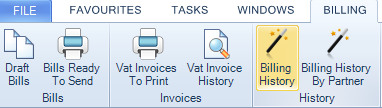
The Billing History page is accessed by selecting the Billing tab at the top of the screen and then Billing history from the Ribbon.
Using the Billing History window, you can:
-
report on the selected invoice using the Report option on the Task Bar
-
preview an invoice using the Preview option on the Task Bar
-
sort by columns
-
analyse the report with Microsoft Excel
-
output the report to another file format.
The Billing History window contains a Preview option on the Task Bar that you can click to view the bill using Microsoft Word. From within Microsoft Word, you can select the menu command File > Print or click the Print button on the toolbar. Printed invoices can be viewed and reprinted from the Bills tab of the relevant Client or Assignment page in the Full Billing History area if required. If you click a blue client name in the list the Bills tab for that client will be displayed. You can refresh the list by clicking the Refresh option on the Task Bar.
Group Invoices
You can also change how the invoices are listed in the page by dragging one or more of the available column headings into the grey Group area on the page. This will group the items in the list by the heading(s) you have selected. For example, you may want to view the invoices by partner or date posted rather than by billed amount. Use the mouse to drag the required group heading to the Group area on the page and the invoices will be reset to reflect your chosen option. You can add another group heading either before or after those already selected to further group the items. To view all items just remove all the grouping options from the Group area.
The following fields are available within the field chooser:
- Published By
- Published Date
- Emailed By
- Emailed Date
These fields are updated once the logged in user Publishes to CCH OneClick or emails the bill, so the practice can see within the history who Published or emailed the client bill.
Bills can be Published or Emailed from the following locations within CCH Central:
- Bills Ready to Send
- Client > Bills Tab
- Billing History
- Billing History by Partner
- Client > Document Centre
- Automated step within Workflow
Names and dates are updated within the fields, even if the physical Email or CCH Oneclick document failed to send which is ‘Outside of CCH Central’.
You can also click the column headings to sort by that row.