
How To
Standard descriptions
CCH Trust Accounts
Standard descriptions form the basis of many of the drop-down lists in Trust Accounts. The Standard Descriptions window appears.
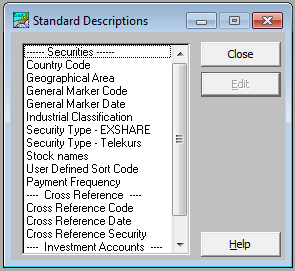
- Select the table to be amended from the list.
The lists fall into two categories, lists with just a narrative and lists requiring background information. The narrative lists are similar to that shown below.
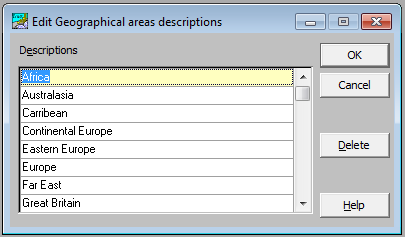
The lists are sorted into alphabetical order.
- To add a new item to the list, use the scroll bar to find the blank line, click on the line and type the entry.
- When all entries have been entered, click OK. The list closes and is sorted in alphabetical order.
The lists requiring additional background information are similar to that shown below.
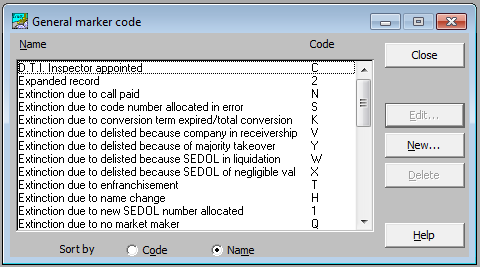
These lists can be sorted either by Code or by Name using the radio buttons at the bottom of the window.
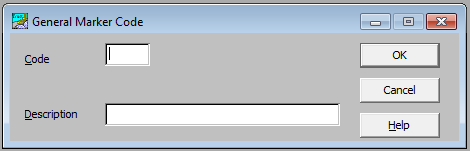
· To add a new entry, click New and enter a code and a description.
Related documents
Linking to clients in CCH Central
This document provides instructions on how to link and unlink clients from CCH Central in the CCH Trust Accounts system. To link a client, the user must select the client, click "Edit," then "Link," and choose the appropriate client from Central. Once linked, certain fields become non-editable in Trust Accounts. To unlink a client, the user clicks the "Unlink" button, which restores editability but deletes any accounting periods in Central. Key fields updated from Central include client name, address, and contact details.
Database Parameters
Various features in Trust Accounts are optional. To set up many of these, from the Activities menu select System Management, and then Database Parameters.
Data Parameters
Various features in Trust Accounts are optional. To set up many of these, from the Activities menu select System Management, and then Database Parameters.
Database Parameters
Database Parameters
Passwords
Passwords